The module works with its default settings. To change them, go to Admin > Modules and click Configure next to MCP Server. Global Administrators can also open them from Settings under MCP connections in the admin menu, or with the Settings button at the top of the MCP connections page.
Settings
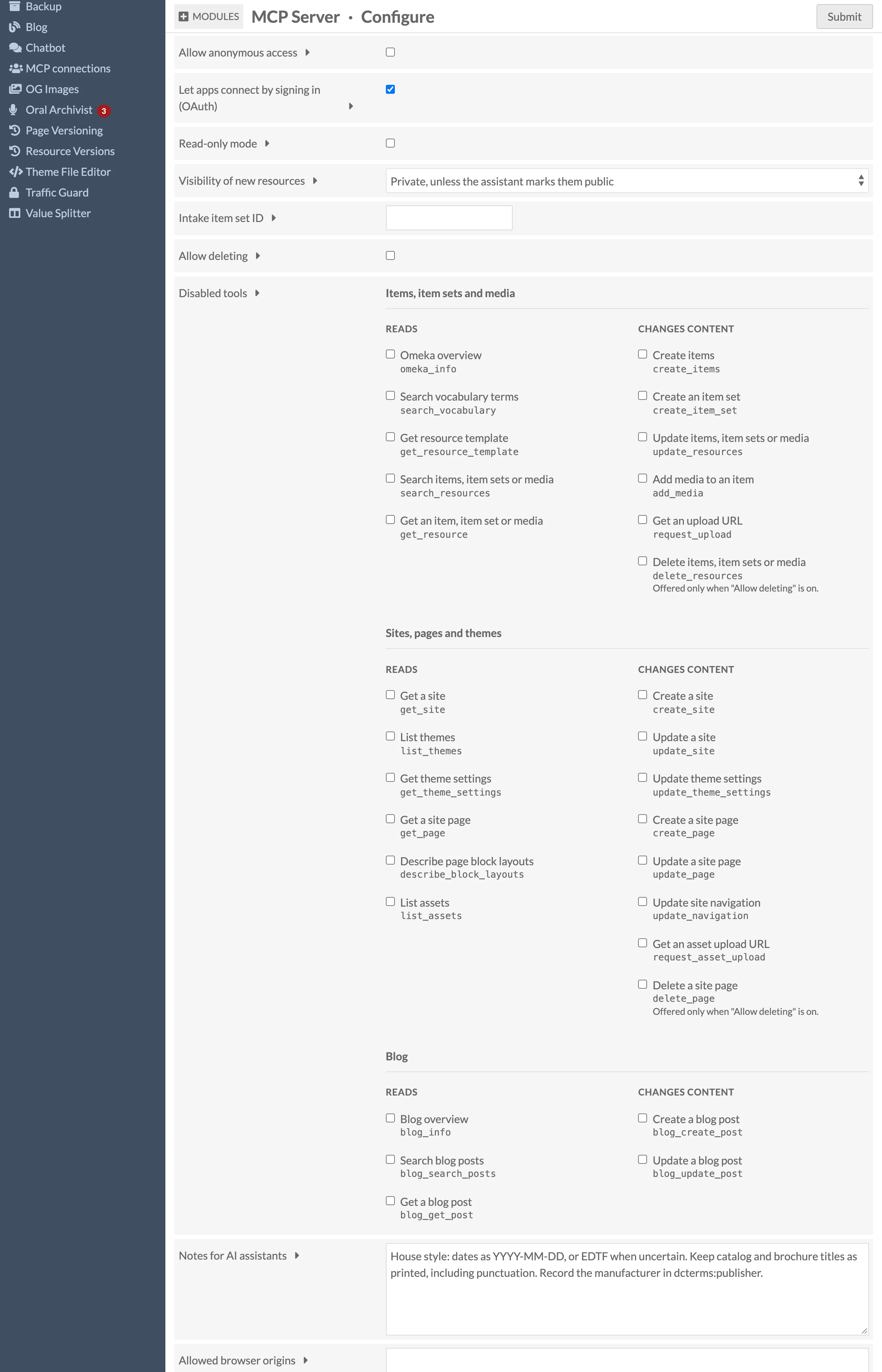
| Setting | Default | Effect |
|---|---|---|
| Allow anonymous access | Off | Apps without a key or sign-in can search and read public resources. |
| Let apps connect by signing in (OAuth) | On | Lets apps connect by sending the user to this site to log in and approve them. Needed for the Claude and ChatGPT apps. |
| Read-only mode | Off | Hides every tool that changes content, for all users and apps. |
| Visibility of new resources | Private, unless the assistant marks them public | Always private stops assistants from publishing anything; Public, unless the assistant marks them private reverses the default. |
| Intake item set ID | None | Items created through MCP are also added to this item set, so staff can find and review them. |
| Allow deleting | Off | Offers the tools that delete items, item sets and media, and site pages. Deletion is permanent. |
| Disabled tools | None | Hides individual tools from every app. |
| Notes for AI assistants | Empty | Sent to every app with the server's built-in guidance, for example house style for dates or which template to use for letters. |
| Allowed browser origins | Empty | Only for browser-based MCP clients such as the MCP Inspector. Desktop, mobile and command-line apps do not need it. |
Permissions
Assistants act as the user who connected them. The Omeka role decides what they can do:
| Role | Search and read | Create and edit |
|---|---|---|
| Researcher | ✓ | — |
| Author | ✓ | Own items |
| Reviewer, Editor | ✓ | ✓ |
| Site Admin, Global Admin | ✓ | ✓ |
Editing tools are only offered to users whose role can create items, and only when the user allowed editing on the consent page. Every write still goes through Omeka's own permission checks.
MCP connections
Admin > MCP connections lists the apps a user has approved, with their access level and when they were last used, and has a Disconnect button for each. Global Administrators see every user's connections. The page also shows setup instructions for Claude, ChatGPT, Claude Code and Codex with your site's address filled in.
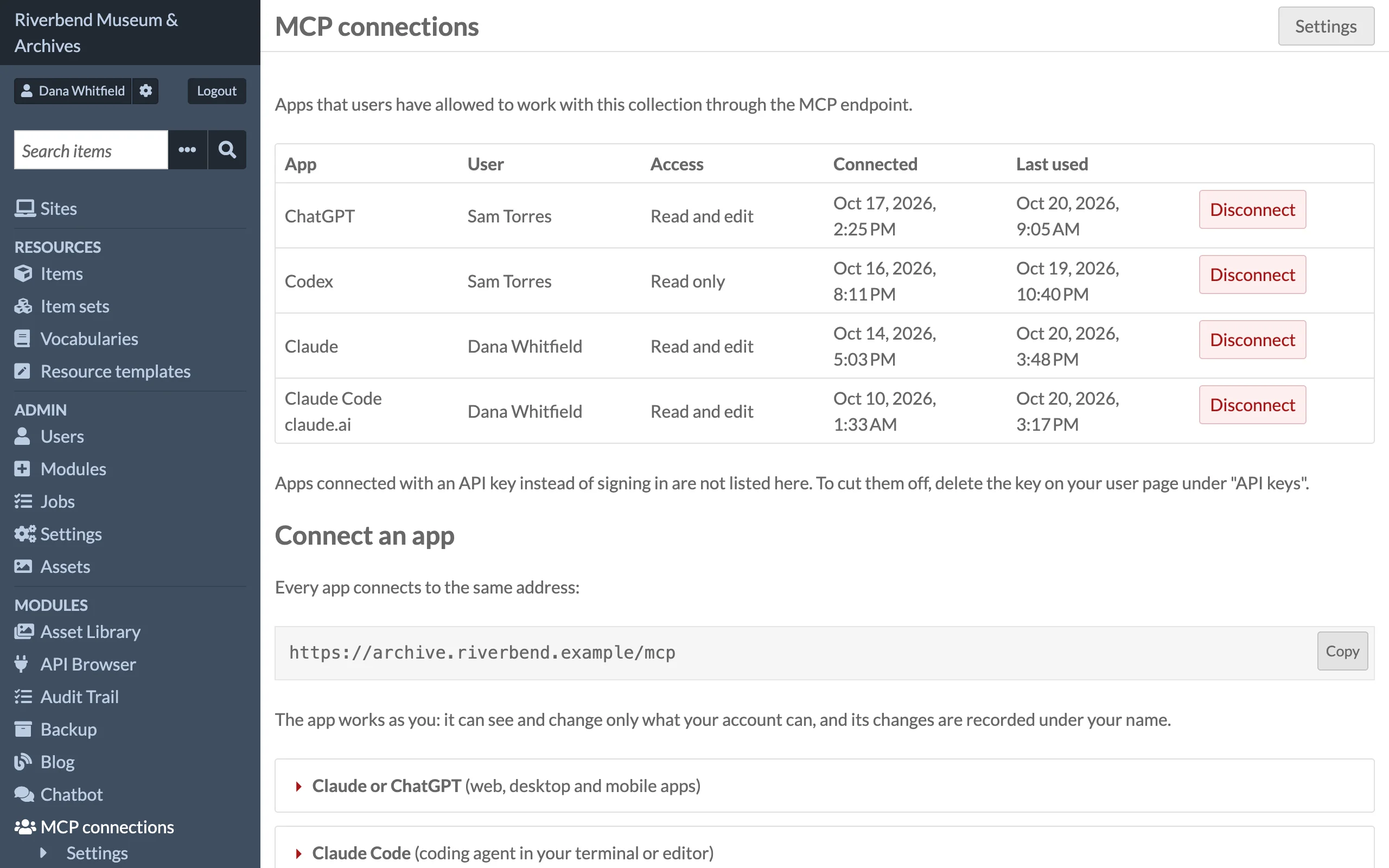
Apps connected with an API key are not listed there; delete the key on the user's page to cut them off.