Settings live at Admin > Blog > Settings (/admin/blog/settings). Click Save Settings after changing them.
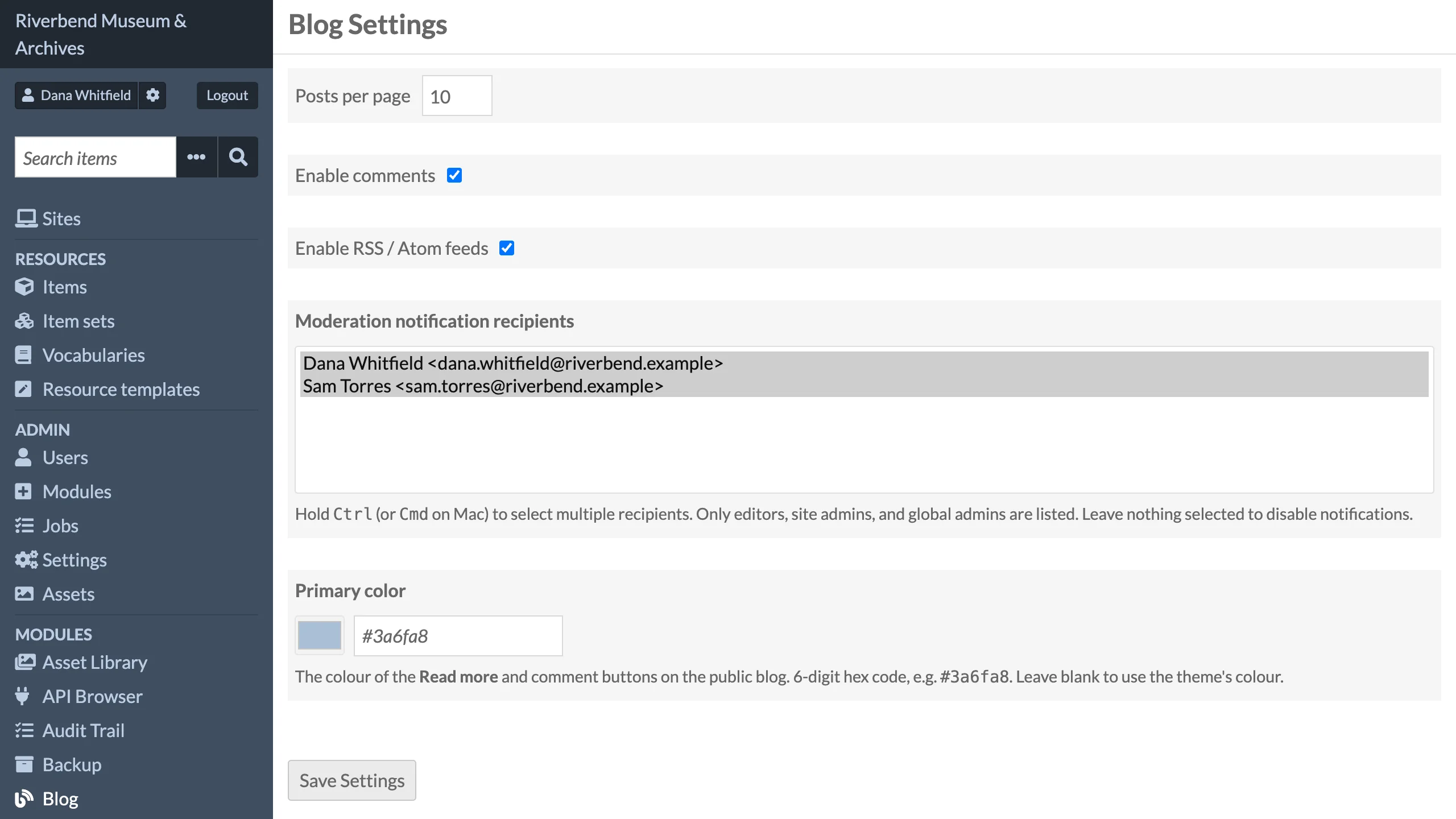
| Setting | Default | Description |
|---|---|---|
| Posts per page | 10 |
Number of posts on each page of the public blog index and the author, tag and category archives. Accepts 1 to 100. |
| Enable comments | On | Shows the comment form on published posts and allows comment submission through /api/blog/posts/{id}/comments. When off, the form is hidden and that endpoint returns 403. |
| Enable RSS / Atom feeds | On | Serves the RSS and Atom feeds and adds an autodiscovery link to blog pages. When off, the feed URLs return 404. The sitemap is always available. |
| Moderation notification recipients | none | Users who receive an email when a visitor submits a comment or an author submits a post for review. Only active users with the Editor, Site Administrator or Global Administrator role are listed. Hold Ctrl (Cmd on Mac) to select several. With nothing selected, no emails are sent. |
| Primary color | blank | The colour of the Read more buttons and the comment form's button on the public blog and in the Blog Posts page block. A 6-digit hex code, with a colour swatch next to the field; the button text is white or near-black, whichever reads better on it (black on the few mid-tones where neither reaches 4.5:1). While the field is blank the swatch shows the example colour #3a6fa8, faded, and the buttons use the theme's colour. It sets the --blog-accent CSS variable over any value the theme gives it (see Displaying the Blog). A theme that styles those buttons itself keeps its own colours unless it follows the setting, as the RefBytes Theme Engine themes do from Vitrine 0.8.2, Confetti 0.5.2, Plinth 0.2.2 and Overprint 0.2.2. |
The Configure button next to Blog on Admin > Modules opens this page too.
Notification emails
Notifications are sent as Omeka S background jobs (Blog\Job\SendNotificationEmail), one plain-text message per recipient. Omeka S must have a working mail transport configured in config/local.config.php, and background jobs must be running (see Admin > Jobs for their status and log).
Two events trigger an email:
- an author saves a post as Published, which becomes Pending Review (subject "Blog post pending review: {title}");
- a visitor submits a comment from the post page (subject "New comment awaiting moderation: {title}").
Permissions
Access to the admin pages is based on the Omeka S role.
| Role | Blog admin pages | Posts | Publish | Categories | Comments |
|---|---|---|---|---|---|
| Researcher | no | no | no | no | no |
| Author | Posts only | Create, edit and view their own posts. Cannot delete. | no (saved as Pending Review) | no | no |
| Reviewer | no | no | no | no | no |
| Editor | yes | All posts | yes | yes | yes |
| Site Admin | yes | All posts | yes | yes | yes |
| Global Admin | yes | All posts | yes | yes | yes |
Roles without access do not see the menu entries or buttons for those pages, and get Omeka's Forbidden page (HTTP 403) if they open one. Anyone who is logged in can open a post preview; authors can preview only their own posts. Visitors can read the public blog, feeds and sitemap, and submit comments. API permissions are listed on the REST API page.
Per-user settings
Each user can have a profile image and bio for the "About the author" box. These are edited on the user's own page under Admin > Users > (user) > Edit, in the User settings tab, group Blog Profile. See Editorial Workflow.