Every resource type has one module-wide default template. On a multi-site installation you can point any site at a different template for any resource type, so each site's share images can carry its own look. Below, the same kind of resource (an item) is shared from two sites, each with its own item template.
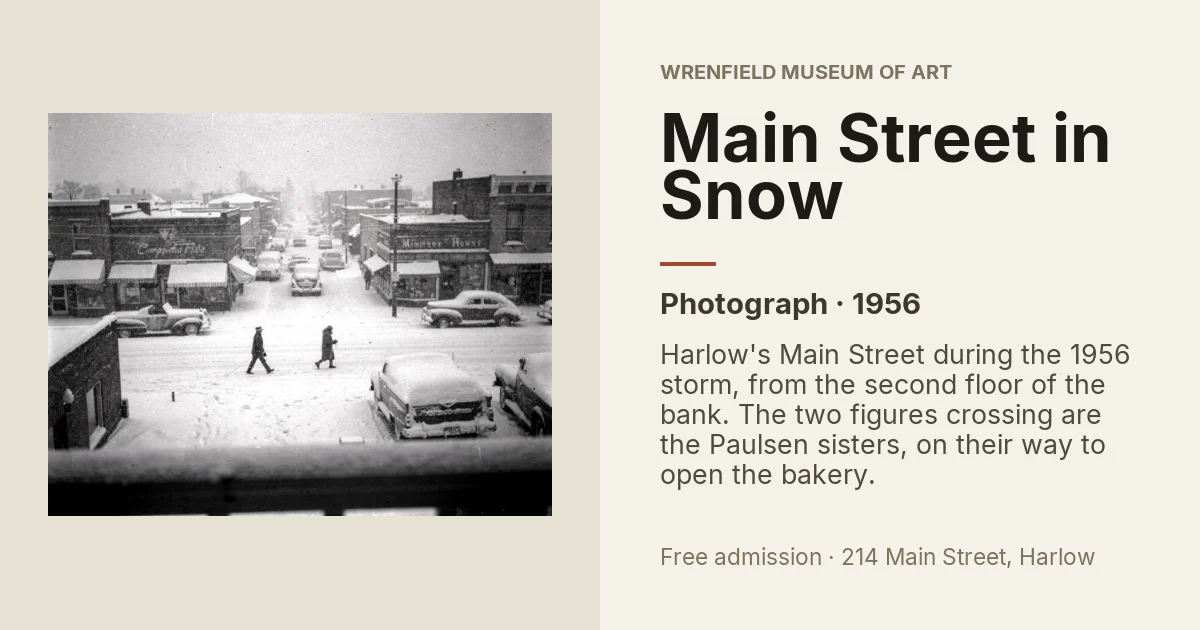

There are two places to assign templates: the site's admin page, one drop-down per resource type, and the template's Site Assignments, one checkbox per site. Both save the same overrides, so each shows what the other saved.
From the site's admin page
- Go to Admin > Sites and click the site's title, or open the site's Site admin page (the page with the Info and Settings tabs).
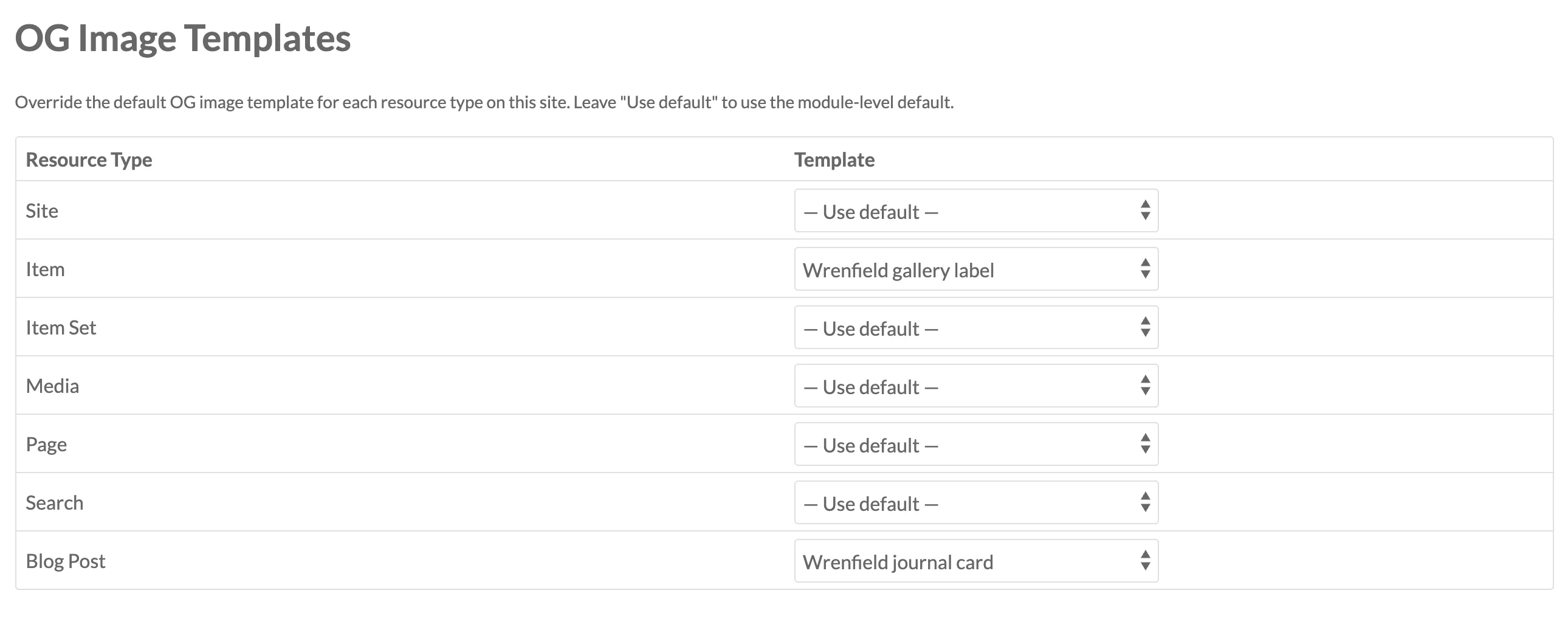
- Scroll to the OG Image Templates section at the bottom of the page.
- For each resource type, choose a template from the drop-down. Each list only shows templates of that row's resource type; the module default is marked "(default)". Leave — Use default — to use the module-wide default.
- Click Save at the top of the page. It saves the overrides together with the site's Info and Settings, and "Site successfully updated" appears.
The overrides are saved first, and only when you changed one. If they cannot be saved, the page stays open with your changes and the reason appears under the section in red; nothing else is saved either, so fix the problem (see Troubleshooting) and click Save again. Leaving the page with an unsaved change to the section warns you, like any other change on the page.
The site's details page (/admin/site/s/{site-slug}/show) shows the section too. It has no Save of its own, so there the section has a Save OG Template Overrides button, and "OG template overrides saved." appears next to it.
The section is shown to everyone who may edit the site: its owner, users with the Admin role in the site's User permissions, and Site and Global Administrators. Other users do not see it, and the module refuses their saves. Saving the overrides clears the cached images of every resource type, so the next share of a page on that site renders with the new templates.
From the template
- Go to Admin > OG Images and edit a template.
- In the Site Assignments section, tick each site that should use this template for the template's resource type.
- Click Save.
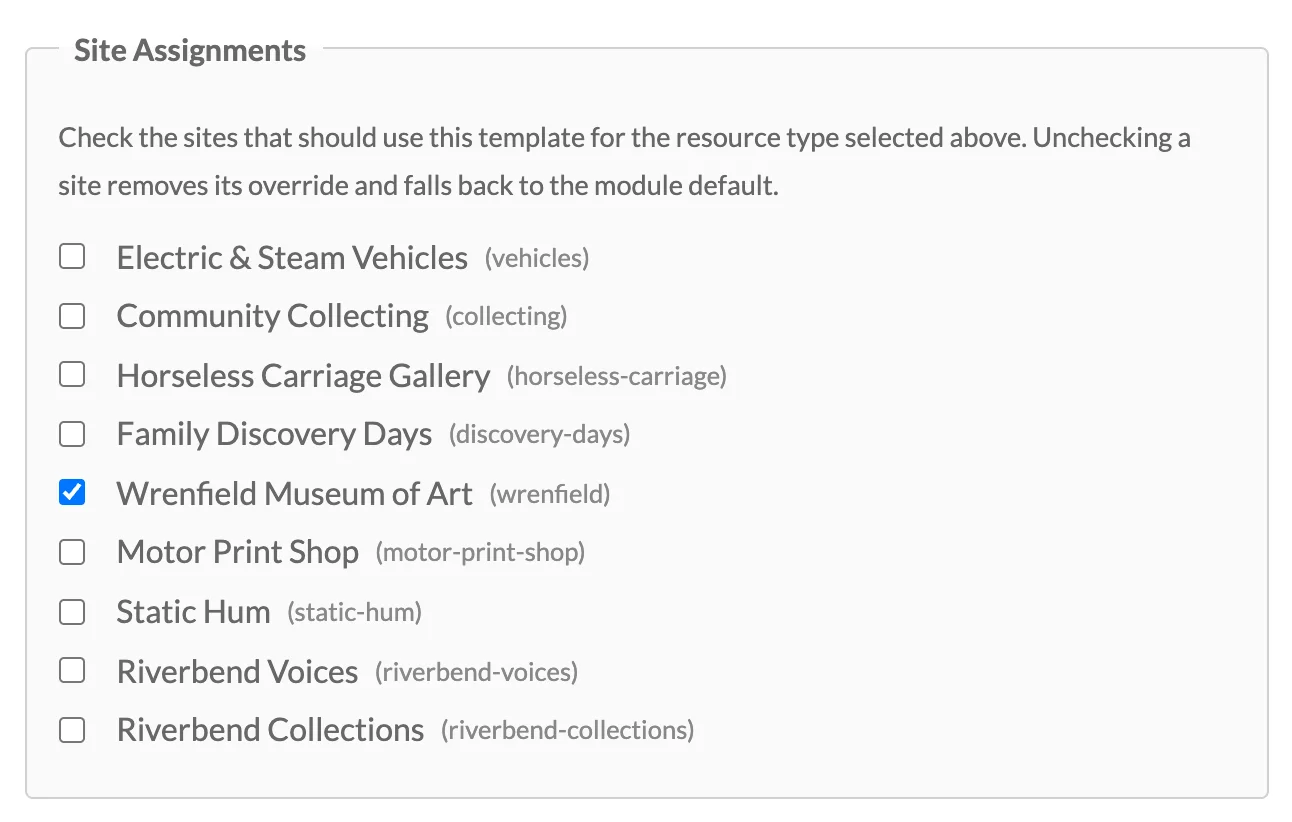
Ticking a site sets its override for this template's resource type, replacing any other template it was assigned. Unticking a site removes its override only if it currently points to this template; a site assigned to a different template is left alone. If you changed the template's Resource type, saving also removes the overrides it had for its old type. The Sites column on the template list shows which sites use each template, or "All sites (default)" when no site is assigned.
Saving clears the cached images for the template's resource type, so the next share of a page on that site renders with the new template.
How the template is chosen
When an image is requested for a resource on a site, the module looks for, in order:
- a site override for that resource type;
- the template marked as default for that resource type;
- the template marked as default for the special Default (all types) resource type;
- a built-in fallback design compiled into the module.
The site_id query parameter on the image URL identifies the site. If it is missing, step 1 is skipped.