Versions are captured automatically. Every create, update, and delete of an item, media, or item set that goes through the Omeka S API writes a new version row. Nothing needs to be done to start recording.
What is captured
Each version stores the resource's full JSON-LD representation (the same output as the REST API), together with:
- the version number, counted per resource starting at 1,
- the operation:
create,update,delete,restore, orbaseline, - the user who made the save (their display name, or email if no name), or System when there was no logged-in user,
- the resource title at the time, used in listings, and
- a batch key that groups every capture made by the same request or job.
A save that produces the same payload as the latest version is not recorded, so opening an edit form and clicking Save without changes writes nothing. Timestamps and other volatile keys are ignored when deciding this. Deletions are always recorded.
Baseline versions
Resources that existed before the module was installed have no history until they are next edited. At that moment, just before the edit is applied, the module captures the current state as a baseline version, then captures the edited state as version 2. The baseline is what you restore to undo that first edit.
Deleted resources
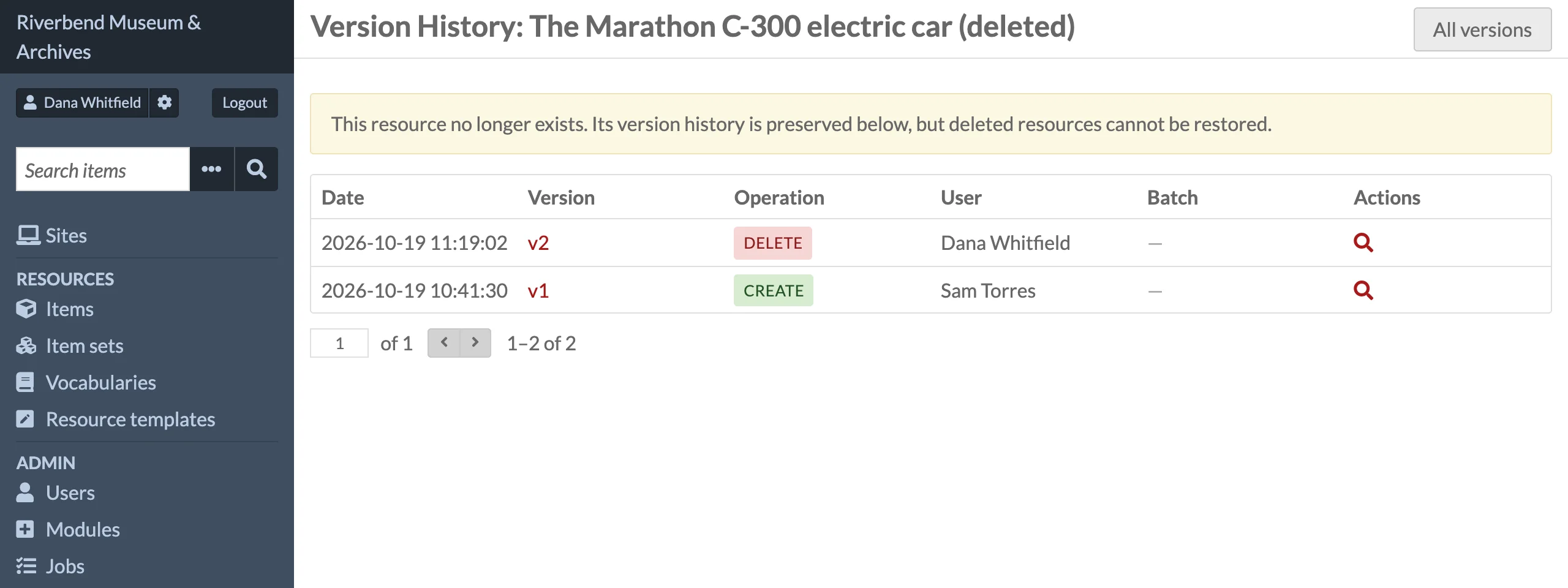
When a resource is deleted, its final state is stored as a delete version and its history is kept. History for deleted resources is still visible from the Resource Versions browse page, and the resource history page, headed with the resource's last known title and "(deleted)", shows a notice that the resource no longer exists. Deleted resources cannot be recreated from their snapshots, so none of their versions has a Restore link.
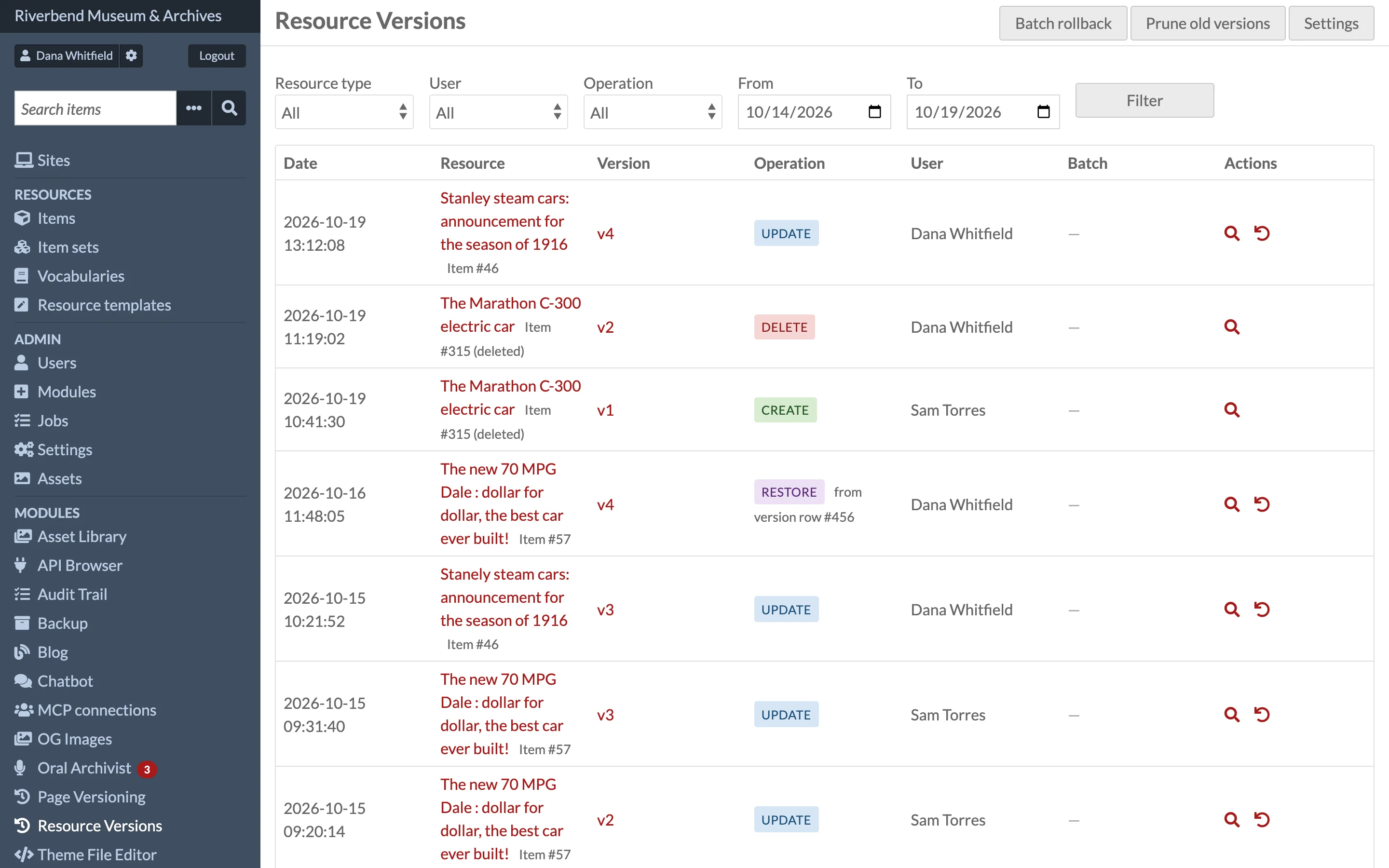
To find deleted resources, filter the Resource Versions page by Operation delete. Each row's title is marked "(deleted)" and links to the resource's version history. The snapshots keep every value the resource had, so they can serve as a reference if the resource has to be entered again.
The Version History tab
Open any item, media, or item set in the admin and click Version History in the section navigation. The tab lists the 20 most recent versions with the version number, date, operation, and user. Each row has:
- Diff: opens a comparison of that version with the one before it. See Comparing Versions.
- Restore: opens the restore confirmation page (editors and above; not shown for
deleteversions). See Restoring a Version.
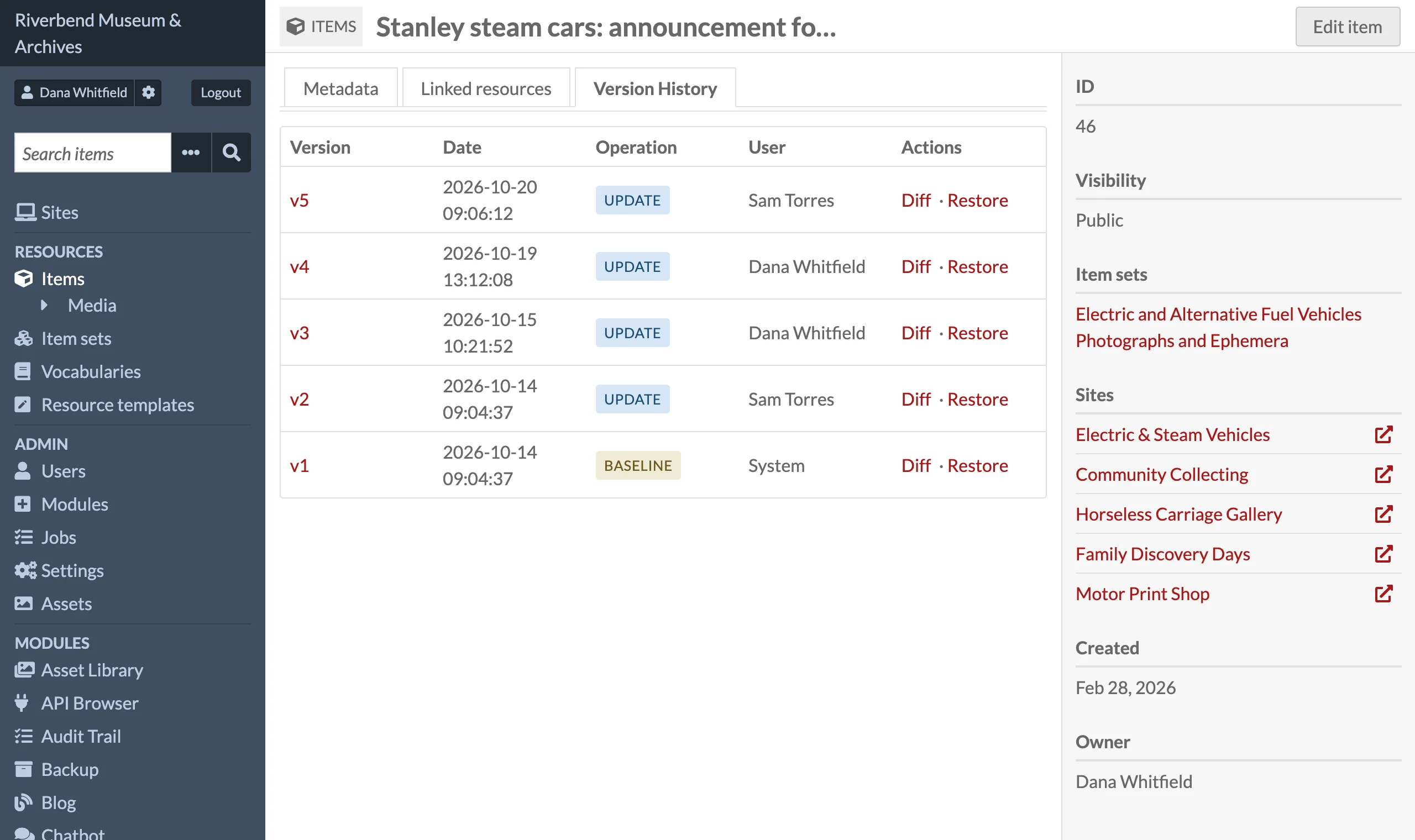
Click a version number (for example v3) to see its full stored JSON-LD snapshot. If there are more than 20 versions, a View all N versions link opens the full paged history at /admin/resource-versioning/resource/items/123 (replace items with media or item_sets, and 123 with the resource id).
Browsing all versions
Click Resource Versions in the admin sidebar, or go to /admin/resource-versioning. The page has three parts.
Recent bulk operations lists up to ten batch groups (batch keys that changed more than one resource) matching the current filters, with the start time, user, number of resources, and operations. Details opens the batch page; Roll back starts the Batch Rollback wizard pre-filled with that batch key.
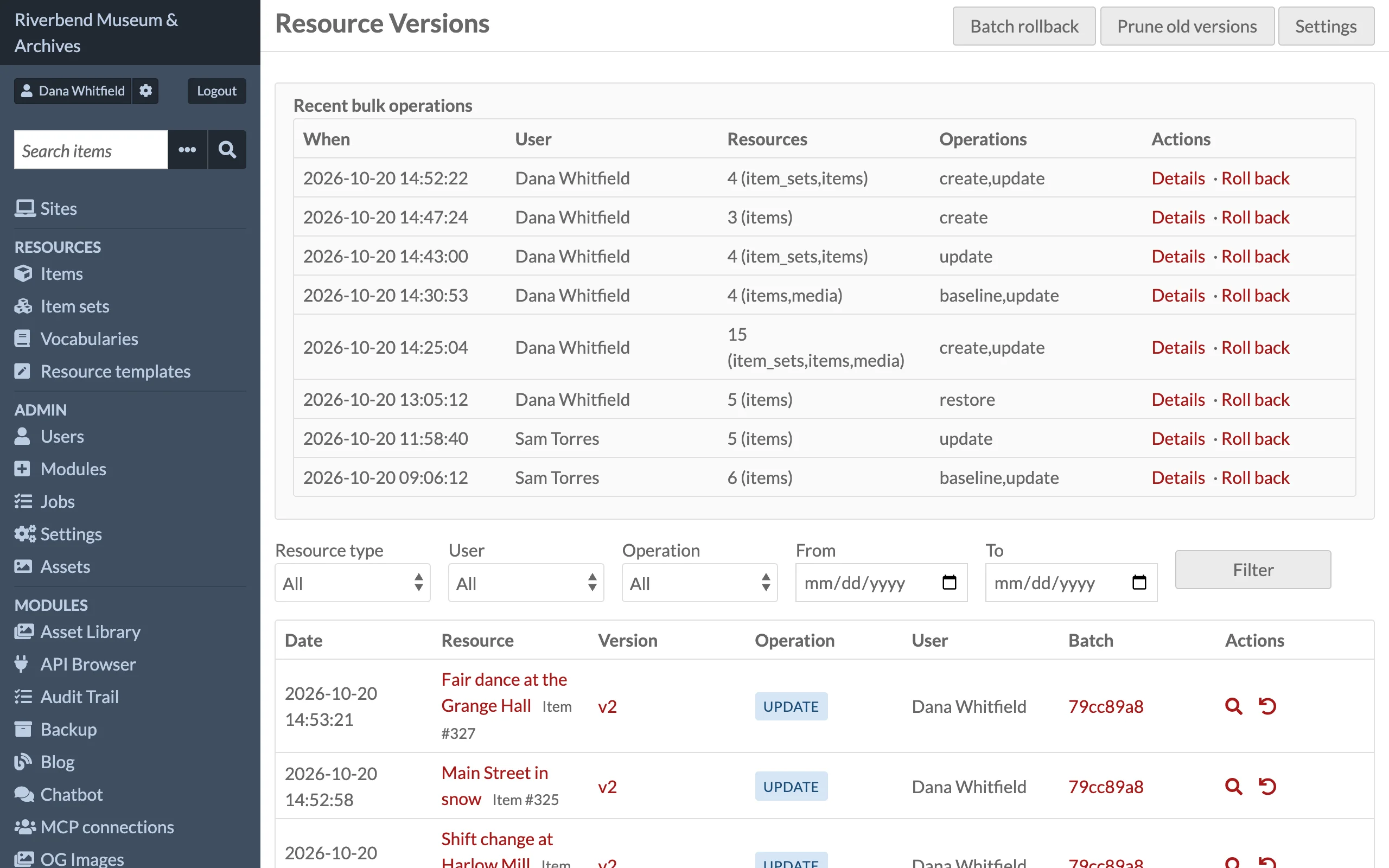
The filter form narrows the list by Resource type, User, Operation, and a From / To date range. Dates are inclusive whole days. Click Filter to apply.
The version table shows 50 rows per page, newest first, with the resource title (linked to its admin page, or for a deleted resource to its version history), version number, operation, user, and batch. Restored versions show which version row they were restored from. The batch column links to the batch page for versions written as part of a partial or bulk update. The action icons compare with the previous version or open the restore page.
The batch page
/admin/resource-versioning/batch/<key> lists every version written by one batch operation (up to 500 rows), the user who made it, and the start time. Site admins see a Roll back this batch button that opens the wizard with the key filled in.