Settings live at Admin > Traffic Guard > Settings (/admin/traffic-guard/settings), with every setting, including the per-mode rate limits and risk score thresholds. The Configure button next to Traffic Guard on Admin > Modules opens the same page.
General settings
All settings are global (there are no per-site settings).
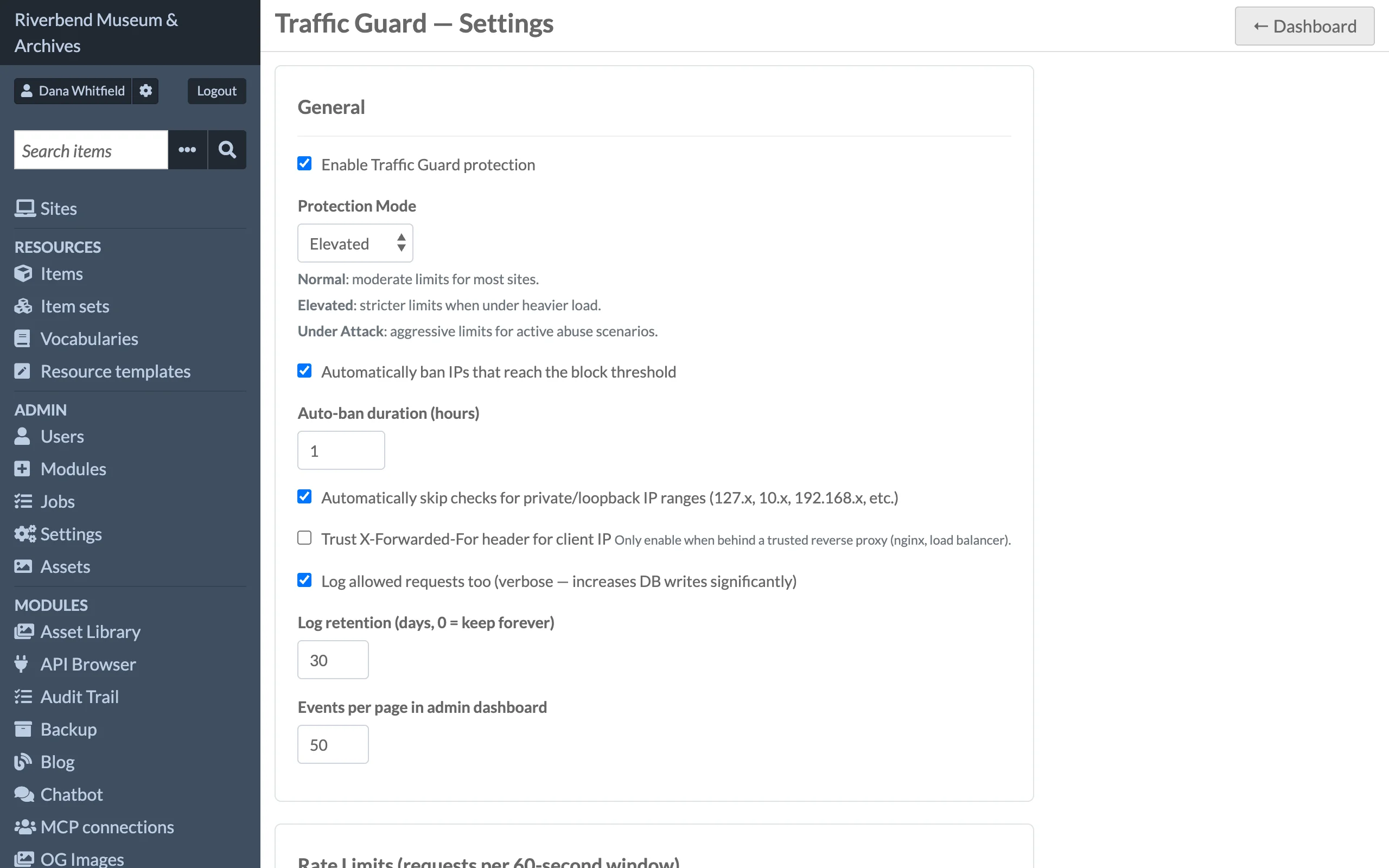
| Setting | Default | Description |
|---|---|---|
| Enable Traffic Guard protection | On | Master switch. When off, no request is inspected, counted or logged. |
| Protection Mode | Normal | Selects which column of rate limits, thresholds and signal weights is active: Normal, Elevated or Under Attack. See Protection Modes. |
| Automatically ban IPs that reach the block threshold | On | When a request scores at or above the block threshold, the IP is banned for the auto-ban duration. |
| Auto-ban duration (hours) | 1 | How long automatic bans last, in half-hour steps from half an hour. Automatic bans are always temporary; permanent bans can only be created manually. |
| Automatically skip checks for private/loopback IP ranges | On | Requests from private (RFC 1918), loopback and other reserved ranges bypass every check. |
| Trust X-Forwarded-For header for client IP | Off | Use the first address in X-Forwarded-For as the client IP. Enable only behind a reverse proxy you control; see below. |
| Log allowed requests too | Off | Also write allowed requests to the event log. This adds one database insert per request. |
| Log retention (days) | 30 | Event rows older than this are deleted by the purge job. 0 keeps events forever. |
| Events per page in admin dashboard | 50 | Page size for the Recent Events table on the dashboard (minimum 10). |
Rate limits
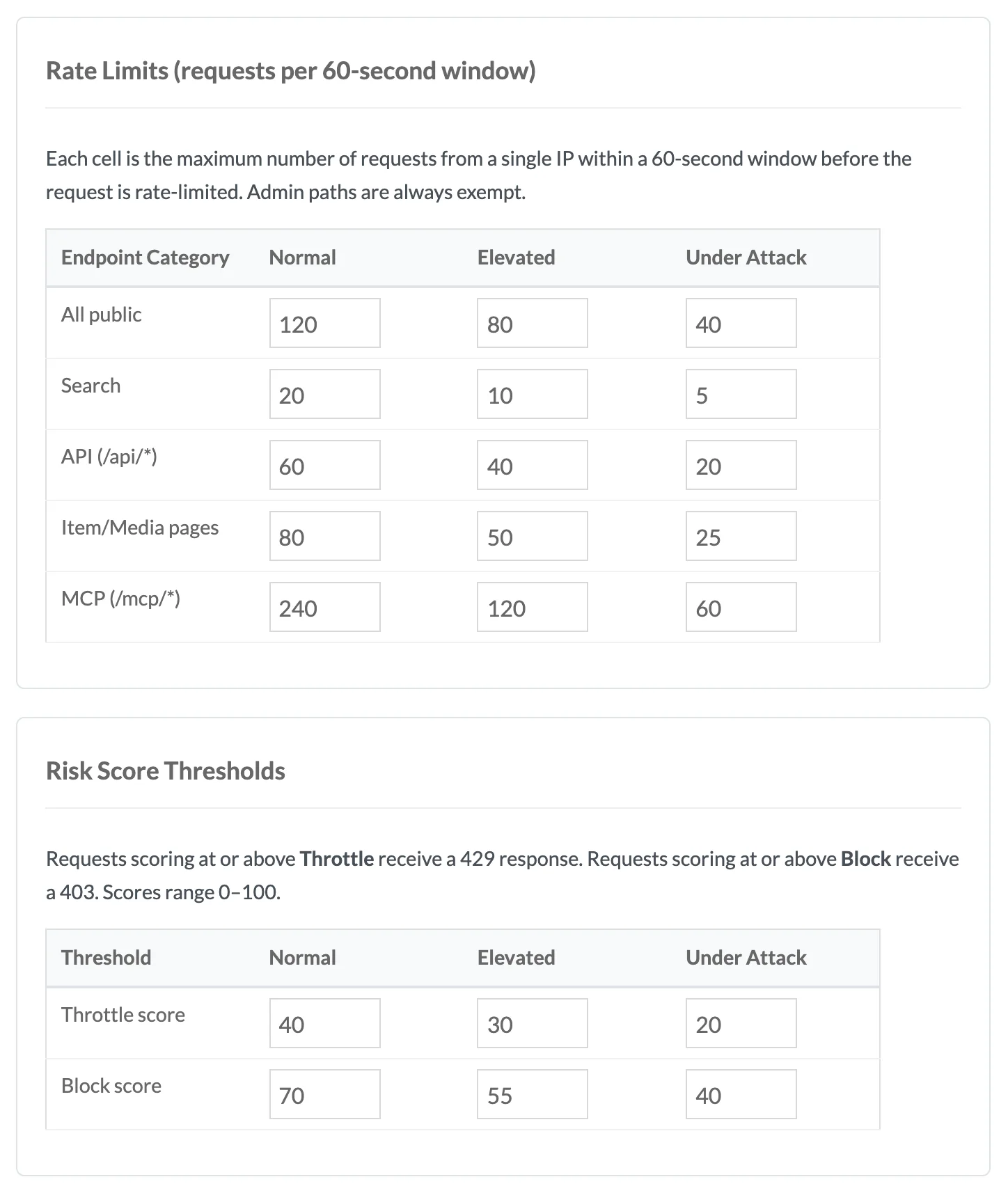
Maximum requests per IP per 60-second window, for each endpoint category and protection mode. Exceeding a limit does not block on its own; it adds a risk signal that is combined with the others (see Risk Scoring).
| Category | Paths | Normal | Elevated | Under Attack |
|---|---|---|---|---|
| All public | Everything not matched below | 120 | 80 | 40 |
| Search | /s/{site}/search |
20 | 10 | 5 |
API (/api/*) |
/api/... |
60 | 40 | 20 |
| Item/Media pages | /s/{site}/item..., /s/{site}/item-set..., /s/{site}/media... |
80 | 50 | 25 |
MCP (/mcp/*) |
/mcp and anything under it, plus the /.well-known/oauth-* and /.well-known/openid-configuration discovery URLs (the MCP Server module) |
240 | 120 | 60 |
Admin paths (/admin/...) are never counted or rate limited.
Risk score thresholds
Scores run from 0 to 100. A request scoring at or above Throttle score receives HTTP 429; at or above Block score it receives HTTP 403 and, if auto-ban is on, the IP is banned.
| Threshold | Normal | Elevated | Under Attack |
|---|---|---|---|
| Throttle score | 40 | 30 | 20 |
| Block score | 70 | 55 | 40 |
Running behind a reverse proxy
If Omeka S sits behind nginx, Apache, a load balancer or a CDN, every request arrives from the proxy's address and the real client IP is in the X-Forwarded-For header. Without Trust X-Forwarded-For, all visitors would share one counter and the proxy IP could be banned.
Turn the setting on only when both are true:
- All traffic reaches Omeka S through a proxy you control.
- The proxy overwrites or sanitises
X-Forwarded-Forso clients cannot inject their own value.
On a server with a direct public address, leave it off: a client could otherwise spoof its IP with a forged header and evade limits or bans. Only the first (leftmost) address in the header is used, and it must be a valid IP or the module falls back to REMOTE_ADDR.
Permissions
| Action | Site Admin | Global Admin |
|---|---|---|
| View dashboard, IP detail, rules and settings pages | Yes | Yes |
| Save settings | Yes | Yes |
| Add and delete user-agent rules and allowlist entries | Yes | Yes |
| Run the log purge job | Yes | Yes |
| Ban an IP or lift a ban | No (before 1.0.3: yes) | Yes |
Editors, reviewers, authors and researchers cannot see the Traffic Guard pages: there is no menu entry for them, and opening one shows Omeka's Forbidden page (HTTP 403). The Configure button on the Modules page follows Omeka's own rule and is shown to Global Admins only.