Protection modes let you tighten or relax the whole module with one setting instead of editing a dozen numbers. Every rate limit, every risk threshold and every signal weight has a value per mode; changing the mode switches all of them at once.
The three modes
| Mode | Intended use | Effect |
|---|---|---|
| Normal | Day-to-day operation | Moderate limits. A request has to combine signals (for example a bot user agent plus an exceeded rate limit) before it is throttled. |
| Elevated | Unusual bot activity or a busy period | Limits are lower (half to two thirds of Normal), thresholds are lower and signal weights are higher. Exceeding a rate limit alone is enough to be throttled. |
| Under Attack | Active abuse | Limits are a third of Normal or less. Exceeding a rate limit alone scores 60, which is above the block threshold of 40, so the IP is blocked and auto-banned. A missing user agent alone (50) is also blocked. |
Switching modes
- Go to Admin > Traffic Guard > Settings (
/admin/traffic-guard/settings). - Choose Protection Mode and click Save Settings.
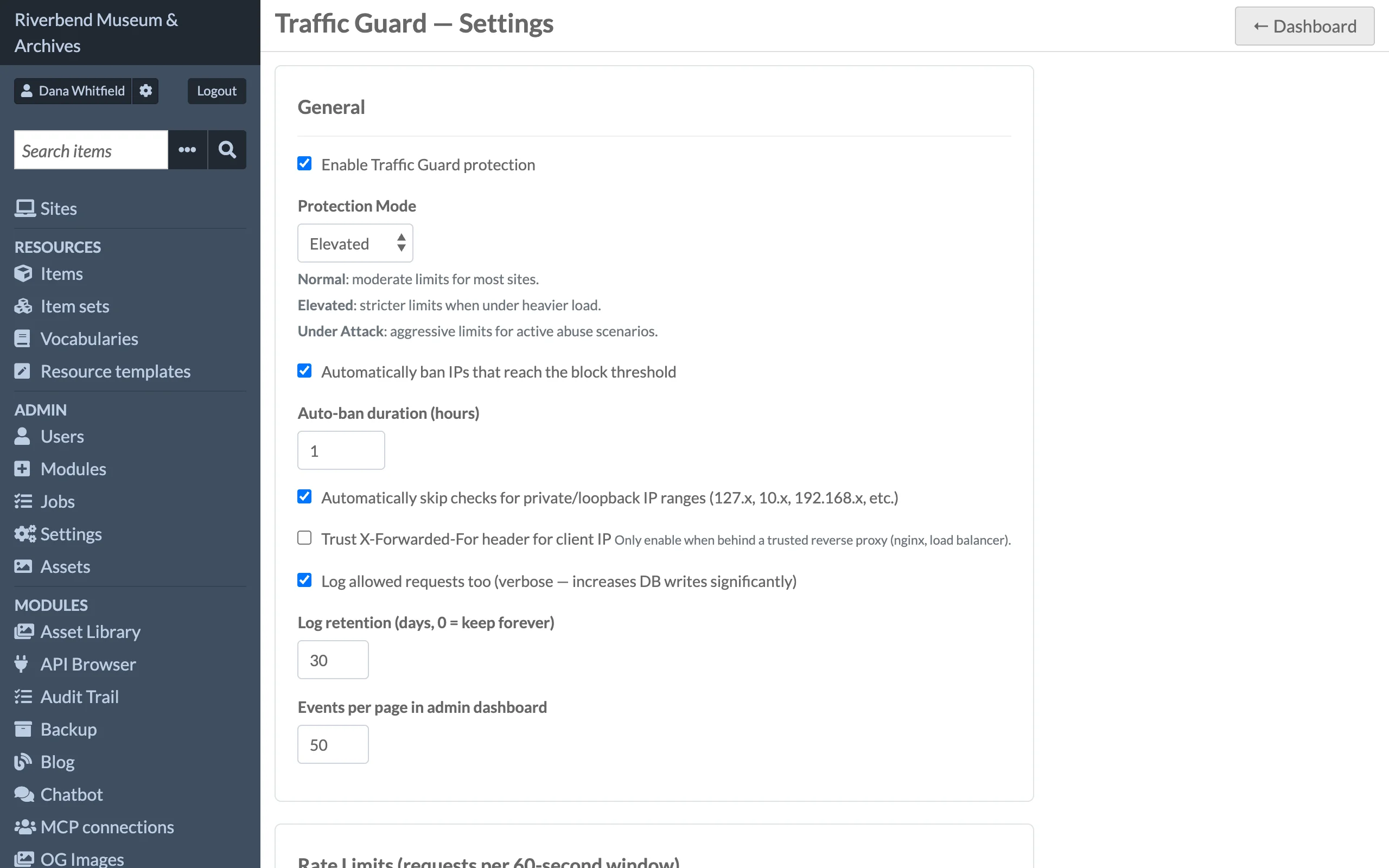
The dashboard status bar shows the active mode.
Mode changes apply to the next request. Bans already issued keep their original duration.
What each mode changes
Rate limits (requests per IP per 60-second window):
| Category | Normal | Elevated | Under Attack |
|---|---|---|---|
| All public | 120 | 80 | 40 |
| Search | 20 | 10 | 5 |
API (/api/*) |
60 | 40 | 20 |
| Item/Media pages | 80 | 50 | 25 |
MCP (/mcp/*) |
240 | 120 | 60 |
Risk score thresholds:
| Threshold | Normal | Elevated | Under Attack |
|---|---|---|---|
| Throttle score (HTTP 429) | 40 | 30 | 20 |
| Block score (HTTP 403) | 70 | 55 | 40 |
Signal weights also change per mode; they are fixed in the code and listed in Risk Scoring.
Editing limits and thresholds
The values above are only defaults. On the Settings page, the Rate Limits (requests per 60-second window) and Risk Score Thresholds tables have one input per category (or threshold) per mode. Any value from 1 upwards is accepted for limits (up to 10000 in the form) and 1 to 100 for thresholds. Click Save Settings to apply.
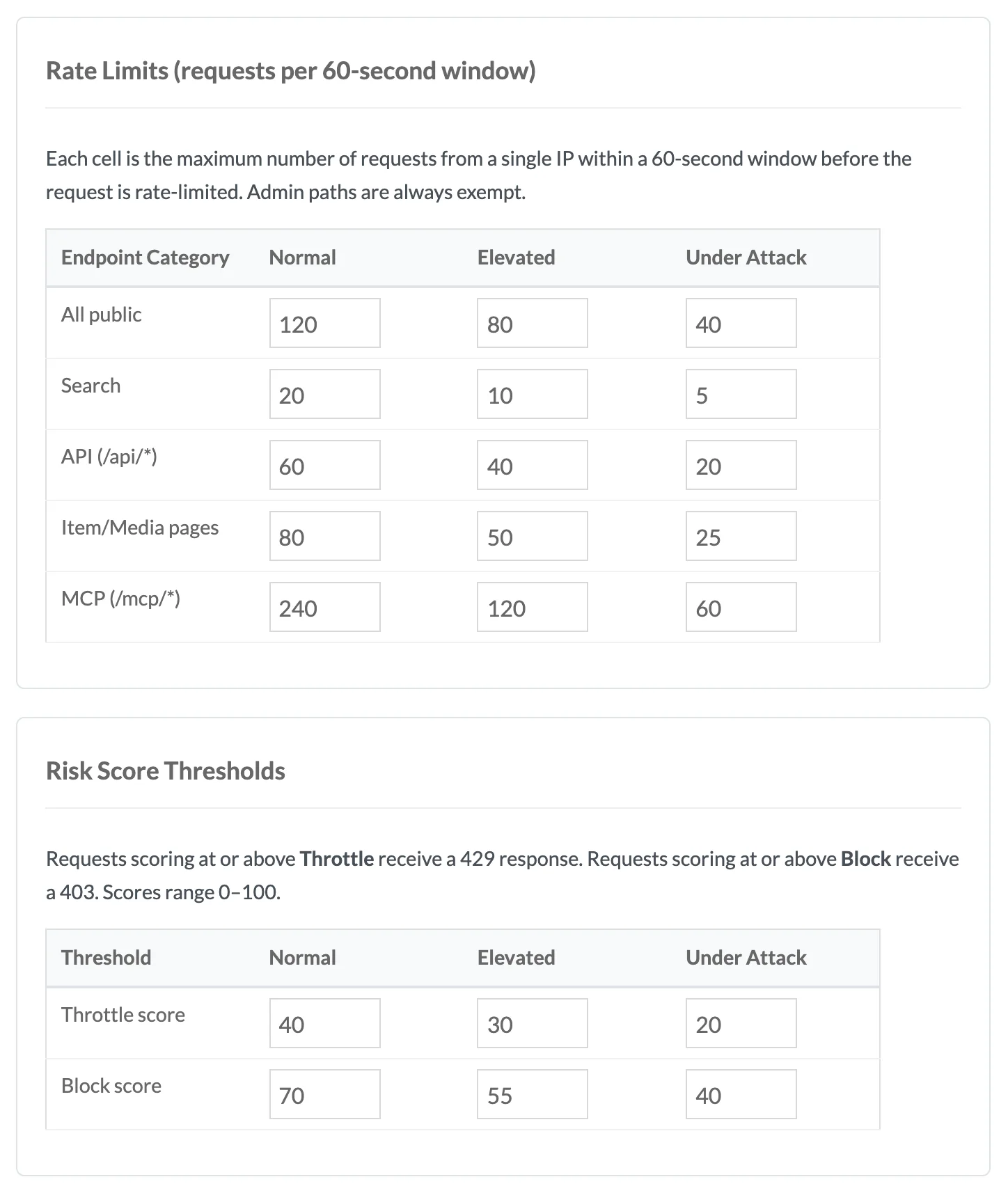
Some guidance:
- Keep the throttle score below the block score, otherwise no request is ever throttled.
- Keeping the block score at or below 80 means a user-agent block rule always results in a 403, since that rule carries a weight of 80.
- The Search category is the most expensive for the database, which is why its limits are the lowest. Raise it if your site has a search-heavy interface such as faceted browsing that issues several requests per page view.
- The window length is 60 seconds for every category and is not editable from the admin pages.
Suggested workflow during an incident
- Look at Top Blocked IPs and Recent Events on the dashboard to see what is happening.
- Switch to Elevated. Most scrapers now trip the throttle on their own.
- If the load continues, switch to Under Attack and consider adding block rules for the offending user agents on the Rules page.
- Once traffic returns to normal, switch back to Normal. Automatic bans expire on their own.