Open Asset Library from the admin sidebar, or go directly to /admin/asset-picker.
The page has three areas: the folder tree on the left, the asset grid in the middle, and a detail drawer that opens on the right when you select an asset.
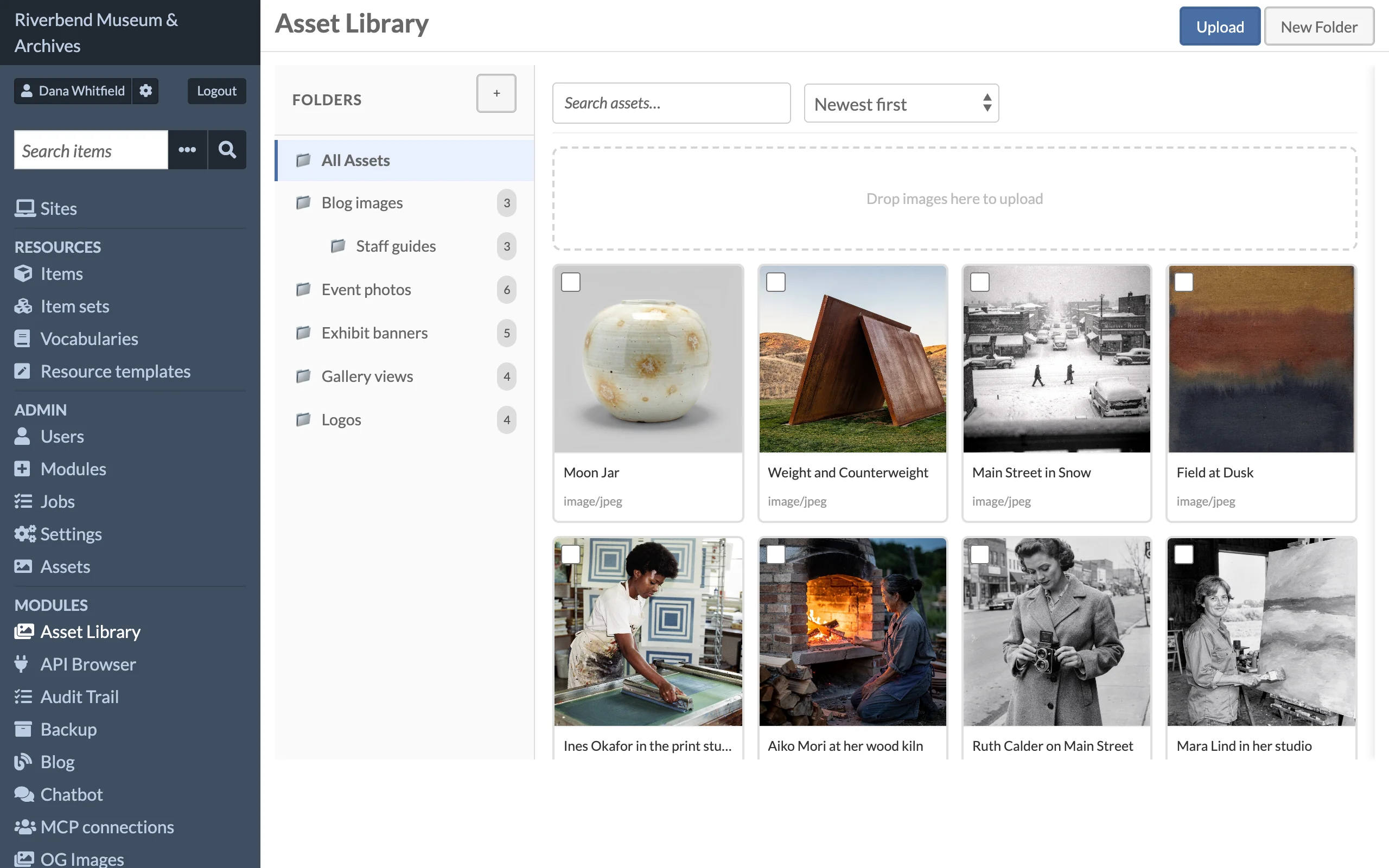
Browsing
- All Assets at the top of the folder tree shows every asset on the installation, newest first.
- Click a folder to show only the assets in that folder.
- Type in the search box to filter the current view by asset name.
- Use the Sort control to order by newest or oldest first, or by name A to Z or Z to A.
Results are paged, so large libraries stay fast.
Uploading
- Click Upload and choose one or more image files, or
- drag files from your desktop anywhere onto the page. A drop zone appears while you drag.
Each file is uploaded separately with its own progress and error message. New uploads are placed in the folder you are currently viewing; uploads made while viewing All Assets are left unfoldered.
Editing an asset
Click an asset card to open the detail drawer.
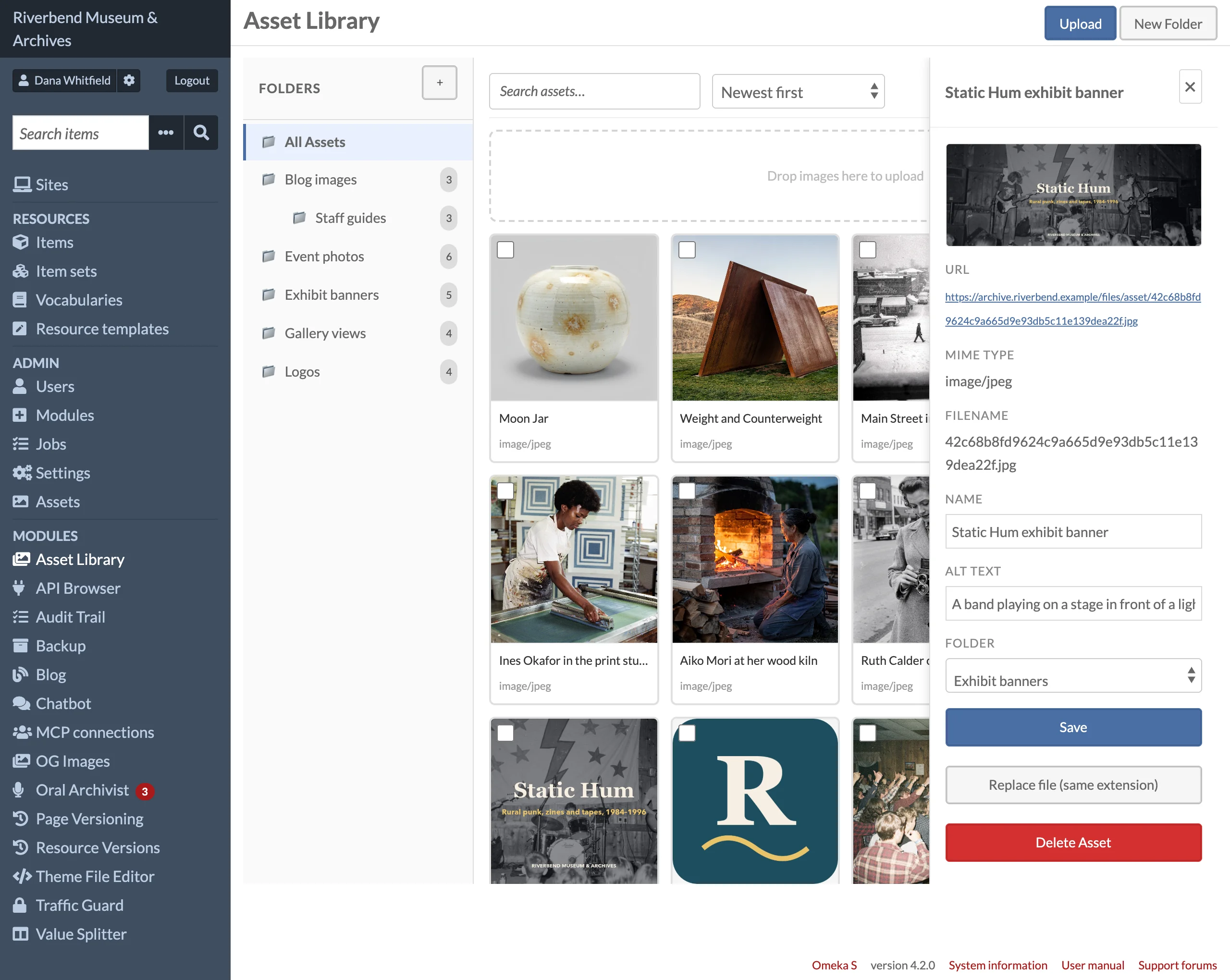
- Edit the Name, Alt text and Folder, then click Save. Alt text is used when the asset is inserted into CKEditor.
- Click the preview to see the image at full size.
- Click the URL to copy it to the clipboard.
- Click Replace file (same extension) to swap the file while keeping the URL. See Replacing Files.
- Click Delete Asset to remove the asset from Omeka. The asset's folder assignments and usage records are removed with it.
Selecting several assets
Tick the checkbox on one or more cards to select them. A bulk action bar appears with:
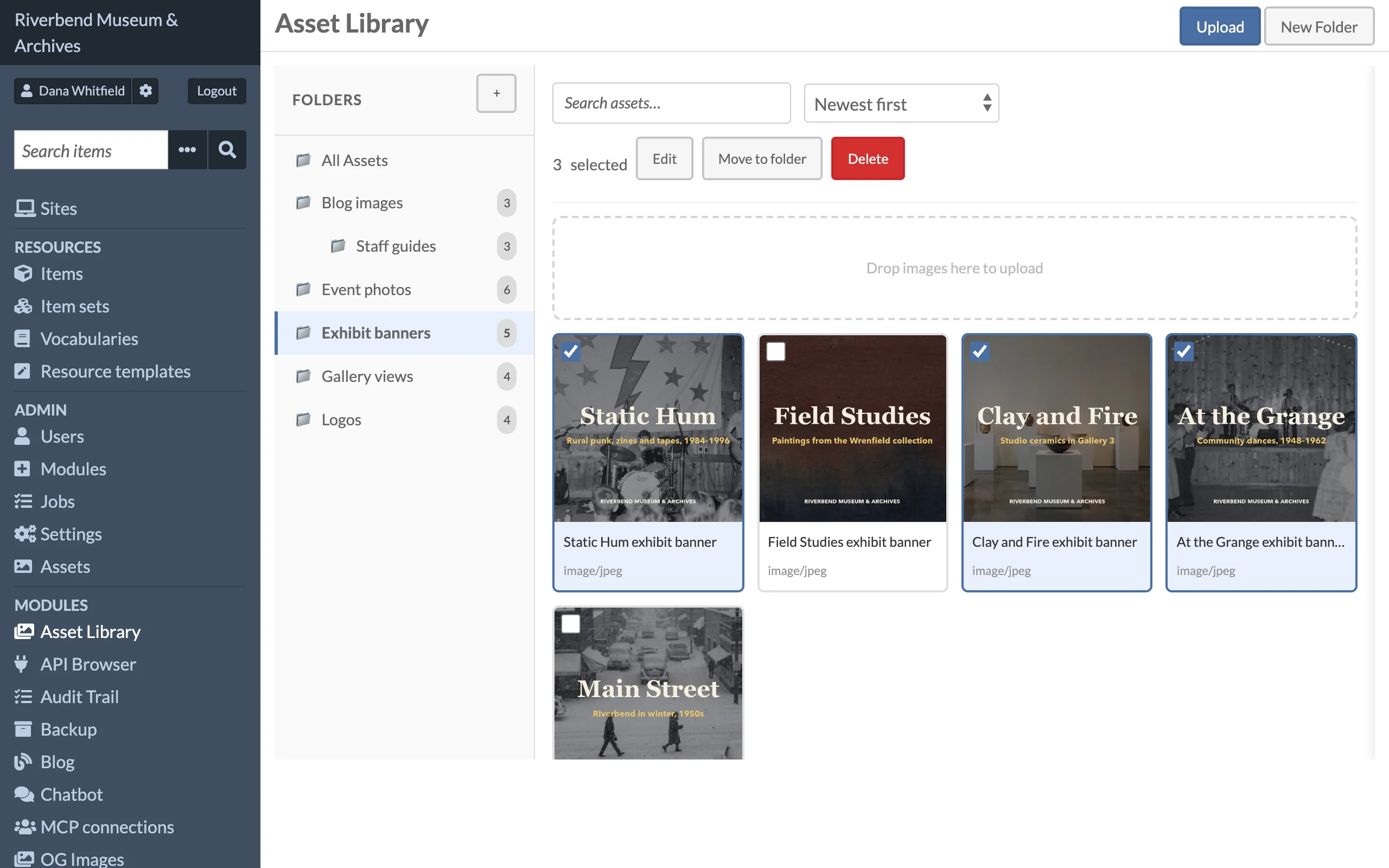
- Edit: set the alt text for every selected asset at once.
- Move to folder: move the selection into a folder, or choose Remove from all folders.
- Delete: delete the selection after confirmation.
Bulk actions are available to editors and above.