Folders are a way of organising assets inside the library. They exist only in this module: Omeka's own asset list, the file store and asset URLs are unaffected by how assets are foldered.
Creating folders
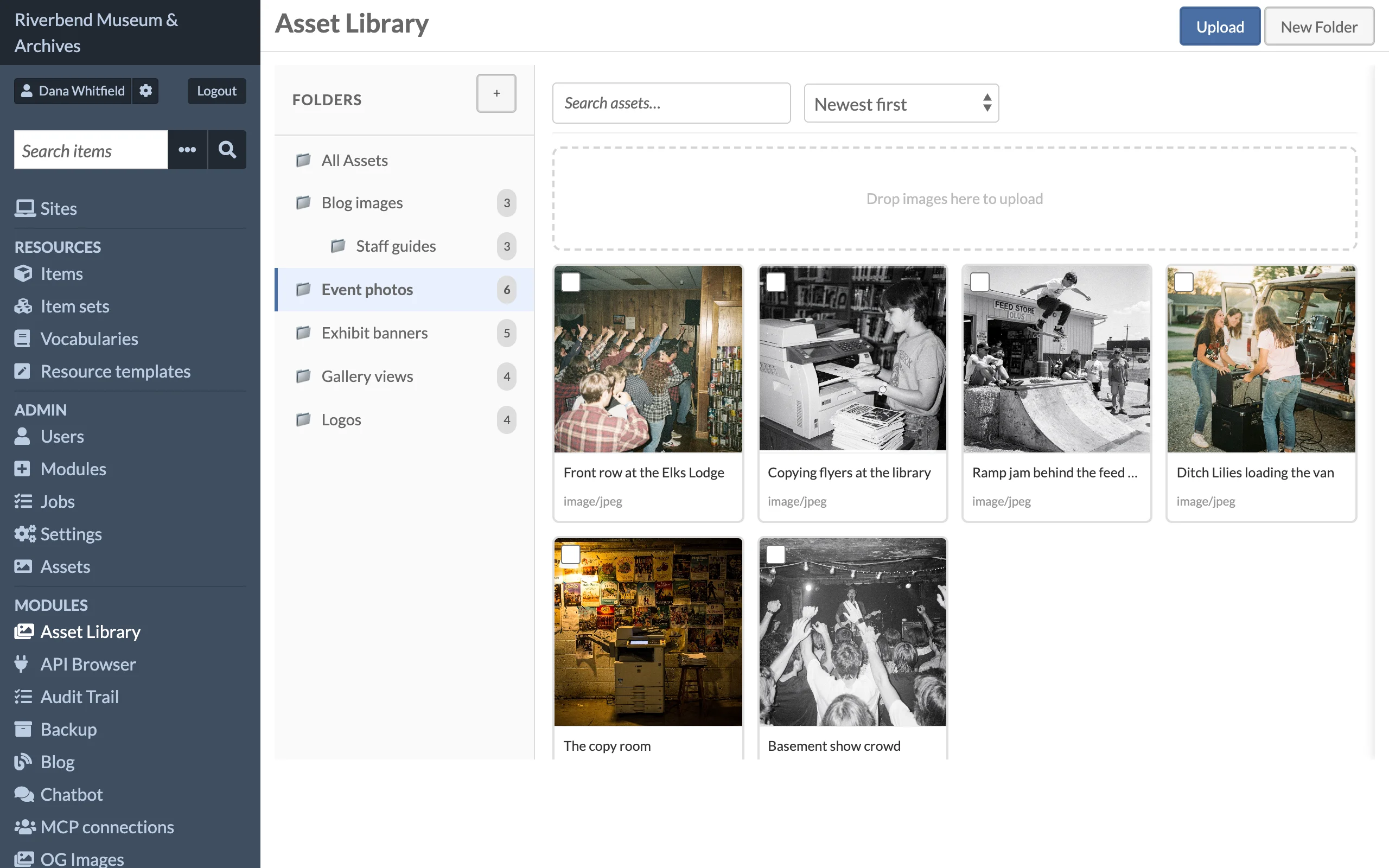
Click New Folder at the top of the page, or + in the folder tree header, enter a Folder name and optionally choose a Parent folder. Folders can be nested to any depth.
Renaming and deleting
Hover over a folder in the tree to reveal its rename and delete buttons.
Deleting a folder does not delete the assets in it. They become unfoldered and remain visible under All Assets. Deleting a parent does not remove its sub-folders, so move or delete those first.
Putting assets in folders
The library keeps each asset in at most one folder. There are four ways to place it:
- Upload into a folder: select the folder first, then upload. New files land in that folder.
- Detail drawer: open the asset, choose a Folder and click Save.
- Bulk move: tick the assets in the grid and choose Move to folder from the bulk action bar.
- API: send
folder_idin a bulk update request. See the REST API.
Moving an asset into a folder removes it from its previous folder. Choose Remove from all folders in the move dialog to unfolder the selection.
Folder counts
Each folder in the tree shows how many assets it contains. Counts are per folder and do not include sub-folders.