Settings live at Admin > Backup > Settings (/admin/backup/settings). Click Settings on the backup list page to get there.
Settings
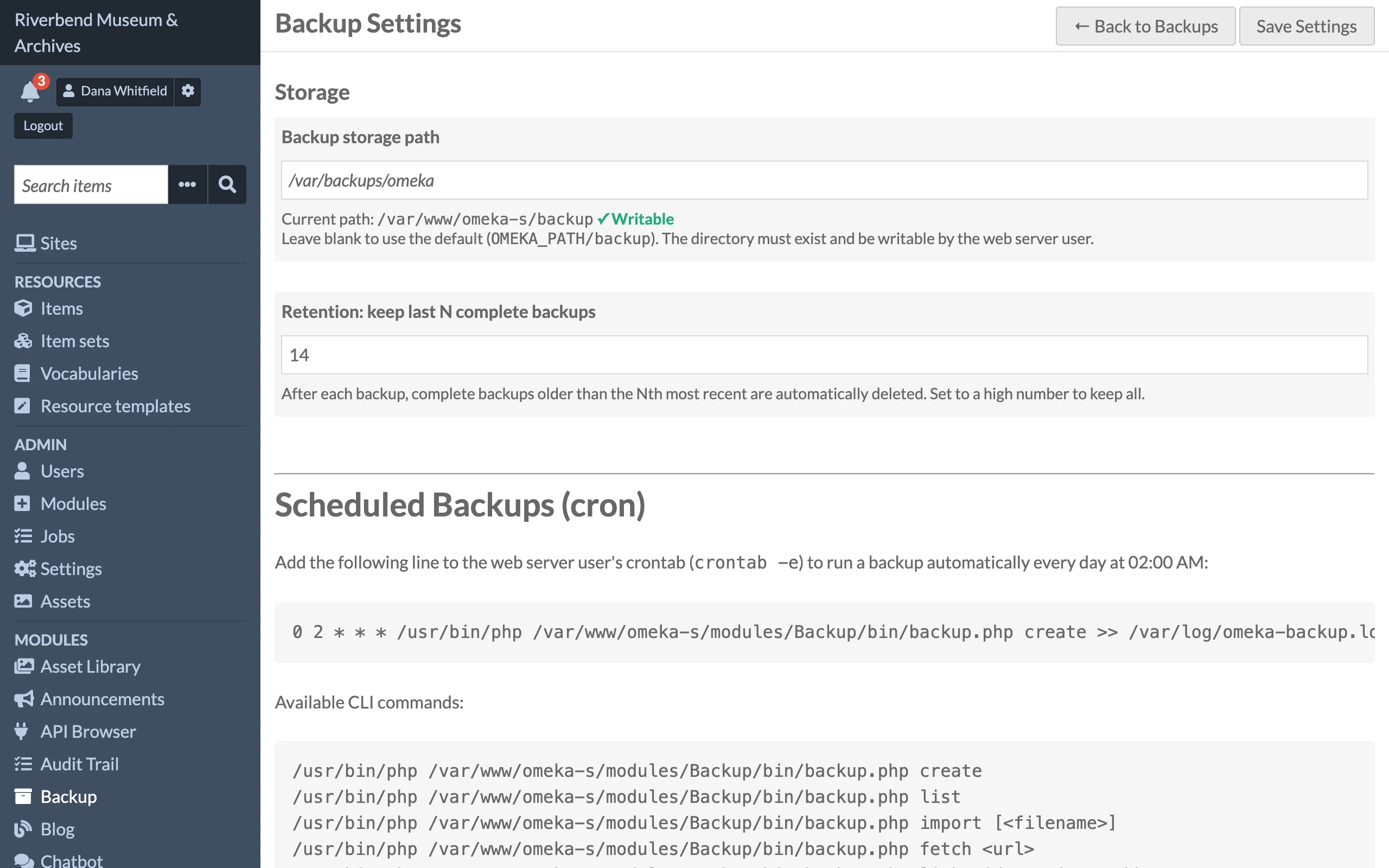
| Setting | Default | Description |
|---|---|---|
| Backup storage path | blank, meaning OMEKA_PATH/backup, or the site's file store when its files are in cloud storage |
Absolute filesystem path where ZIP archives are stored. Must be writable by the web server user. A trailing slash is ignored. |
| Retention: keep last N complete backups | 7 |
After each successful backup, and whenever the cleanup command runs, complete backups beyond the N most recent are deleted from disk and from the list. Allowed range is 1 to 365. |
Click Save Settings in the page action bar to store the values. Both are kept in Omeka's global settings table under the keys backup_path and backup_keep_last_n.
Retention counts only backups with status complete. Failed or in-progress records are never removed by retention. Archives added through Upload Backup, from a link or from the backup directory are recorded as complete once checked, so they count toward the limit too. Set a high value if you want to keep everything.
On a site whose files are in cloud storage (a module that replaces Omeka's file store, such as one for Amazon S3 or Backblaze B2), a blank Backup storage path keeps archives in that store, under backups/, and the Settings page says so. Each archive is made in a private folder in the server's temporary directory first, then stored and removed from the server. Enter a path to keep archives on the server instead. See Sites with Cloud File Storage.
Verifying the backup directory
Under the storage path field the page shows the resolved path and one of three states:
- Writable: the directory exists and the web server can write to it.
- Not writable: the directory exists but the web server cannot write to it.
- Directory does not exist: the module will try to create it (mode
0750) when the first backup runs. If that fails, the backup fails with Cannot create backup directory.
Fix any problem here before running a backup. To create the directory by hand:
mkdir -p /var/backups/omeka
chown www-data:www-data /var/backups/omeka
chmod 750 /var/backups/omeka
What the module writes to the backup directory
| File | Purpose |
|---|---|
omeka-backup-*.zip |
Backup archives. See Backup Archive Format. |
backup.log |
Timestamped log of every backup, restore, upload, delete and retention action. |
index.html |
A blank file written on first use, so servers with directory listing enabled do not show the archive names. |
.backup.lock |
Lock file that prevents two backups from running at once. |
.<filename>.part |
An archive being downloaded from a link, moved into place once it has arrived whole. See Downloading from a Link. |
You can also copy archives into this directory yourself, for example with FTP when they are too large to upload. They appear on the Backups page under Archives in the backup directory. See Adding Archives by FTP.
For stronger protection, keep the backup directory outside the web root or deny web access to it in the server configuration.
Download links to private networks
Archives downloaded from a link (Upload Backup > From a link) must come from a public internet address, so a link cannot make the server reach services that are not public. To move a site between servers on the same private network, the server administrator can allow private addresses in config/local.config.php:
return [
    // ...the file's existing settings...
    'backup' => [
        'allow_private_links' => true,
    ],
];
The command line's fetch --allow-private allows them for one download. See Downloading from a Link.
Where files are read from
The files component copies Omeka's local file store. The path comes from file_store.local.base_path in Omeka's configuration (config/local.config.php), or OMEKA_PATH/files when that is not set. Themes and modules are always read from OMEKA_PATH/themes and OMEKA_PATH/modules.
Permissions
Access is decided by the user's Omeka S role. There are no per-user or per-site settings. Backups hold the whole database, users and API keys included, and a restore replaces it, so only global administrators can use the module.
| Role | Backup pages, /api/backups and /api-local/backups |
|---|---|
Global Administrator (global_admin) |
Full access: list, create, download, make and revoke download links, upload, download from a link, import, restore, delete, settings |
Supervisor (site_admin), Editor, Reviewer, Author, Researcher, and roles added by other modules |
No access: no Backup menu, Omeka's Forbidden page (HTTP 403) on every Backup page, and a permission error from the API |
Before 1.4.2, Supervisors had the same access as Global Administrators.
The command-line script (bin/backup.php) does not sign in, so it is not affected by roles; anyone who can run it on the server can back up and restore.
Download links (/backup-download/…) need no sign-in either: whoever has a link can download that one archive until the link expires or is revoked. Only Global Administrators can make them. See Download Links.
Scheduled backups
The Settings page also prints a ready-to-use cron line and the available CLI commands for this server. See Scheduled Backups and CLI Commands.