The Upload Backup page adds an existing archive to the backup list so it can be restored. Use it to bring a backup from another Omeka S installation. It offers three ways in: upload the archive from your computer (this page), have the server download it from a link (see Downloading from a Link), or copy it into the backup directory yourself (see Adding Archives by FTP), which also covers an archive already on the server but not listed.
Uploading an archive
- Go to Admin > Backup and click Upload Backup (
/admin/backup/upload). - Under From your computer, choose a file in the Backup archive (ZIP) field.
- Click Upload Backup.
A progress bar shows the percentage and bytes transferred while the file uploads, then Processing upload while the server checks it. When it finishes you are returned to the list with a message linking straight to the restore page for the new record.
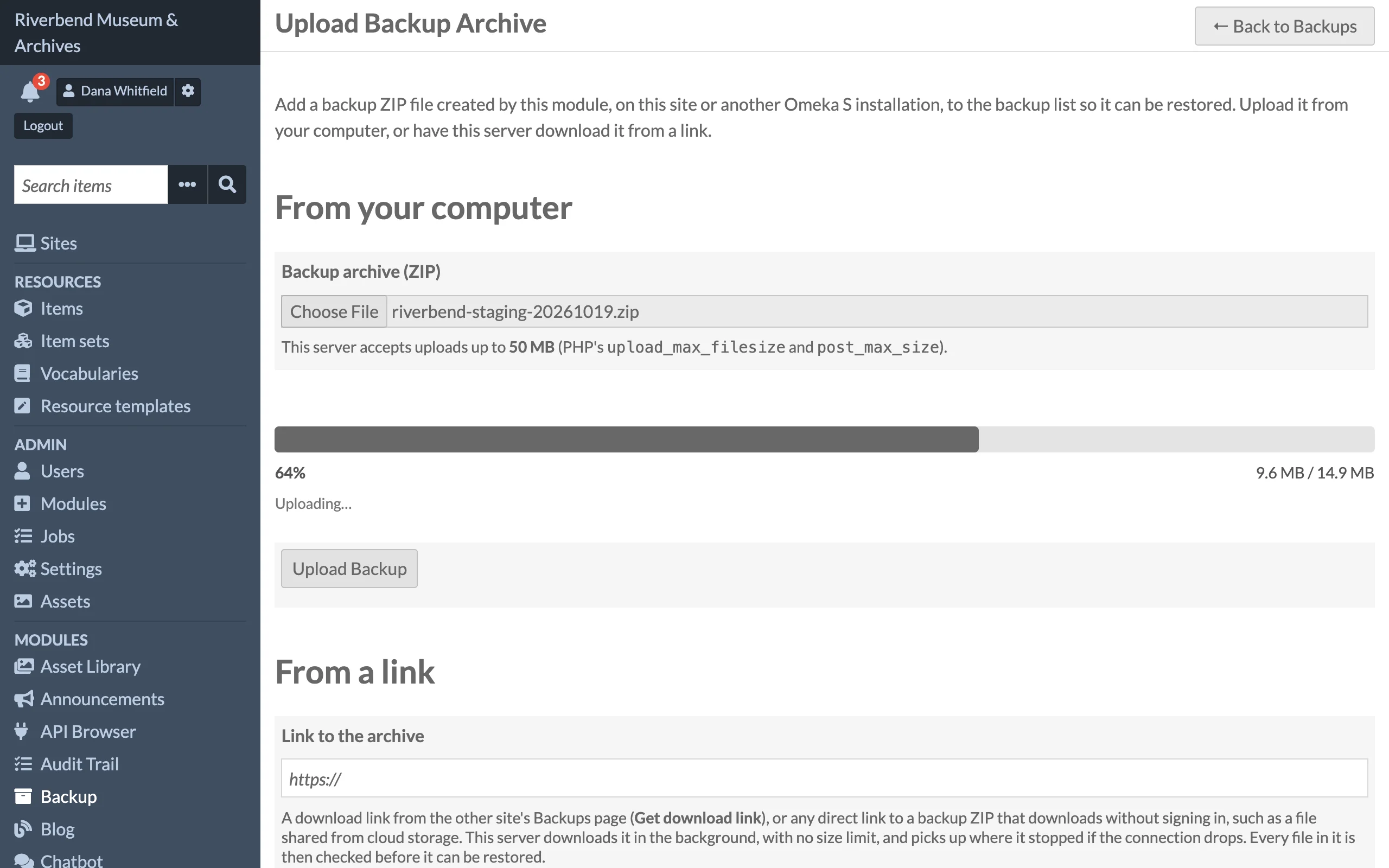
The upload is checked in this order:
- The filename must end in
.zip. - The file must be a valid ZIP archive.
- It must contain
metadata.jsonat its top level. Archives that do not are rejected with The uploaded archive does not appear to be an Omeka S backup (missing metadata.json).
The file is then moved into the backup directory. The original filename is kept, with any character other than letters, digits, dot, underscore and hyphen replaced by a hyphen. If a file with that name already exists, a timestamp and random token are appended. The new record is marked complete, credited to the uploading user, and given a freshly computed SHA-256 checksum.
Size limits
The maximum upload size is set by PHP, not by the module: upload_max_filesize and post_max_size in php.ini, plus any limit imposed by the web server. The Upload Backup page shows the PHP limit under the file field. Uploads that exceed it fail with The uploaded file exceeds the maximum allowed size.
For a larger archive, click Get download link next to it on the old site's Backups page and paste the link under From a link here (see Download Links), paste a link to it under From a link if it is elsewhere on the web (see Downloading from a Link), or copy it into the backup directory with FTP, SFTP or SSH and add it from the Backups page (see Adding Archives by FTP). None of these has a size limit. The Upload Backup page names the directory. You can also raise the PHP limits, or create the backup with fewer components so the archive is smaller.
Uploaded archives count toward the retention limit like any other complete backup. See Configuration.
Moving a site to a new server
Uploading, downloading or copying the archive is step 3 of a server move. See Moving to a New Server for the whole procedure and what to expect after the restore.