Reverting requires the Editor role or higher. See Configuration for the full permissions table.
Reverting from the admin interface
- Open the page's history and click View on the version you want to restore.
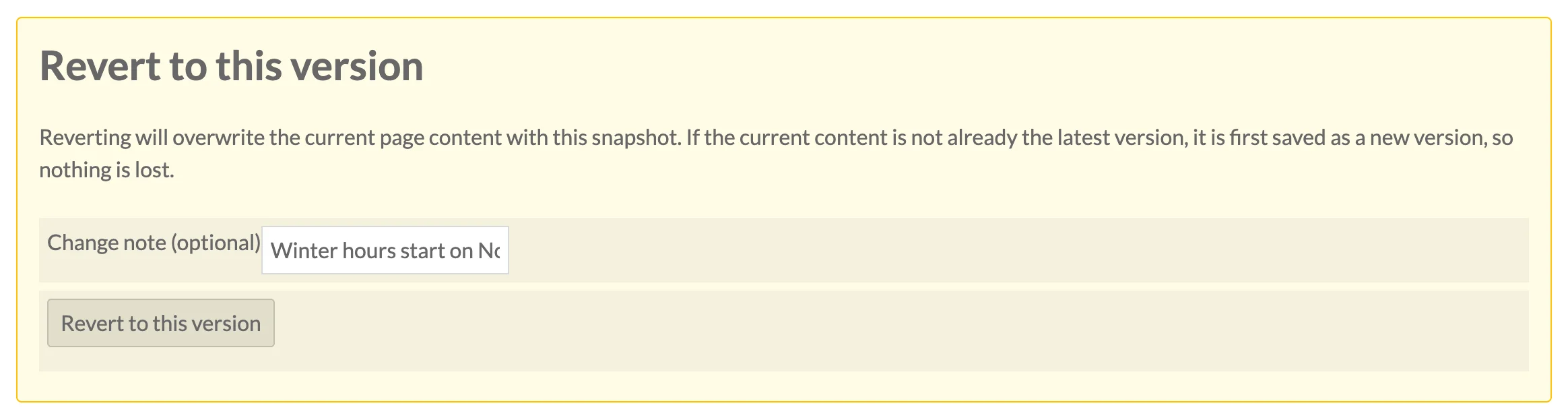
- Scroll to Revert to this version.
- Optionally type a reason in Change note (optional) (up to 500 characters). HTML tags are stripped from the note.
- Click Revert to this version.
You are returned to the page's history with the message "Page successfully reverted to version #N."
What a revert does
- The live page's title, slug, visibility, layout, layout data and blocks are replaced with the contents of the chosen version through Omeka's own API, exactly as if the page had been saved in the editor with that content. The page keeps its ID, its site and its URL.
- The page's existing blocks are reused in order: the first block takes the content of the snapshot's first block, and so on, and blocks are added or removed when the snapshot has more or fewer. Reused blocks keep their IDs.
- Each block's attachments (the items and media of a media embed, item showcase and similar blocks, with their captions) are restored from the snapshot. Versions stored before 1.1.2 did not record attachments: reverting to one keeps the attachments the page's block at that position has now, if it has the same layout, rather than removing them.
- Before the page is overwritten, its current content is compared with its most recent version. If they differ (the page was edited while the module was inactive, or its latest versions were deleted), the current content is stored first as an
updateversion noted "Saved before reverting to version #N", so nothing is lost. If they match, the most recent version already holds it and nothing extra is stored. - A new version is stored with the operation
revert, containing the restored content. Its note is your change note, or "Reverted to version #N (saved YYYY-MM-DD HH:MM:SS)" if you left the note empty. - The version you reverted to is left in place, so you can revert again later or compare it with the new entry.
A revert counts towards the retention limit like any other version, and so does the version saved before it.
Reverting from a script
The JSON API can perform the same revert; see REST API.
When a revert fails
- If the page has been deleted, the update cannot be applied and the message "Revert failed: ..." is shown. Versions of deleted pages can still be viewed and exported, but not restored.
- If Omeka refuses the version's content, the message gives the reason, for example "Revert failed: The slug "about" is already taken." when another page of the site has taken the slug since. The page is left unchanged, and so is its history: the "Saved before reverting" version stored a moment earlier is removed again. Change the slug of one of the two pages, then revert again.
- If the form was left open long enough for the CSRF token to expire, the message "Invalid request (CSRF token mismatch or form error). Please try again." is shown. Reload the snapshot page and submit again.
- Users below the Editor role do not see the revert form; a direct POST is refused with "You do not have permission to revert pages."