What gets captured
A version is stored automatically whenever a site page is created or saved. Each version records:
- the page title, slug and public/private visibility,
- the page layout and layout data,
- every content block, in order, with its layout, data and layout data, and the items and media it shows (the attachments of a media embed, item showcase and similar blocks, with their captions; recorded since 1.1.2),
- the editor's name and the time of the save,
- the operation:
create,updateorrevert, - an optional note.
Capture is triggered by Omeka's entity lifecycle events for SitePage and SitePageBlock, so a save made in the page editor, by another module or through the REST API is recorded in the same way. One version is written per page per request, even though a single save flushes the page and each of its blocks separately. A save that leaves the page's content as it was (clicking Save without making changes, for example) writes no version: the history never holds two identical versions in a row. A save made without a logged-in user (for example from a background job) is recorded with the editor name System.
Only site pages are versioned. Items, item sets, media and site settings are not tracked.
The audit log
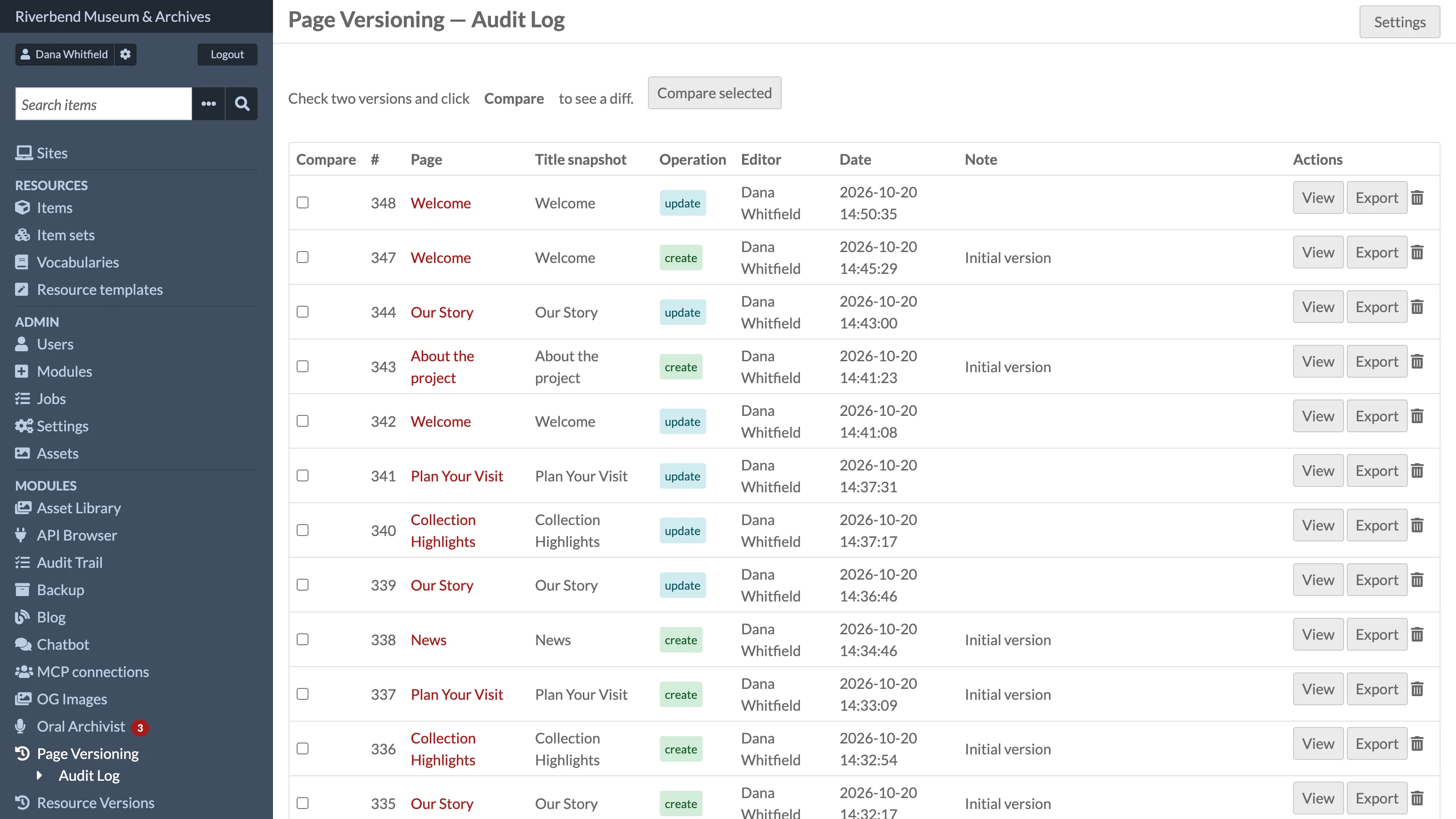
Click Page Versioning in the admin sidebar, or open /admin/page-versioning. The audit log lists the 50 most recent versions across all sites, newest first, with these columns:
| Column | Meaning |
|---|---|
| Compare | Checkbox used to pick two versions for a diff |
| # | Version ID |
| Page | Title at the time of the version, linking to that page's history |
| Title snapshot | Title stored in the version |
| Operation | create, update or revert |
| Editor | Name of the user who saved the page |
| Date | When the version was stored |
| Note | The summary, if any (for example "Initial version" or a revert note) |
| Actions | View, Export and, for editors and above, a delete icon |
The audit log is not paginated; it always shows the latest 50 entries. Use a page's own history for older entries.
A single page's history
There are three ways to reach the history for one page:
- In a site's Pages list, click the version history icon in the row's actions.
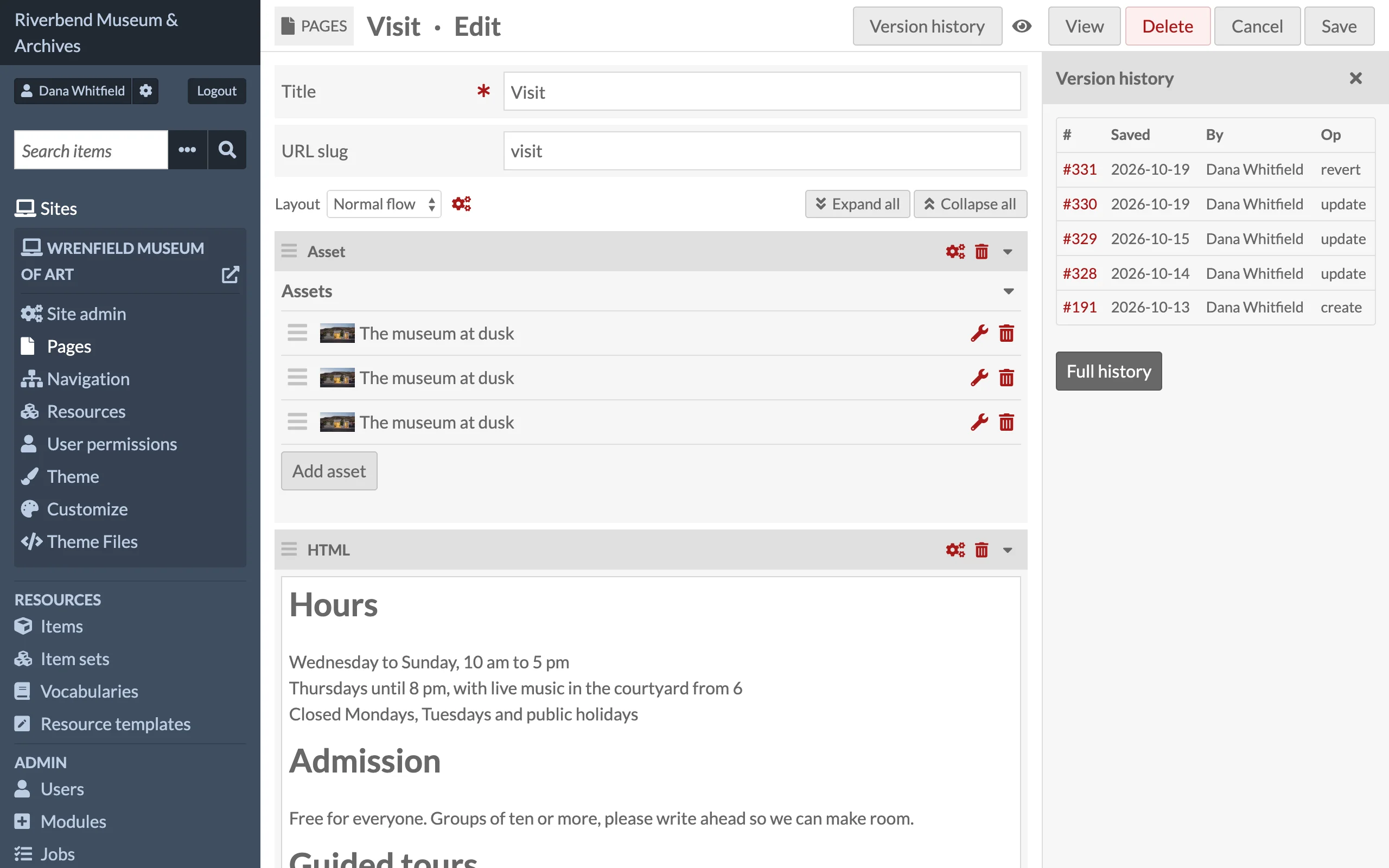
- On the page edit screen, click the Version history button in the toolbar. A sidebar lists the five most recent versions (ID, date, editor and operation), notes how many more exist, and has a Full history button. Version IDs and the button open in a new tab so you do not lose unsaved edits.
- Open
/admin/page-versioning/history/{pageId}directly, where{pageId}is the numeric page ID.
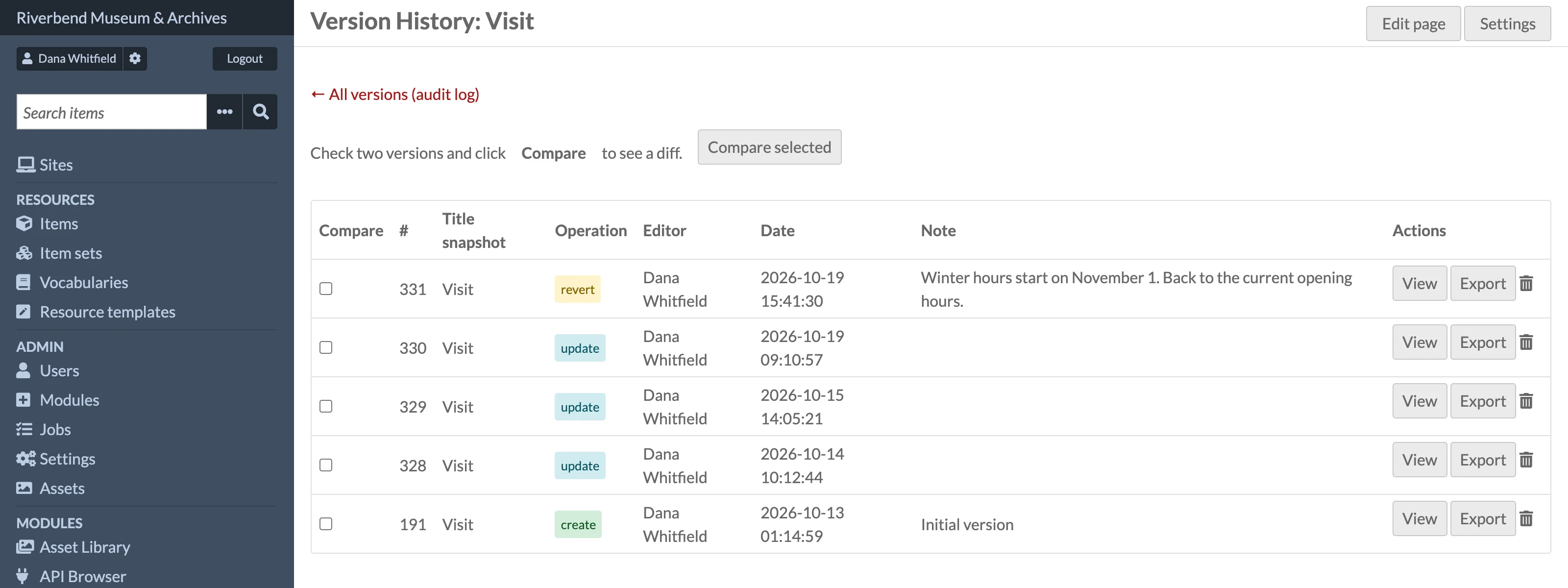
The page history shows the same table as the audit log, minus the Page column, 50 versions per page with Previous and Next links. The toolbar has Edit page and Settings buttons, and a link back to the audit log.
If the page has been deleted, its history URL redirects to the audit log with the message "Page not found." Its versions still appear in the audit log and can be opened with View.
Viewing a snapshot
Click View on any version, or open /admin/page-versioning/version/{versionId}. The snapshot page shows:
- a metadata table: Operation, Saved, Editor, Note (when present), Slug snapshot and Visibility;
- Content snapshot (read-only): one collapsible panel per block, labelled with its position and layout name. HTML blocks are rendered as HTML; every other block type is shown as formatted JSON, followed by its attachments (item and media IDs, with captions);
- for editors and above, a Revert to this version form and a Delete this version button;
- a Download as JSON button.
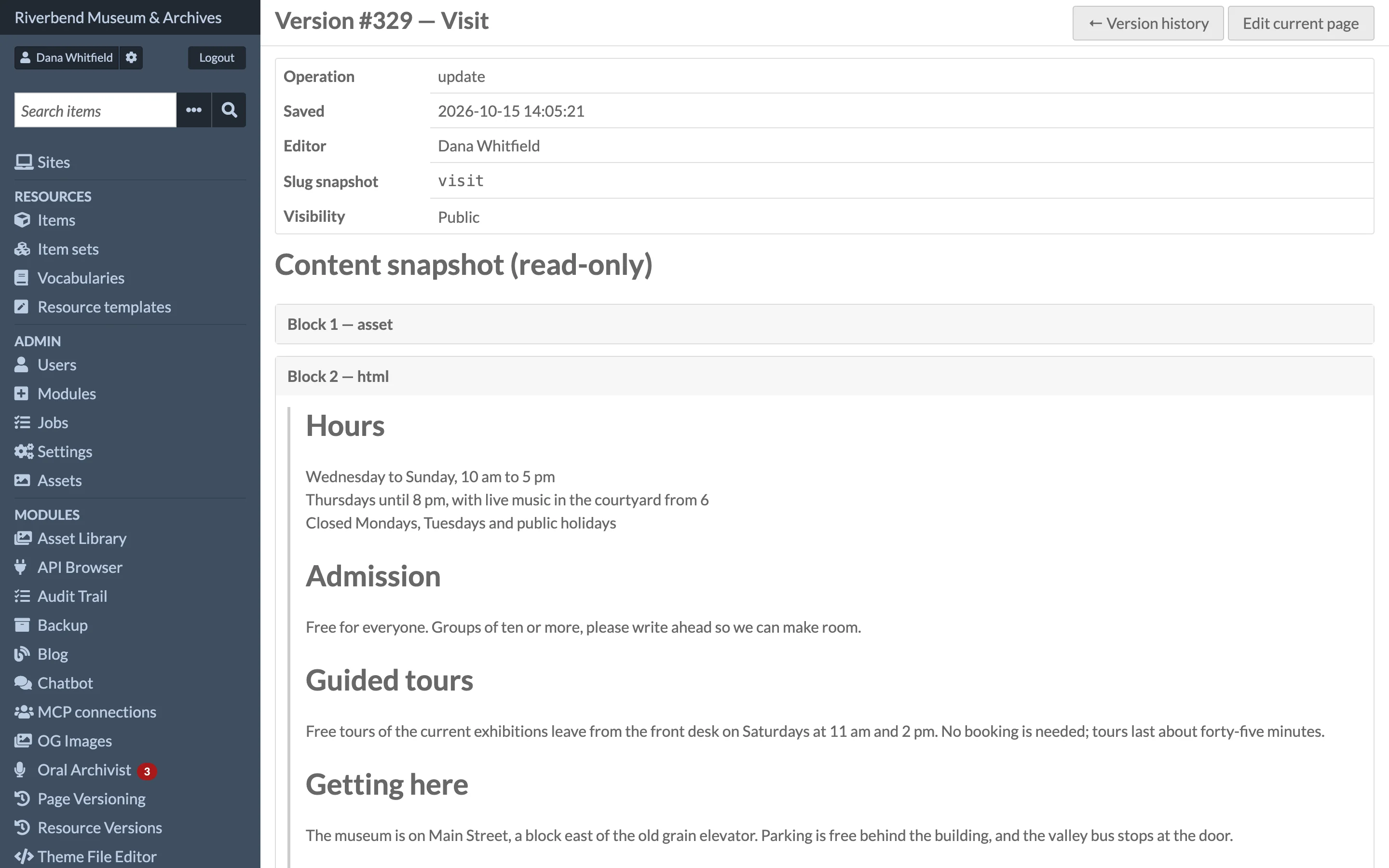
Viewing a snapshot never changes the live page. The toolbar offers Version history and Edit current page when the page still exists, or Audit log when it does not.
Next: Comparing Versions, Reverting a Page.