The activity log lists every recorded event, newest first. Open it from Audit Trail in the admin menu, or go to /admin/audit-trail. It is available to Super Users, and to Admins when the setting allows (see Configuration).
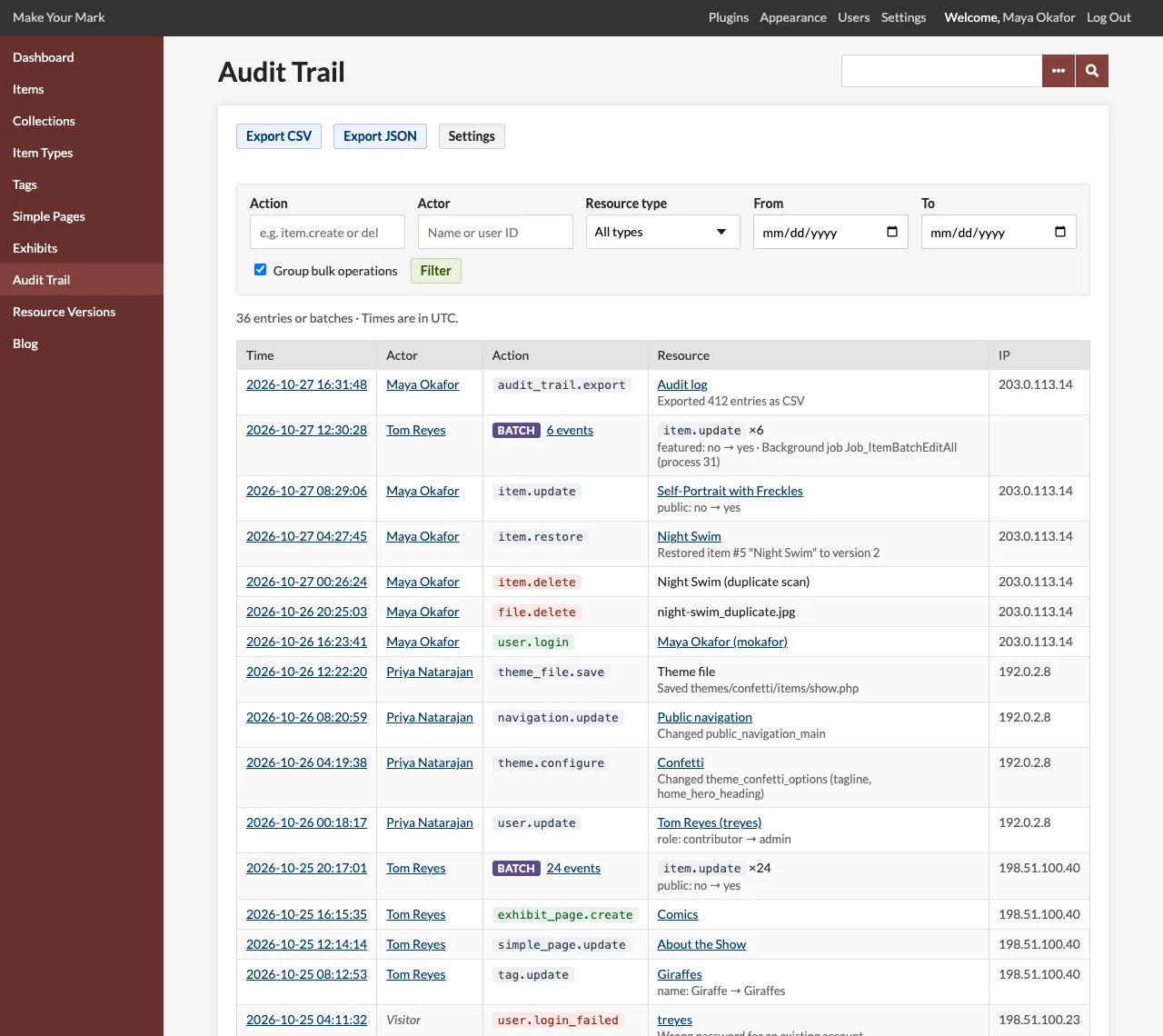
The log table
| Column | Content |
|---|---|
| Time | When the action finished, in the installation's time zone (the line above the table names it). Click it to open the entry. |
| Actor | The user who acted, linked to their account for Super Users. System for background jobs and scripts with no user, Visitor for someone not signed in. |
| Action | The action, such as item.update or user.login. Creates are green, deletes and failures red. |
| Resource | The record's name, linked to its admin page while it exists, with a line about what changed underneath (for example public: no → yes, or Changed site_title). |
| IP | The client's address, redacted if that option is on. |
A line above the table says how many entries match; Newer and Older below it move through the pages. The page size is the Entries per page setting.
Bulk operations
Batch edits, imports, background jobs, scripts, and any request that logs more than ten events are recorded event by event, with a shared batch ID. With Group bulk operations ticked (the default), each batch shows as one row, at the time of its latest event:
Batch 250 events ·
item.update×248,file.create×2
Click the event count to see every event of the batch. Untick Group bulk operations to list all events one by one.
Filtering
Use the form at the top of the page. Filters combine, and they are kept in the page address, so a filtered view can be bookmarked or shared.
| Filter | Matches |
|---|---|
| Action | With a dot, actions that start with it: item. matches every item event, user.login matches logins and failed logins. Without a dot, actions that contain it anywhere: delete matches every deletion. Suggestions list the actions in the log. |
| Actor | A user ID (exact), or part of a name: Ada, or System for jobs and scripts. Suggestions list the current users. |
| Resource type | One type: Item, File, Collection, User, Plugin, Settings, Theme and the others in the log, including those other plugins log. |
| From / To | A range of days, inclusive, in the installation's time zone. |
| Group bulk operations | Fold batches into one row each. |
- Fill in one or more filters.
- Click Filter.
- Click Clear filters to return to the whole log.
The export buttons use the same filters (see Exporting the Log).
Filters in the address
| Parameter | Example |
|---|---|
action |
action=plugin. |
actor |
actor=3 or actor=System |
resource_type, resource_id |
resource_type=item&resource_id=42: the history of item 42 |
date_from, date_to |
date_from=2026-10-01&date_to=2026-10-31 |
batch |
batch=fcf416888a611ef3: one batch's events |
group |
group=0 lists batches event by event |
page |
page=2 |
Entry details
Click an entry's time to open /admin/audit-trail/<id>. The page shows every field:
- ID and Time (local, and in UTC)
- Actor, with their user ID, and whether the account has since been deleted
- Action, Resource type, Resource ID, Resource (linked to the record while it exists) and Detail
- Source: Web, REST API, Background job or Command line
- Batch, with a link to its events
- IP address and User agent (for jobs and scripts, what ran them)
- Data: the details as JSON, such as the values that changed
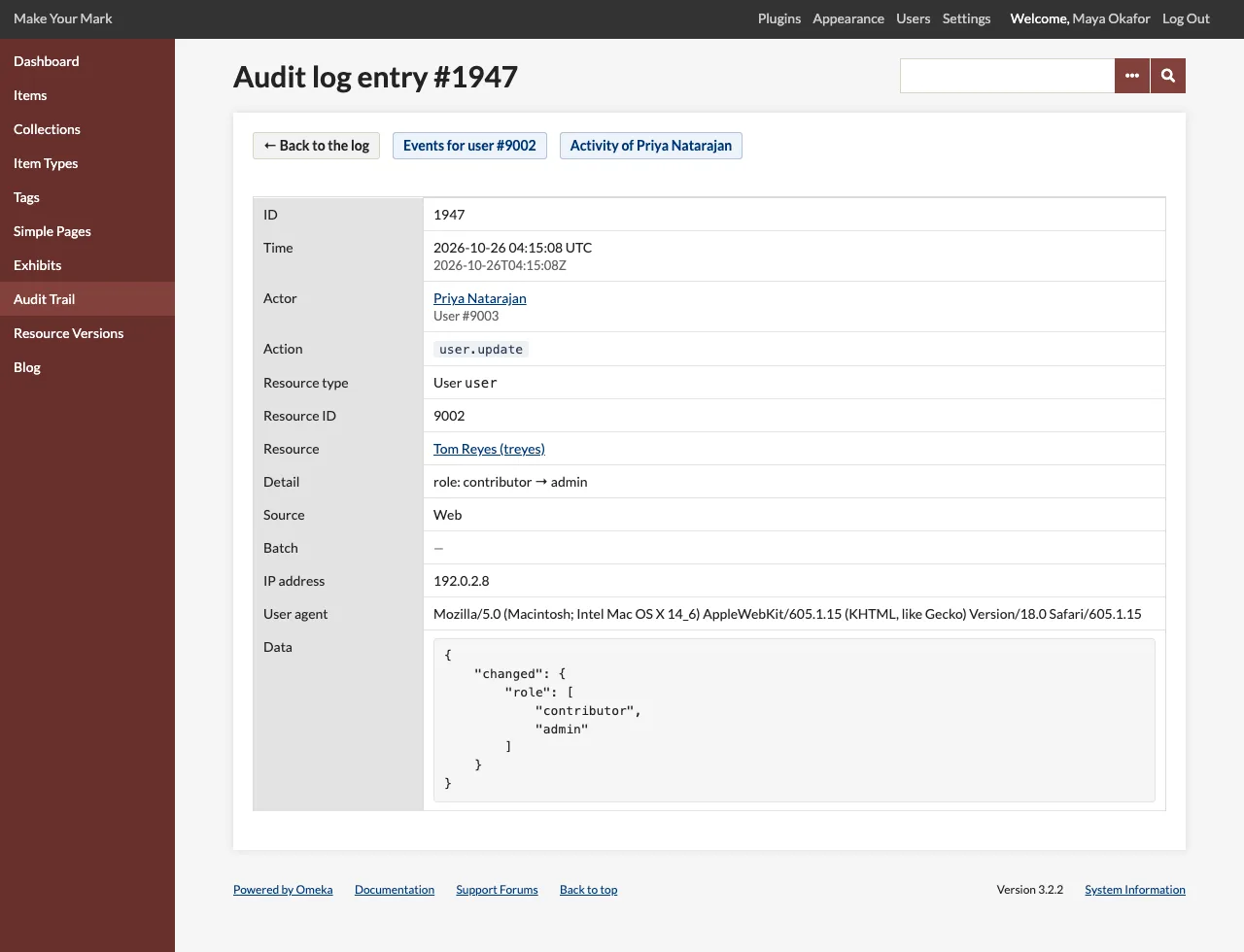
Two buttons at the top lead on: Events for item #42 (the history of the record) and Activity of … (everything the actor did).
Other places the log appears
The ten latest events are on the dashboard, and each user has an Activity tab. See Dashboard and User History.