How overrides work in Omeka Classic
When Omeka Classic shows a public page, it looks for each view (template, and also stylesheet or script queued by name) in a list of folders and uses the first it finds:
- On core pages (items, collections, files, search, the home page): the theme folder (
themes/<theme>/), then Omeka's views (application/views/scripts/), then every active plugin'sviews/public/andviews/shared/. - On a plugin's own pages (a simple page, an exhibit): first the plugin's folder in the theme (
themes/<theme>/<plugin-folder>/), then that plugin's views, then the theme folder, Omeka's views and the other plugins.
<plugin-folder> is the plugin's folder name in lower case with hyphens between words: simple-pages for SimplePages, exhibit-builder for ExhibitBuilder, geolocation for Geolocation.
So to override:
| The view | Put the copy at | Used |
|---|---|---|
application/views/scripts/<path> |
themes/<theme>/<path> |
wherever Omeka shows it |
| `plugins/ |
shared/ |
themes/<theme>/<plugin-folder>/<path> |
| `plugins/ |
shared/ |
themes/<theme>/<path> |
custom.php and functions.php are not overrides: Omeka runs the custom.php of every view folder, and each requires its own functions.php. The editor neither marks them nor copies them.
Theme File Editor applies these rules, so you can copy a view to the right place without a shell.
Finding the original
- Open the editor and choose the theme in Theme. It must be editable: a copy of your own, or a theme you ticked under Settings > Editable themes (see Copying a Theme).
- In Show, choose Omeka views for core views (for example
items/show.php), or a plugin's public or shared views, such as Simple Pages: public views. Only installed plugins with such a folder are listed; inactive ones say so. - Open folders down to the file. A green dot marks the views the theme already has a copy of.
You can also find a view with search: choose Omeka views or a plugin in the search's list.
Copying a view into the theme
- Click the view. It opens read-only, with a box Override it in
. - For a plugin view, choose where the copy goes: For the plugin's own pages (
themes/<theme>/<plugin-folder>/<path>) or Where the plugin prints it on other pages (themes/<theme>/<path>). A core view has one place. Each place says whether the theme has it already, with a link to open it, or why it cannot be written (a link out of the theme on the way, or a folder the web server cannot write to). - Click Copy to Theme and confirm.
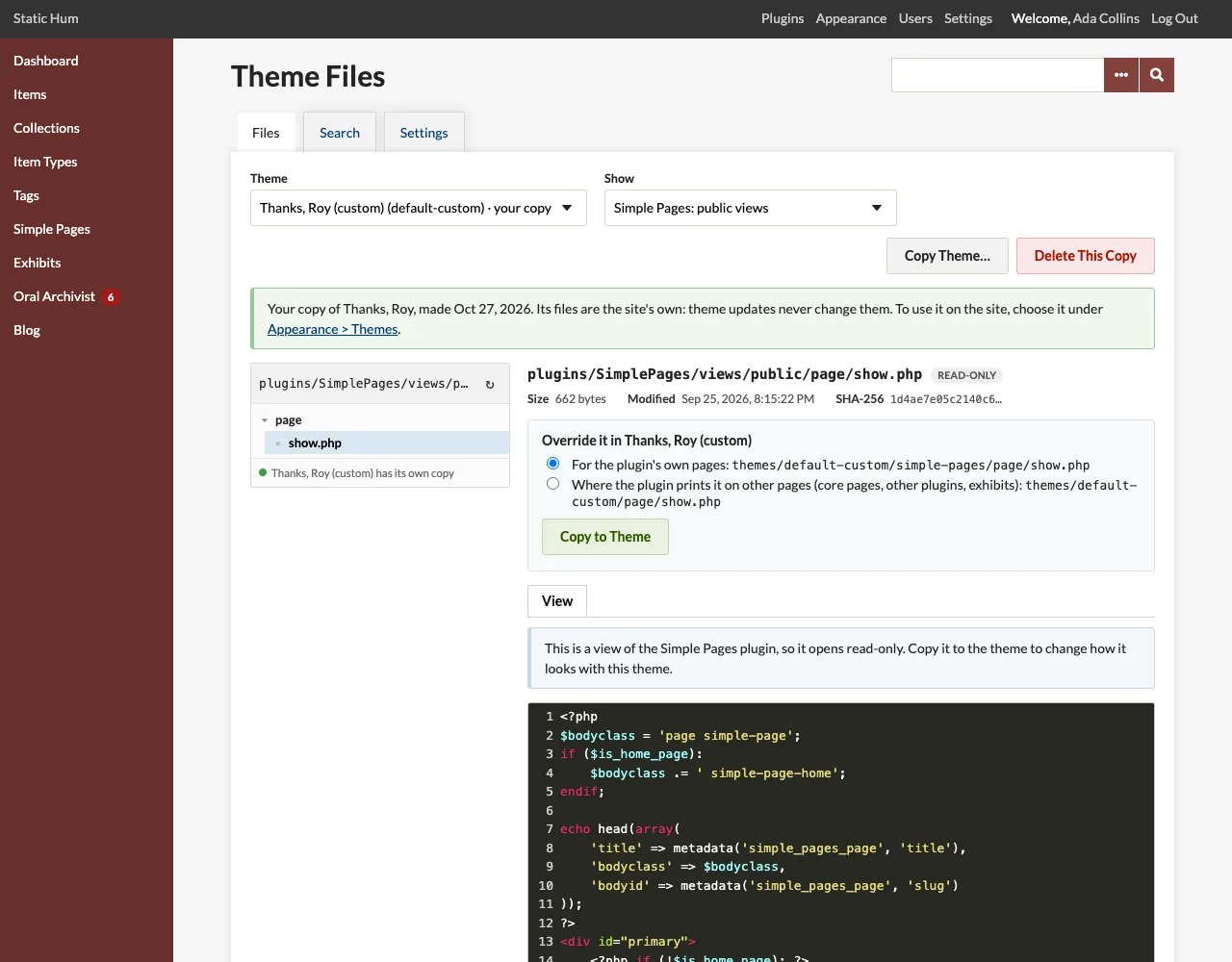
The editor copies the view, creating the folders it needs, stores a first revision (Copied from plugins/SimplePages/views/public/page/show.php) and opens the theme's new file, ready to edit.
When the theme has the file already, you are asked whether to replace it. Its current content is stored in the revision history first (and a backup file is written when Keep a backup file is on in the settings), so you can roll back.
Seeing what a theme file overrides
When a theme file overrides views, its header has a box This file overrides naming them: Omeka's view, or a plugin's view on the plugin's own pages or where the plugin prints it elsewhere. Each has a link to open the original and Compare to see how the theme's version differs. After an Omeka or plugin update, this shows what changed in the views your theme replaces.
In the tree, a blue dot marks the theme files that override something.
Removing an override
The editor does not delete theme files. To stop overriding a view, delete the theme's copy of it on the server, or restore the original content from the revision history if the theme had the file before. In a theme copy of your own, you can also make a new copy of the original theme.