Opening search
Click the Search tab of Appearance > Theme Files, or go to /admin/theme-file-editor/search. From the editor, the tab searches the theme you were looking at.
Searching
- Type at least two characters: part of a file name, or text in files (a function, a class name, a hook).
- Choose where to search: All themes, one theme, Omeka views, or a plugin's public or shared views.
- Click Search.
Matching is not case sensitive. A file matches when its name holds the text, or else when its content does.
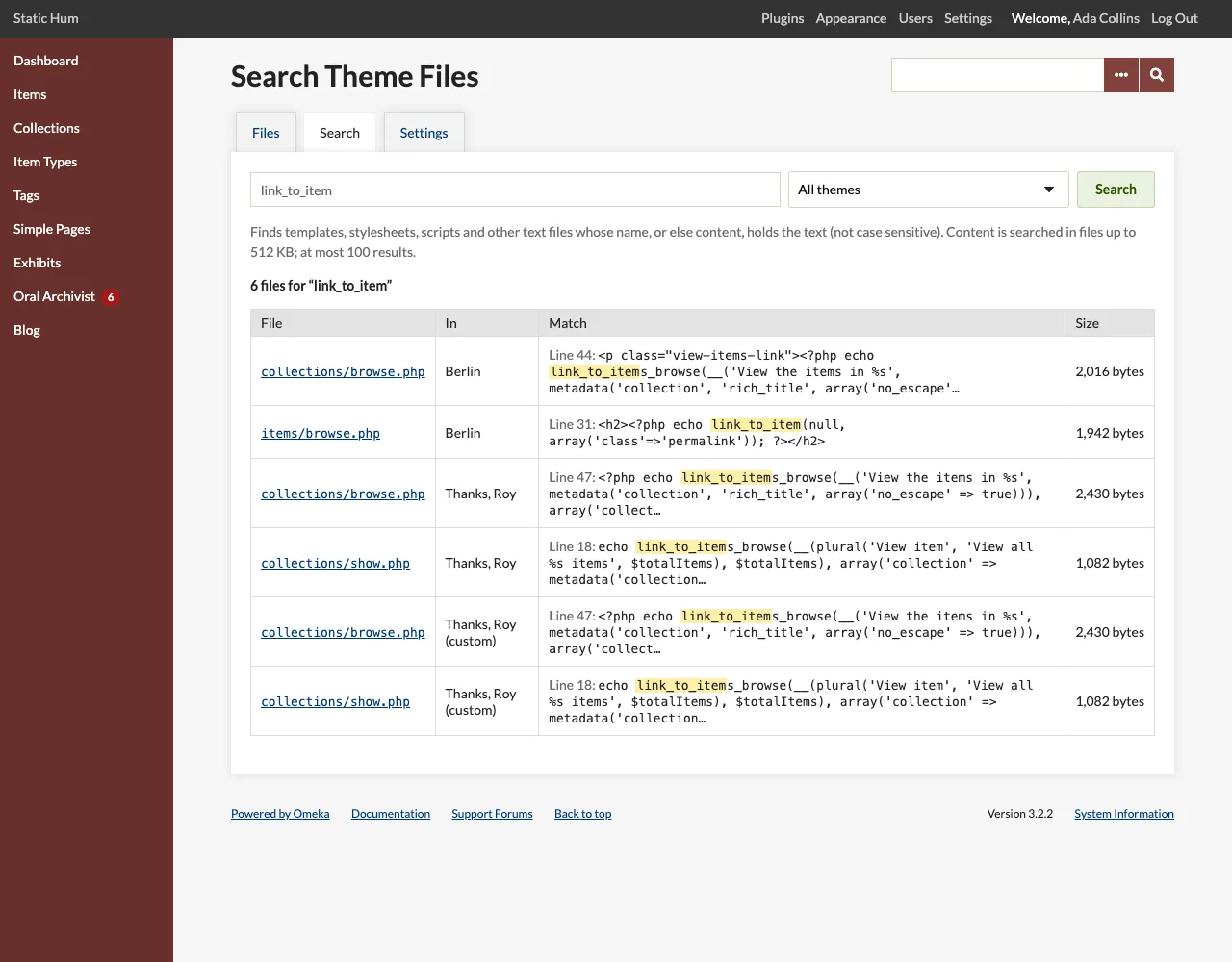
Results
The table shows the File path, the theme or views it is In, the Match (File name, or the line number and the line holding the text, with the text highlighted) and the file's Size. Click a file to open it in the editor at the matching line. Results from Omeka's or a plugin's views open with the public theme selected, ready for Copy to Theme.
Limits
- Templates, stylesheets, scripts and the other text files the editor opens are searched; backups, images and fonts are not.
- Content is searched in files of 512 KB or less; larger files can still match by name.
- At most 100 results, and folders at most twelve levels deep.
- Hidden files are skipped. Links are followed as in the tree: a Theme Engine theme's linked templates are searched (and found in each theme that links them).