What a revision is
Each change the editor makes to a theme file is stored in the theme_file_editor_revisions table: the theme's folder name, the file's path in the theme, the whole content, its size and SHA-256 checksum, the user, the time (UTC) and an optional note of what changed.
Revisions are made by:
- saving in the editor (the note is your What changed);
- Copy to Theme (Copied from plugins/SimplePages/views/public/page/show.php);
- rolling back (Rollback to revision #N);
- and, before any of these changes a file, its current content when the history does not have it: The file before its first change in the editor, or Changed outside the editor when the file differs from its latest revision (an upload, a theme update). So the original and outside changes can always be put back.
Copy Theme does not store revisions for the files it copies; each file's history starts with its first change.
After each save, the file's oldest revisions beyond Revisions per file are deleted. Revisions stay when the user who made them is deleted, and are deleted with a theme copy you delete in the editor.
Comparing in the editor
Open a theme file and click the Compare tab.
- Choose a revision in the first list (the 50 latest, as
#ID · date · note). - Choose The file now or another revision in the second.
- Click Show Differences.
The result is a unified diff with three lines of context, removed lines in red and added lines in green; No differences. means the two are the same.
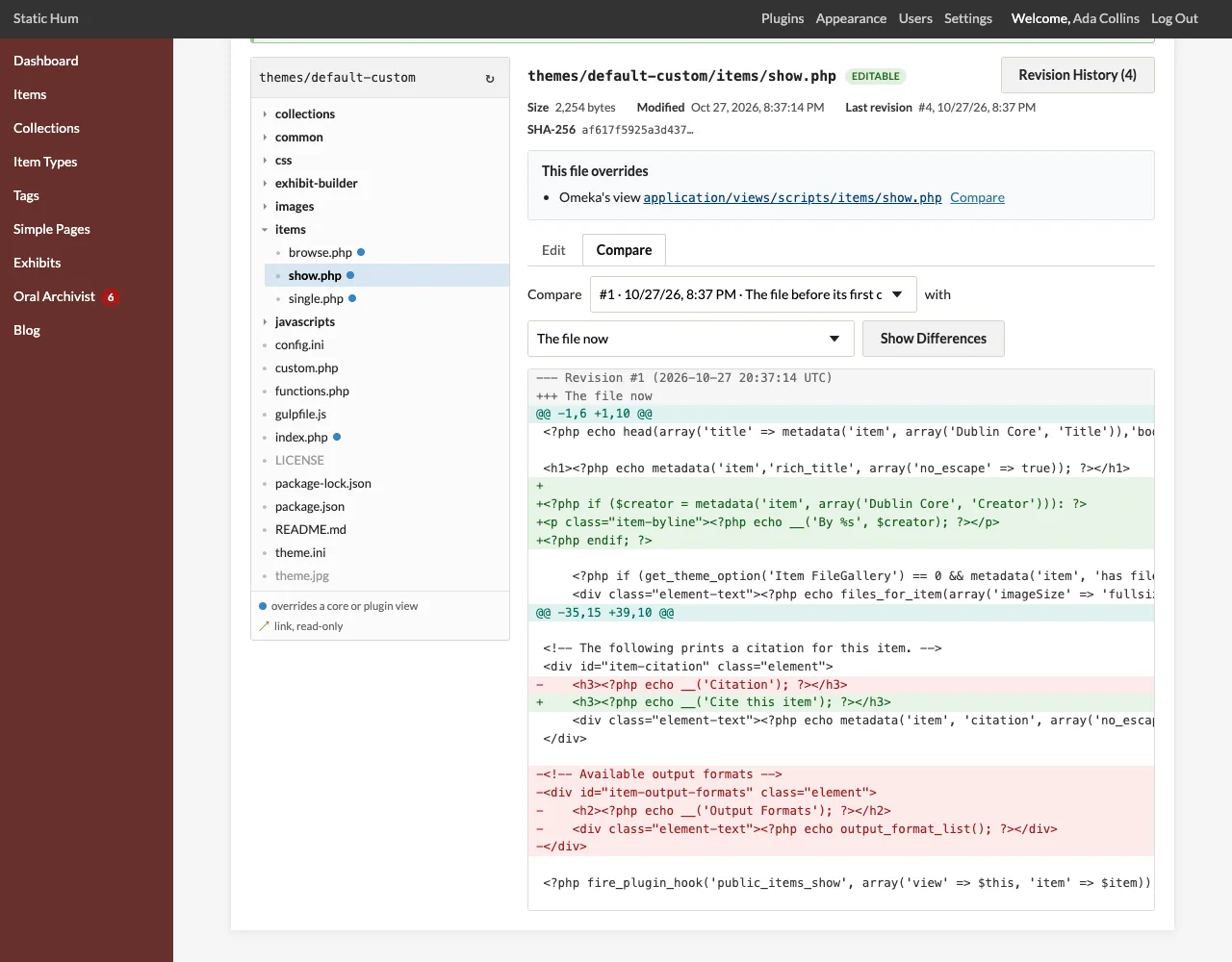
When the file overrides a core or plugin view, Compare next to that view in the This file overrides box shows how the theme's version differs from the original: useful after an Omeka or plugin update, to see what changed in the view you copied.
The Revision History page
Click Revision History in the file's header, or go to /admin/theme-file-editor/revisions?theme=<theme>&path=<path>.
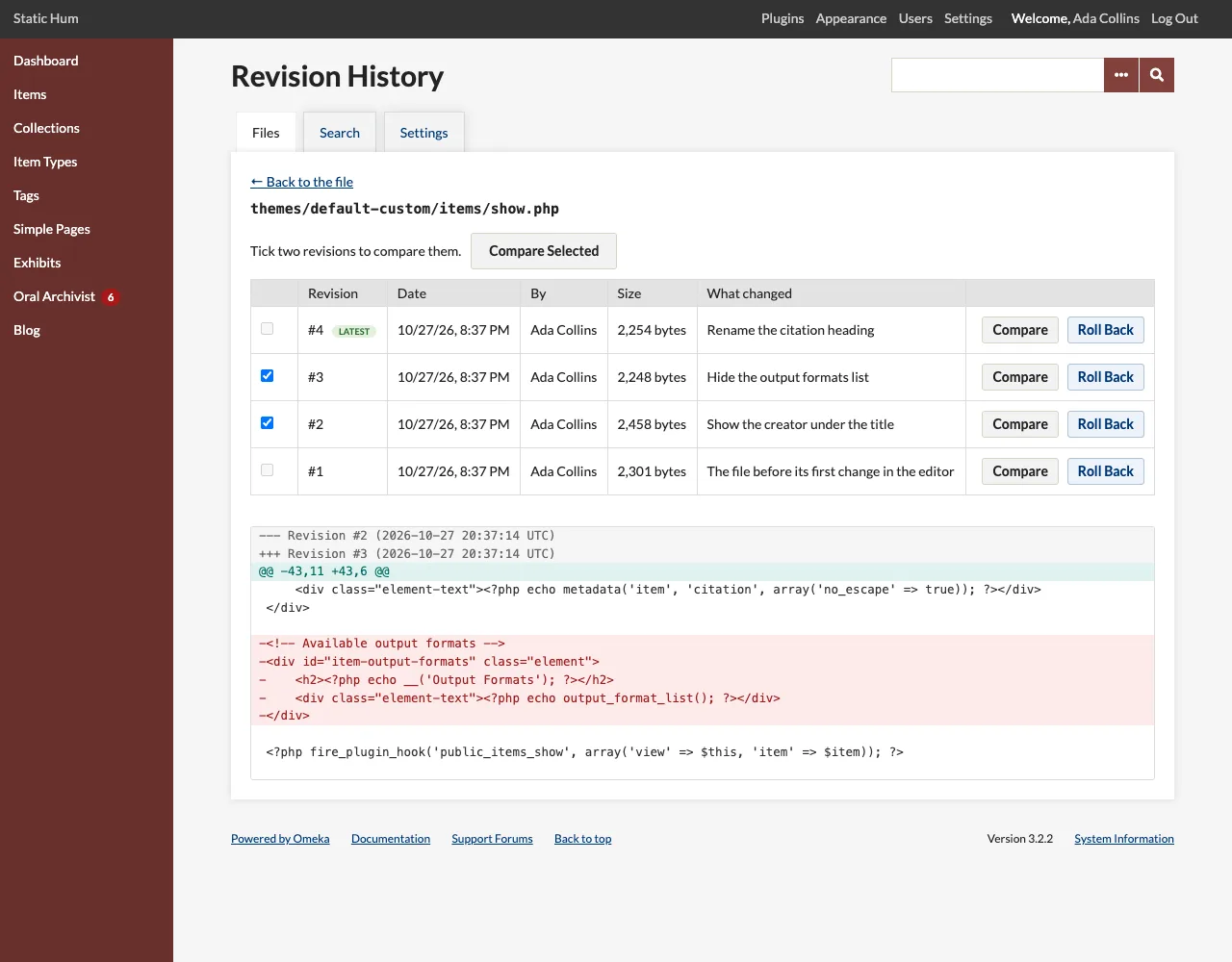
The table lists the 50 latest revisions with their number, date, author, size and note; Show more lists up to 200.
- Tick two revisions and click Compare Selected to compare them. Once two are ticked, the others are disabled until you untick one.
- Compare on a row compares that revision with the file as it is now.
Back to the file returns to the editor.
Rolling back
- On the Revision History page, click Roll Back on the revision to restore.
- Confirm.
The file gets that revision's content and the rollback is stored as a new revision, Rollback to revision #N, so you can roll back a rollback. If the file had been changed outside the editor since its latest revision, that version is stored first.
A rollback needs the theme to be editable and the file to still exist in it, as a file of the theme (not a link out of it). It does not run the syntax check (the content was saved once already) or write a backup. Roll Back is not shown for a read-only theme; its revisions can still be compared.