Supervisors and Global Administrators send announcements. Go to Announcements > All announcements and click New Announcement.
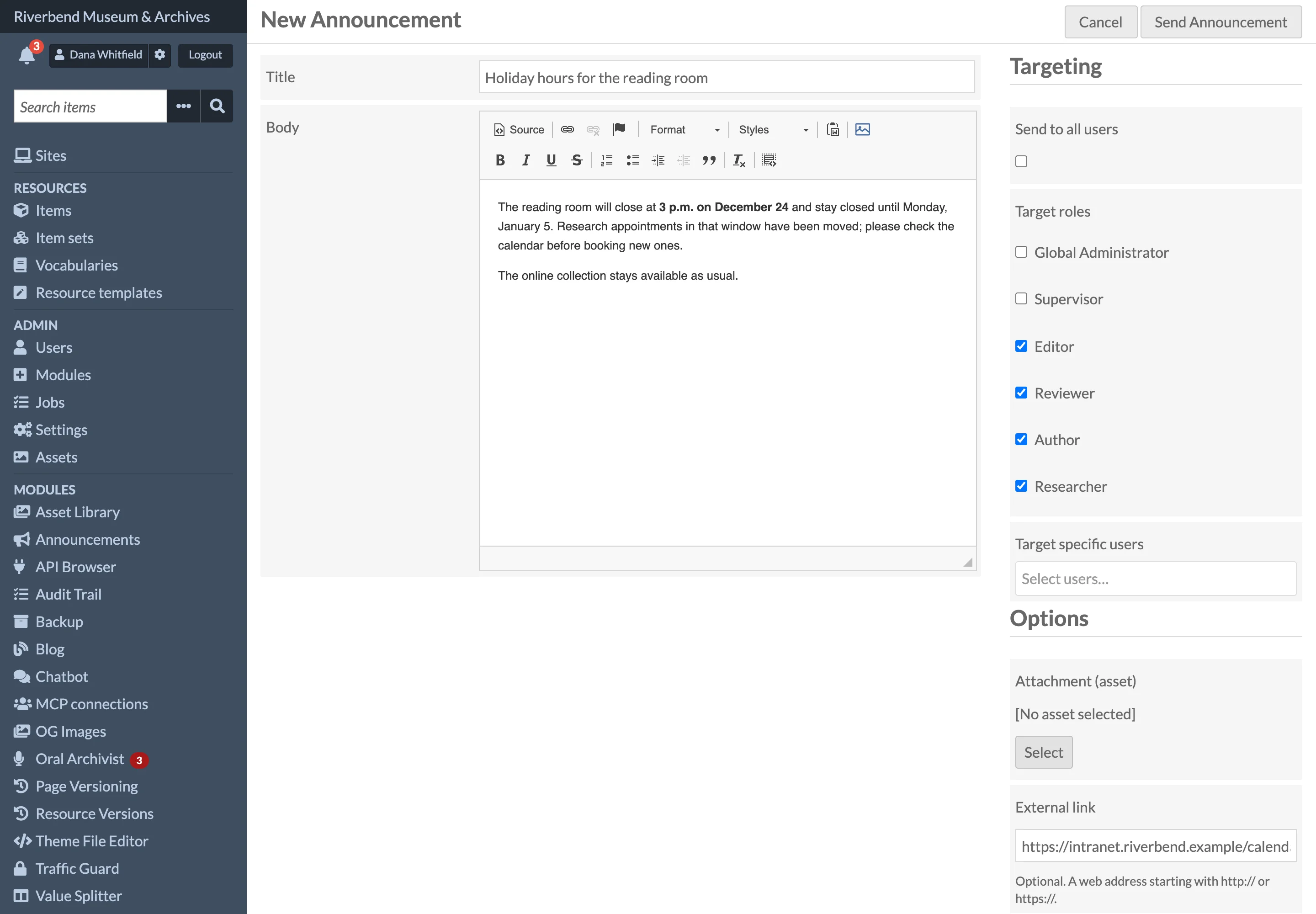
Writing it
- Title: shown in inboxes, on the dashboard and as the email subject. Required.
- Body: written in the same rich text editor as Omeka pages. Headings, lists, links and images are kept; scripts and other unsafe HTML are removed when you send it, whatever your installation's HTMLPurifier setting.
- Attachment (asset): optional. Choose an image or file from the Asset Library; recipients see a link to it.
- External link: optional. A web address starting with
http://orhttps://, shown under the body. - Expires at: optional. Entered in the installation's time zone. After it, the announcement is listed as Expired, and the cleanup decides what happens to it in inboxes (see Recall, Expiry and Cleanup). It must be in the future.
Choosing who receives it
| Option | Who gets it |
|---|---|
| Send to all users | Every active user, including you. The other two options are hidden while it is ticked. |
| Target roles | Every active user with one of the ticked roles. |
| Target specific users | The people you pick. Start typing a name or email address to search. |
Roles and specific users can be combined; someone who matches both gets the announcement once. Choose at least one option, or the form asks you to.
Recipients are fixed when you send. People who join later, are reactivated later or change role later do not receive it, and deactivated users never do.
Email notification
Tick Also send email notification to email a copy to each recipient who has not turned announcement emails off in their user settings. Emails are sent by a background job (it appears under Admin > Jobs as SendAnnouncementEmails), with the subject [Announcement] followed by the title and the body as plain text. The installation needs a working mail setup.
After sending
Click Send Announcement. The announcement arrives in every recipient's inbox at once, and you land on its page.
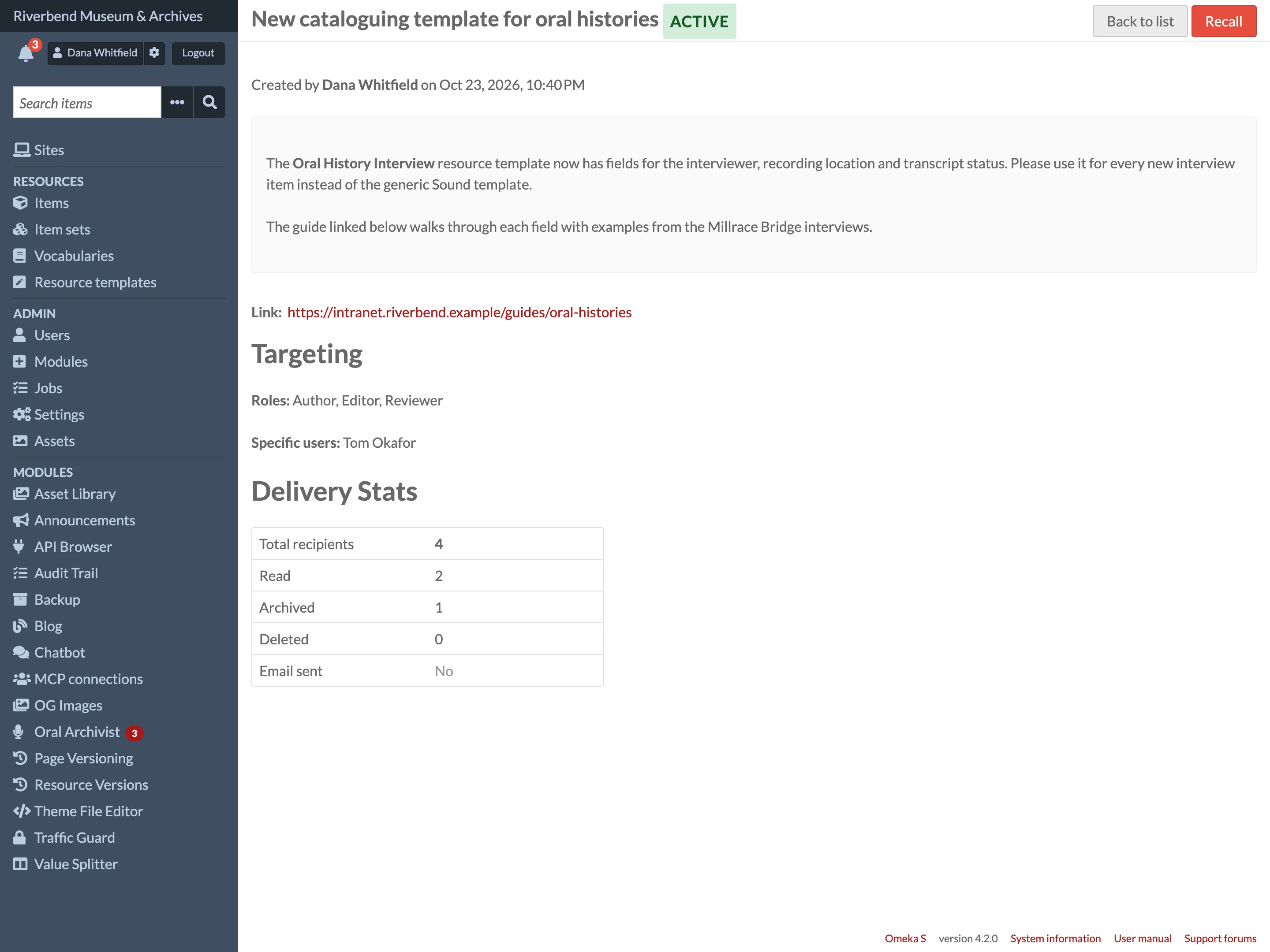
The page shows who it was sent to and its Delivery Stats: the number of recipients and how many have read, archived or deleted it, and whether an email was sent. All announcements lists every announcement with its recipient count and status (Active, Expired or Recalled); filter by status from the menu above the list.
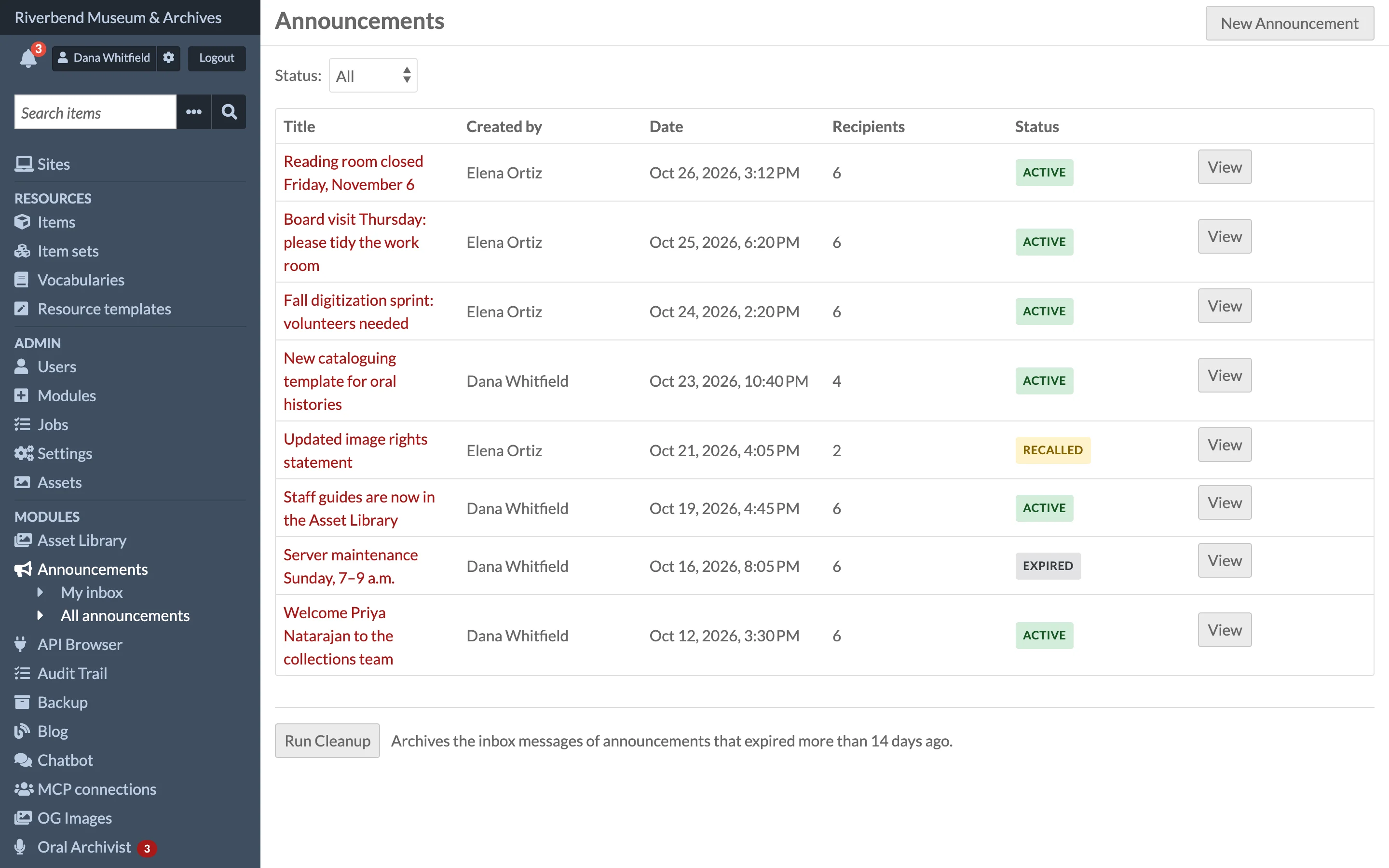
Announcements cannot be edited after they are sent. To correct one, recall it and send a new one.