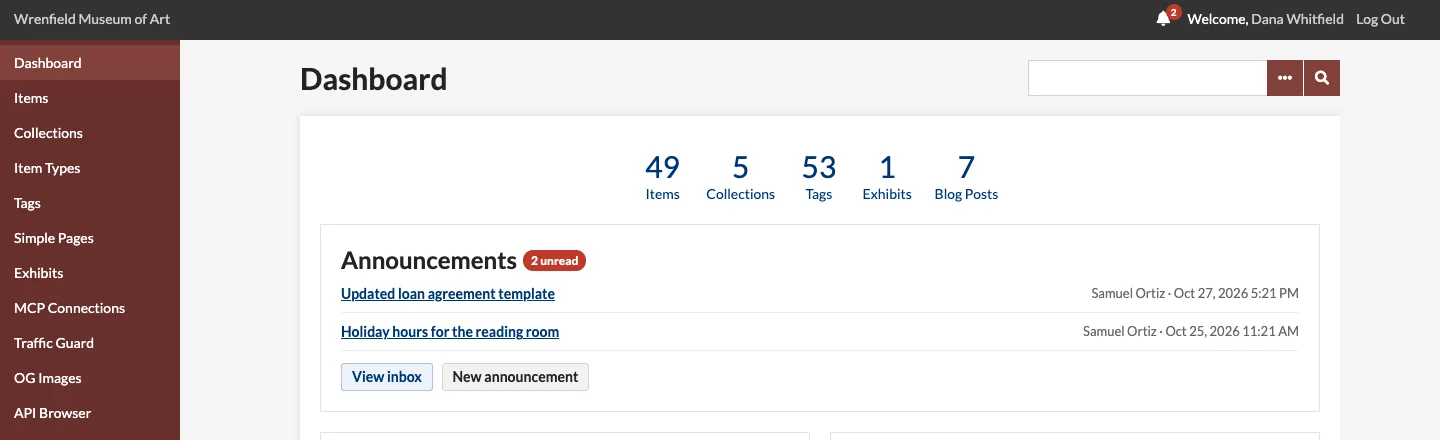
Every user who signs in to the admin has an inbox, whatever their role. Open it from Announcements in the admin menu, from the bell next to your name at the top of the admin, or with View inbox on the dashboard.
The bell and the dashboard
The red badge on the bell is the number of unread announcements; it disappears when there are none. On a phone the bell sits beside the menu button. The Announcements panel at the top of the dashboard lists the five newest unread ones, with their sender and date.
The inbox
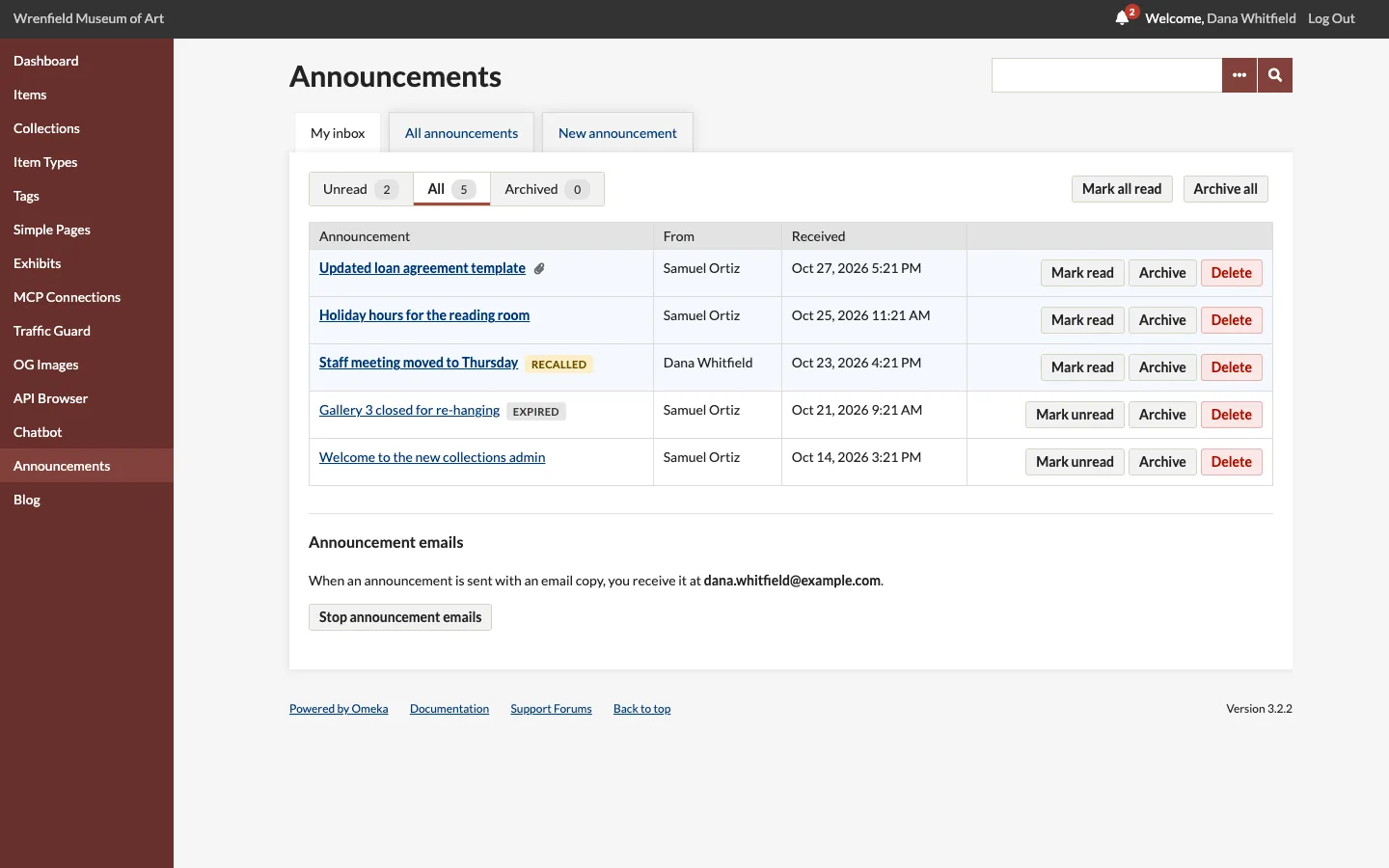
| Tab | Shows |
|---|---|
| Unread (the default) | Messages you have not opened, not counting recalled ones |
| All | Every message except archived and deleted ones; unread ones are in bold |
| Archived | Messages you archived, or that the cleanup archived after they expired |
The number on each tab is how many messages it holds. A paperclip marks messages with an attachment. Click a title to read the message; opening it marks it read.
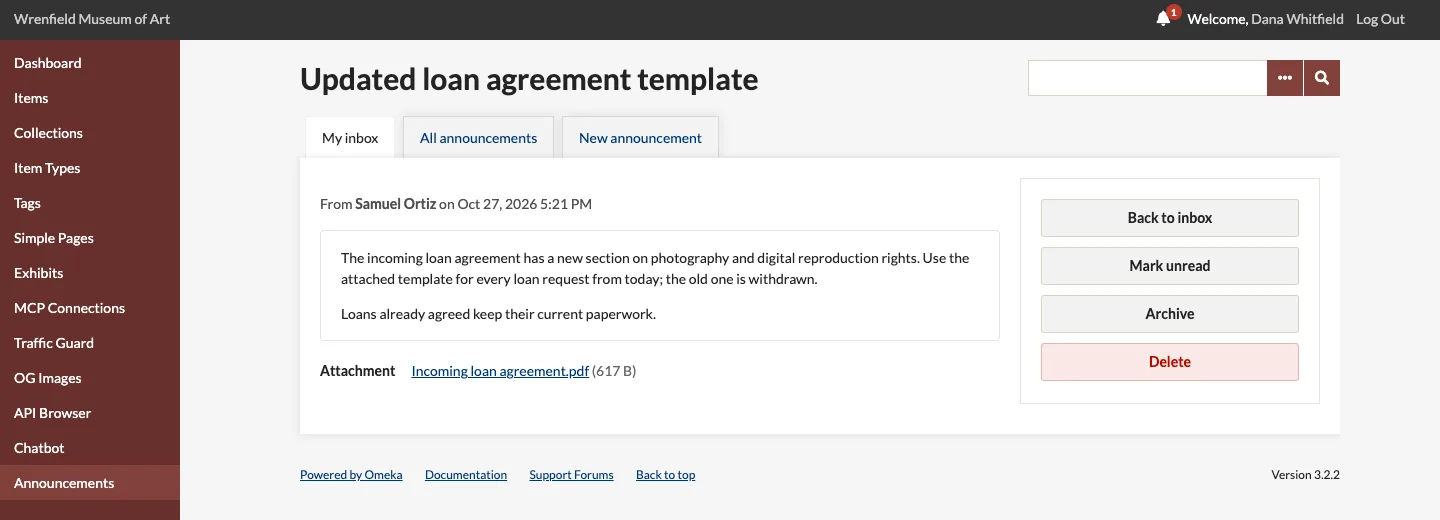
Managing messages
| Button | What it does |
|---|---|
| Mark read / Mark unread | Marks the message read, or unread again |
| Archive | Moves it to the Archived tab |
| Delete | Removes it from your inbox, after asking. This cannot be undone, and only affects your own inbox |
| Mark all read | Marks every unread message read |
| Archive all | Archives every message on the Unread and All tabs, after asking |
These change only your own inbox; the sender sees them in the announcement's delivery stats.
Recalled messages
When the sender recalls an announcement, it gets a Recalled badge and the notice This announcement has been recalled by the sender. It leaves the Unread tab, the bell and the dashboard, but stays under All so you can still see what it said.
Announcement emails
If the sender asked for email copies, you receive one at the address of your Omeka account, unless you have turned announcement emails off. The bottom of your inbox, under Announcement emails, says which address they go to; click Stop announcement emails to turn them off, or Receive announcement emails to turn them back on. Announcements arrive in your inbox either way.