Open API Browser from the admin sidebar, or go to /admin/api-browser.
The resource list
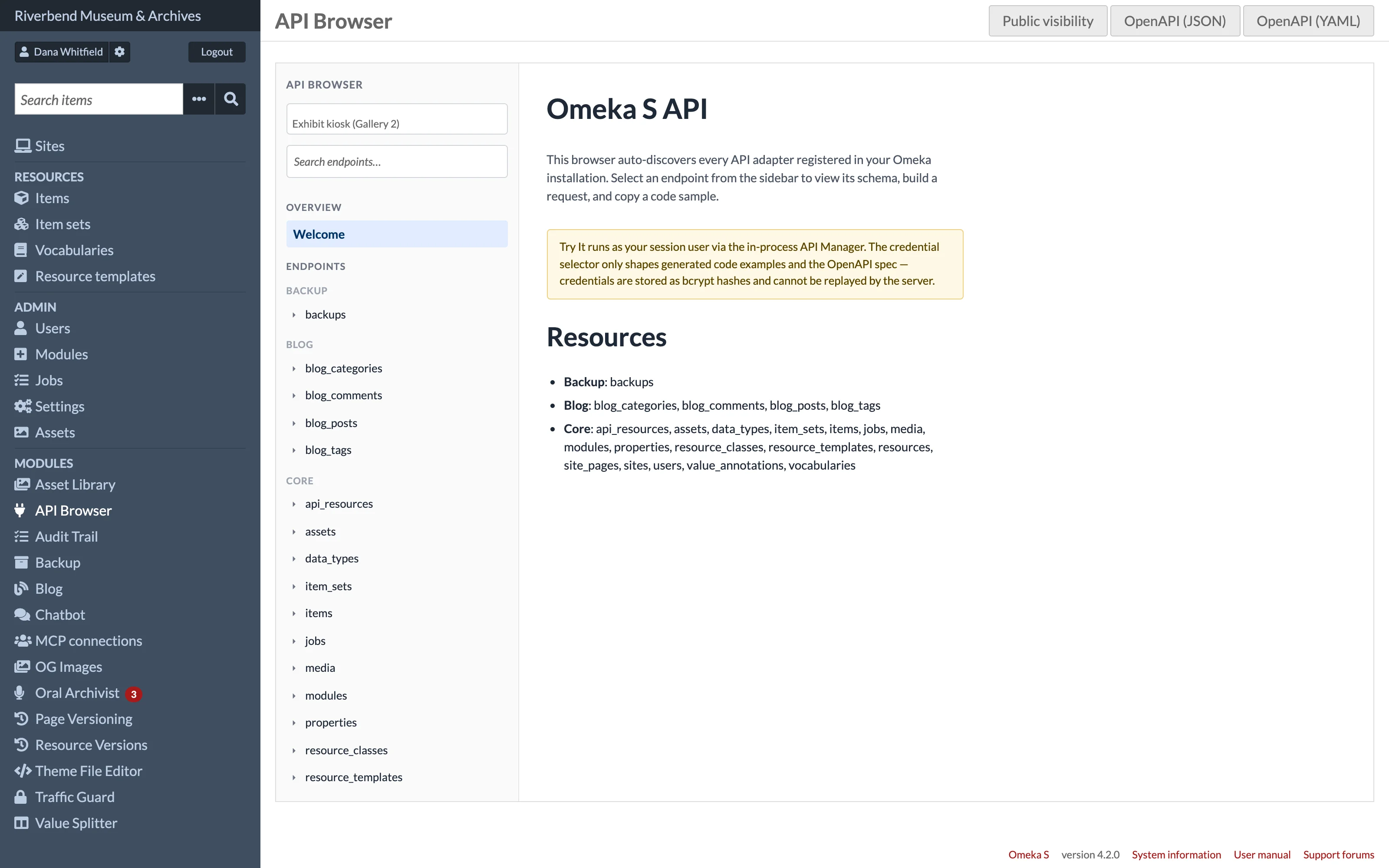
The sidebar lists every resource the API exposes, grouped by the module that provides it. Core resources such as items, media, item_sets, sites and users appear under Core; resources added by modules appear under the module's name. Resources from a newly installed module appear as soon as the module is active.
Each resource shows the operations available to you: List (search), Show (read one), Create, Update and Delete. Operations your role is not allowed to perform are not offered.
The overview
The Welcome entry under Overview at the top of the sidebar is the browser's start page. It explains that requests sent from the browser run as your logged-in user and lists every resource grouped by the module that provides it.
A resource's reference
Selecting a resource and an operation opens its reference, built from the running installation:
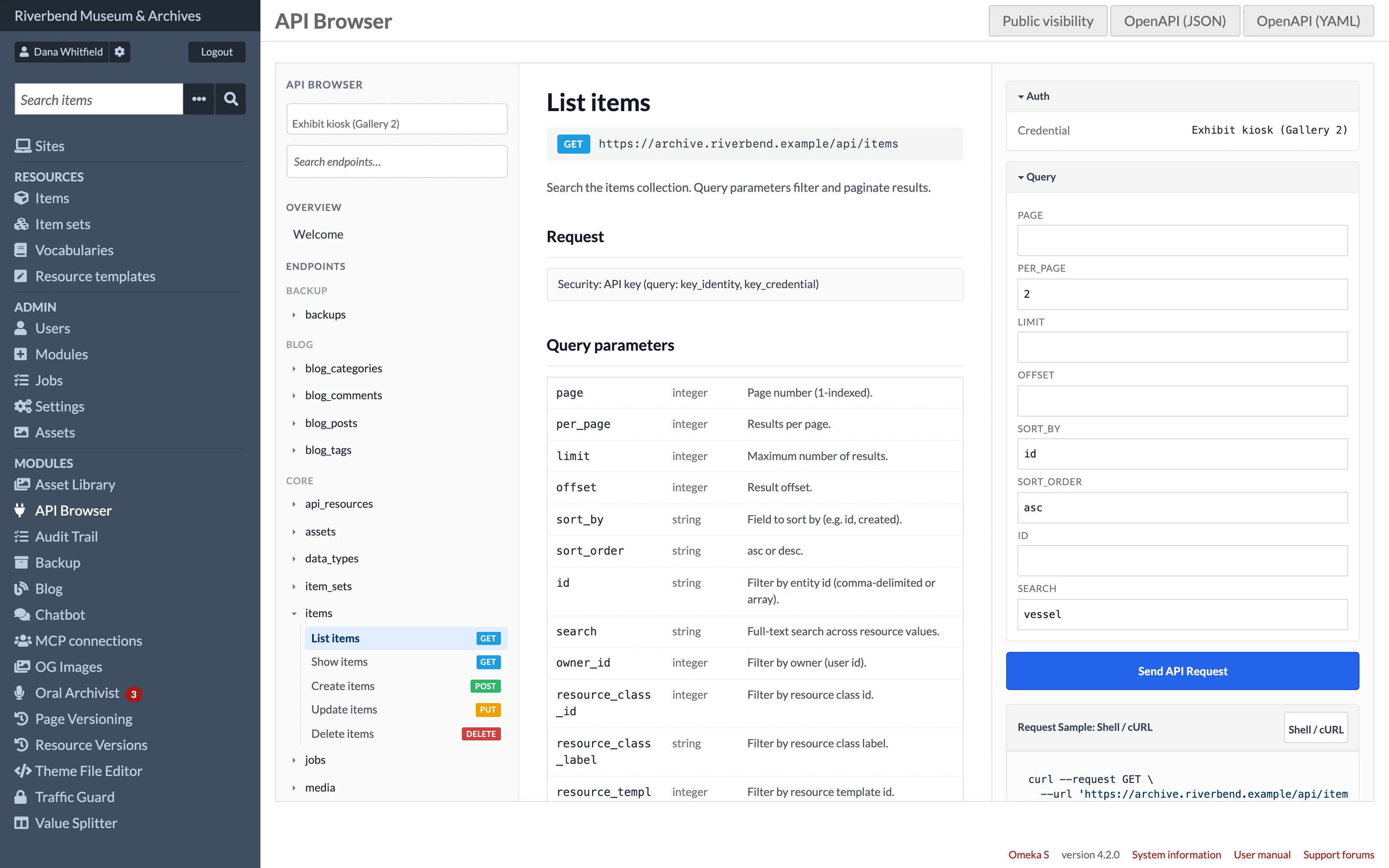
- Endpoint: the collection path (
/api/<resource>) or item path (/api/<resource>/{id}) and its HTTP method. - Query parameters (List): the parameters the search endpoint understands, such as
page,per_page,sort_by,sort_order,propertyfilters andsearchfor full-text matching. - Body parameters (Create and Update): documented request fields, when the resource's module declares them.
- Body: the JSON-LD keys you will find in responses, such as
o:id,o:title,o:createdand resource-specific keys, each with a type and description. - Responses: the status codes to expect, such as
200,204for delete,403and404.
The sidebar search box matches resource names, JSON-LD keys and the underlying entity's field names, so you can find a resource by a column it stores.
For core resources the query parameters and JSON-LD keys come from a curated catalog. Modules can supply their own; see Extending the Browser.
OpenAPI links
The OpenAPI (JSON) and OpenAPI (YAML) buttons in the page actions download the full specification. See OpenAPI Export.