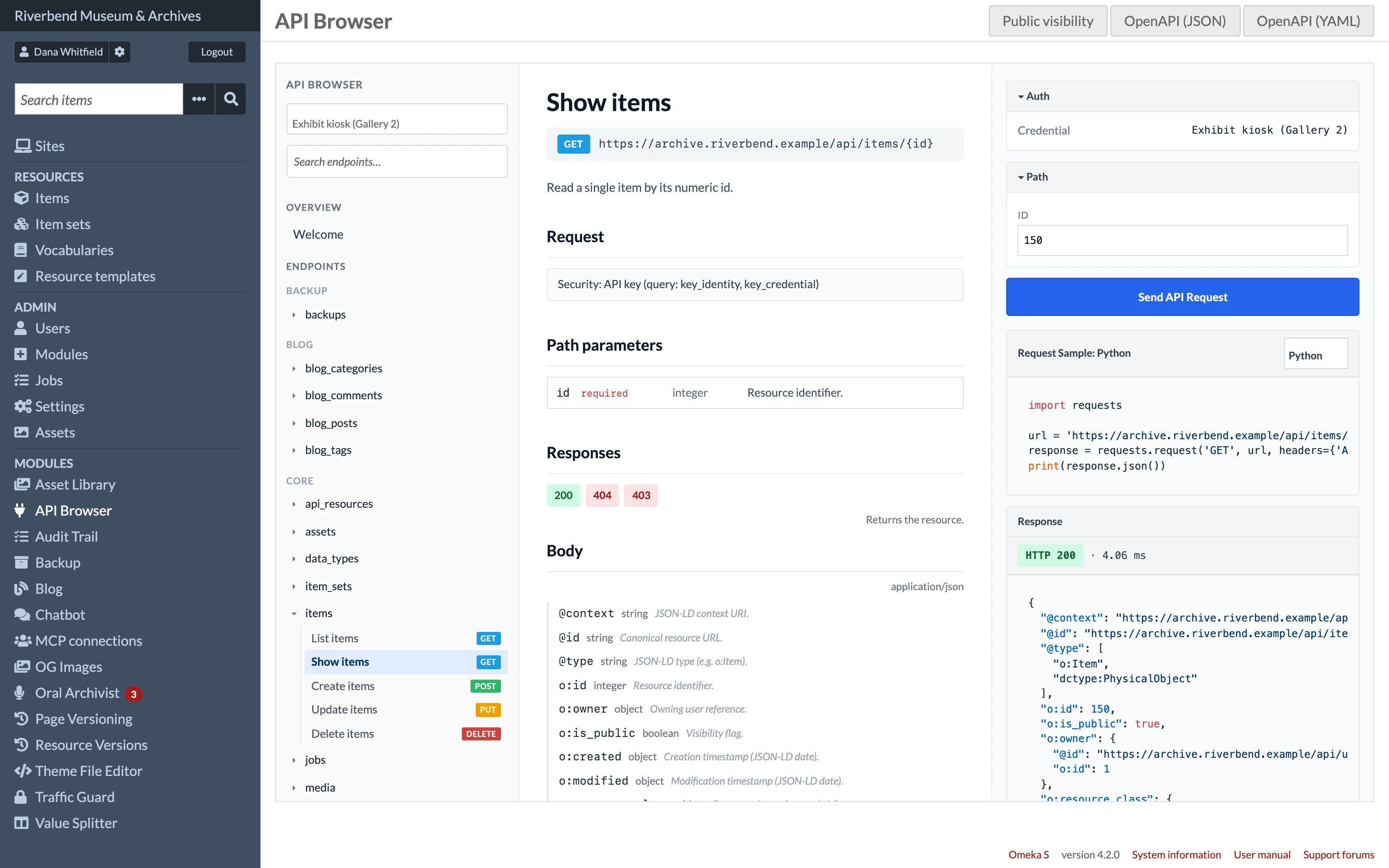
Below the Send API Request button, the Request Sample panel shows the same call as code you can copy into your own project. Choose the language from the menu in the panel's header.
Languages
- Shell / cURL
- JavaScript using
fetch - PHP
- Python
Examples include the full URL with query string, the Accept header, and for writes a Content-Type: application/json header with the body you entered.
Using your API keys
Calls made from outside the browser need an API key. Omeka S authenticates API requests with two query parameters: key_identity and key_credential.
Choose one of your keys from the Credential selector at the top of the sidebar; Session (current user) leaves the key out. The Auth panel above each request shows which one is in use. The examples are then generated with that key's identity in key_identity and a YOUR_CREDENTIAL_HERE placeholder in key_credential, because Omeka only shows a key's credential once, when it is created. Replace the placeholder with the credential you saved.
The selector lists only keys that belong to you, created under Admin > Users > your user > API keys. Your choice is remembered between visits.
Selecting a key does not affect requests sent from the browser itself, which always run as your logged-in session.