Footnotes attach a note, a link or a related Omeka resource to specific words in the transcript, in the style of OHMS.
Adding a footnote
- On the review screen, select the words the footnote belongs to.
- Click Note.
- Enter a note, a URL, or search for an item or media to link. At least one is required.
- Untick Show on the public transcript if the footnote is for staff only. It is then marked internal in the list.
- Click Save footnote.
The Footnotes panel lists every footnote with buttons to show it in the transcript, edit it or delete it.
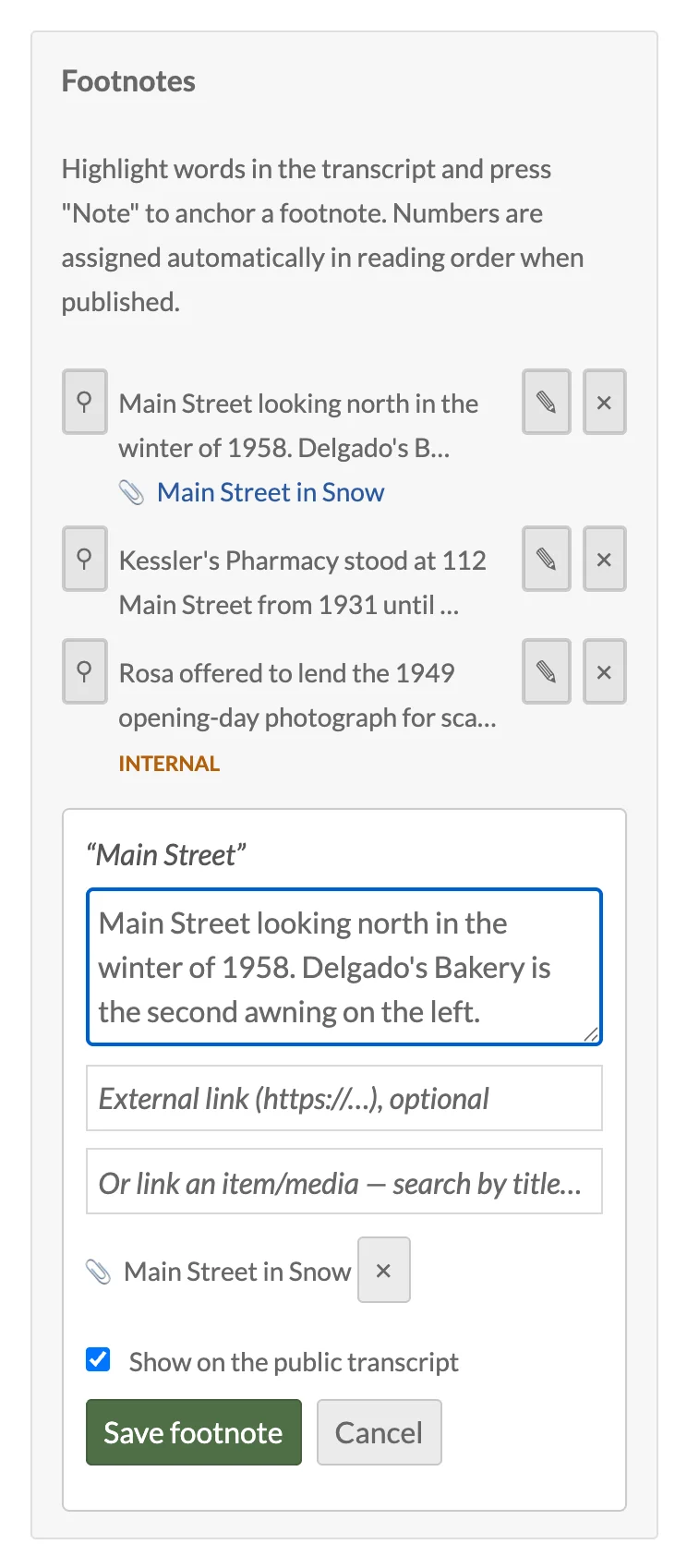
The anchor is stored as a token inside the paragraph text, so it travels with the words through edits, merges and splits. Splitting a paragraph through a footnote is refused.
Numbering
Footnote numbers are never managed by hand. They are assigned in reading order when the transcript is rendered, so footnotes can be created in any order and stay correctly numbered after edits.
On the public page
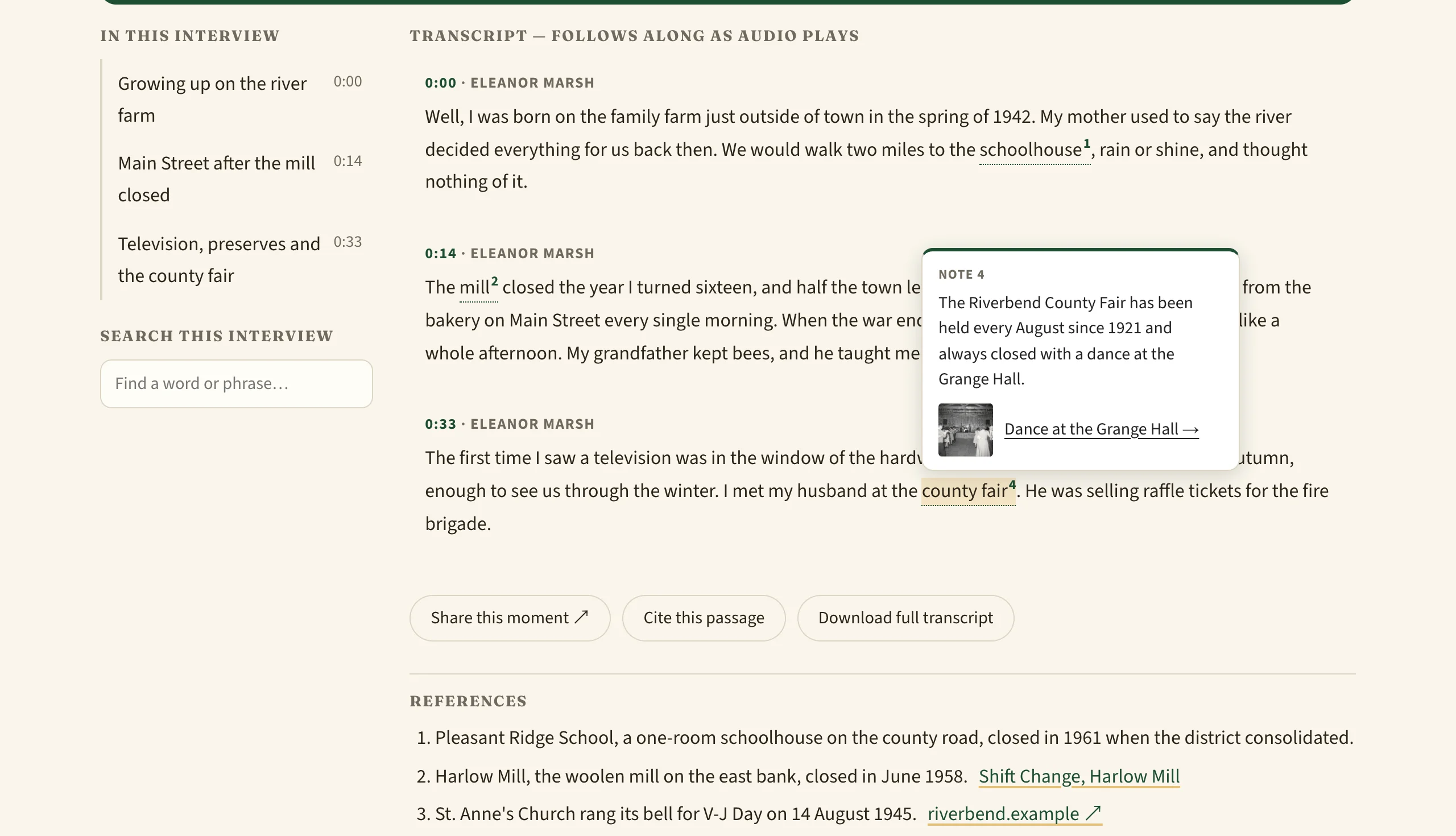
- The anchored words show a superscript number.
- Hovering the number, or focusing it with the keyboard, opens a popup with the note, the linked item's thumbnail and title, or the link's host.
- A References list at the end of the transcript collects every public footnote.
- Linked resources are resolved through the Omeka API at render time, so an item that is private, or later made private, is not exposed.
What footnotes never touch
Anchor tokens are stripped from search indexing, the downloadable transcript, citations and the chapter search text, so they never leak into text that is not the rendered player.