Oral Archivist processes media that are already attached to items, so every ingest path works: file upload, URL, CSV Import and the API.
Supported input: mp3, wav, m4a, flac and ogg audio, and mp4, mov and webm video. Video needs ffmpeg so the audio track can be extracted.
Queueing an interview
There are three ways to start:
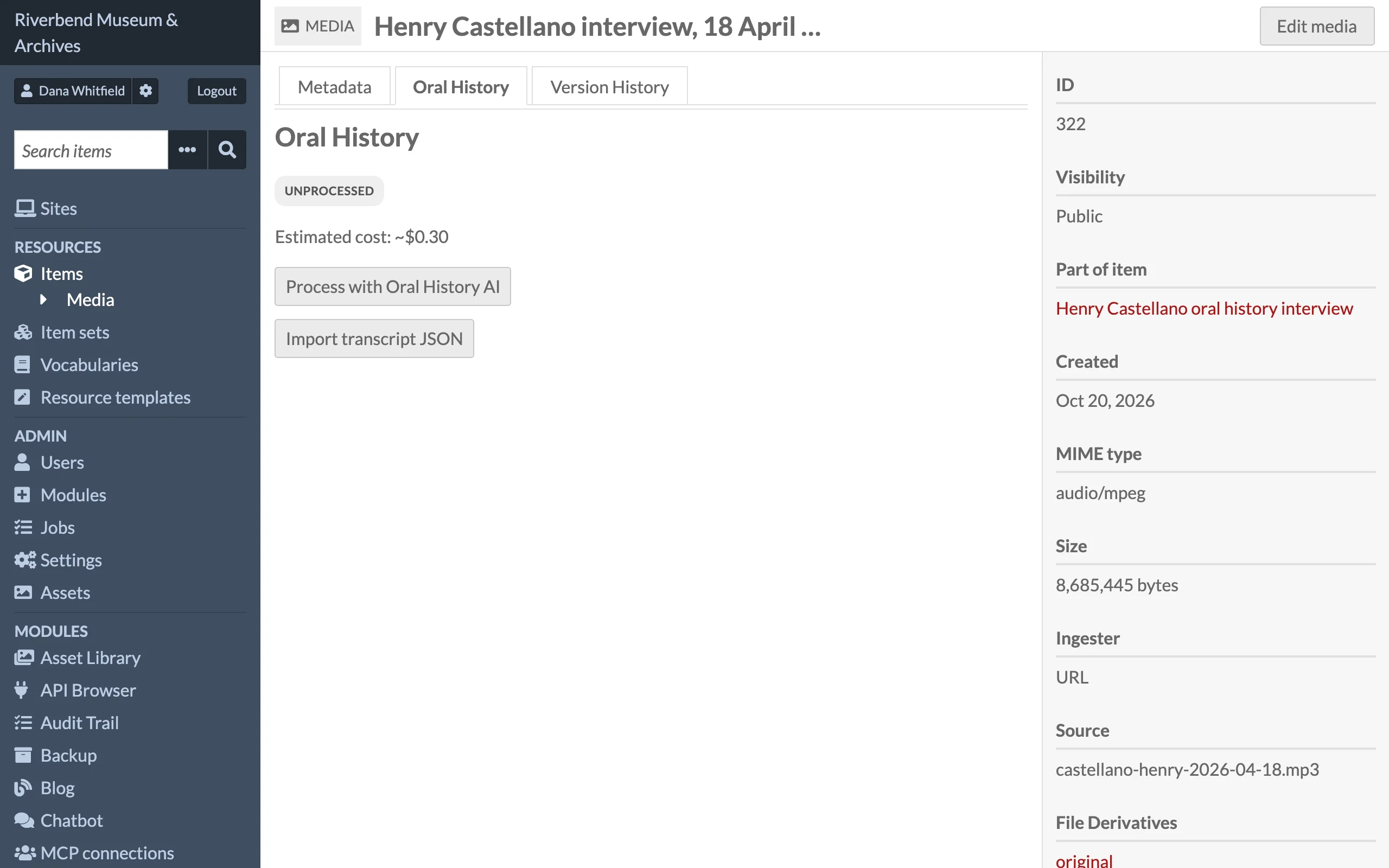
- From the media page: open the media in the admin, switch to its Oral History tab and click Process with Oral History AI. The tab shows a cost estimate first, and Import transcript JSON for a transcript made elsewhere.
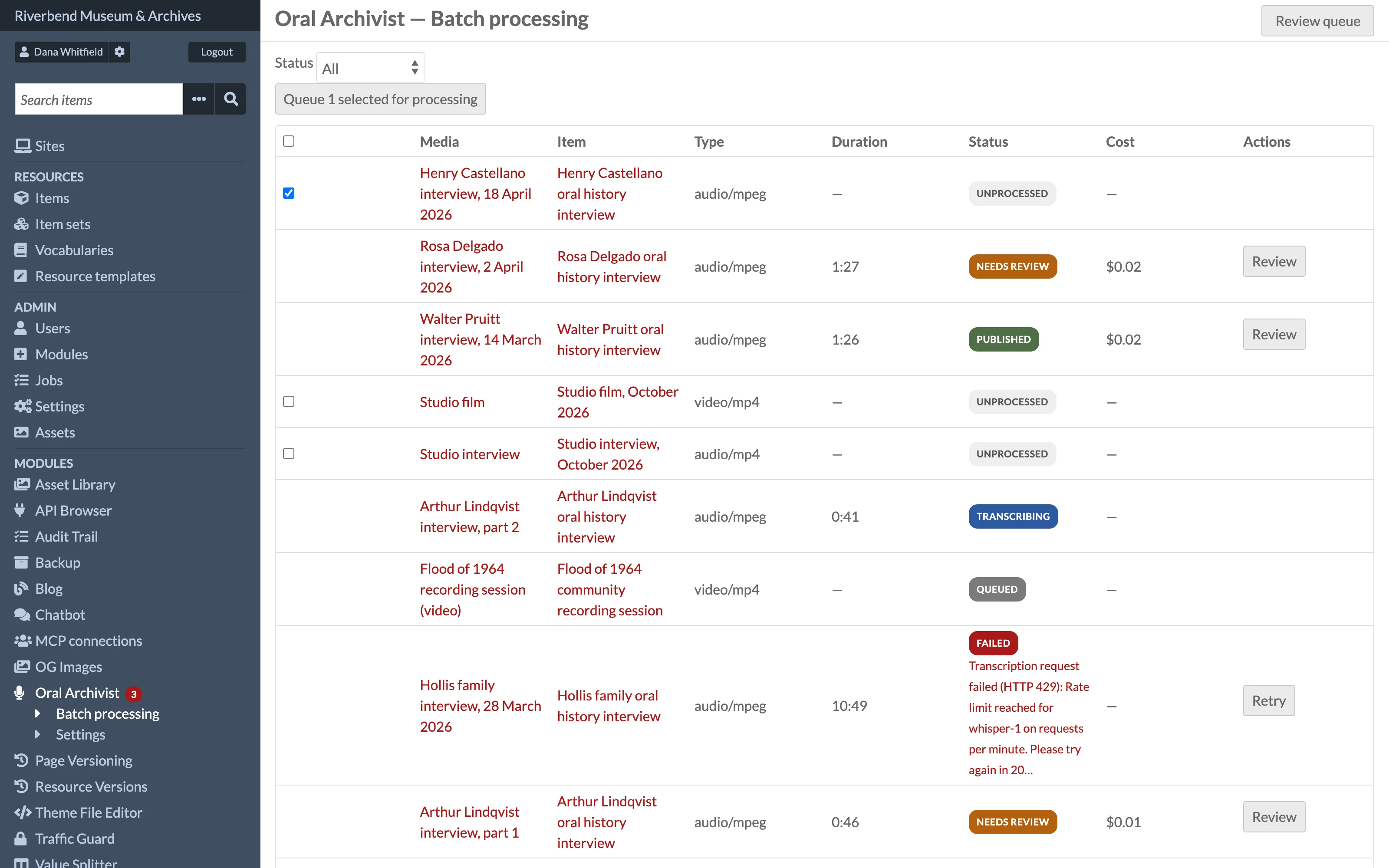
- From the batch screen: open Oral Archivist > Batch processing, filter by status, tick the media you want, click Queue selected for processing and confirm. Only unprocessed media can be ticked. The confirmation dialog shows a cost estimate for the selection.
- Automatically: enable Auto-queue new audio/video media in settings. New eligible media are queued on ingest, subject to the daily cap and the monthly budget.
Queueing, retrying, importing and reviewing need the Editor role or higher. Other users see the Oral History tab's status without its buttons, have no Oral Archivist menu entry, and get Omeka's Forbidden page (HTTP 403) if they open one of its screens.
Queueing is refused when the monthly budget would be exceeded.
The pipeline
Each interview runs as one background job through four stages, with an optional fifth:
| Stage | What happens |
|---|---|
| Extract audio | Video is demuxed and audio is downsampled to mono 16 kHz. Recordings above the provider's upload limit are chunked with a short overlap. |
| Transcribe | Whisper returns the text with word-level timestamps. The raw result is kept permanently. |
| Cleanup | A language model turns the raw text into readable paragraphs. Timestamps are preserved. |
| Segment | The model proposes chapters with titles and topics, using the site's existing topic vocabulary so new interviews converge on established tags. |
| Summarize | Only when a summary property is configured. Produces an editable summary of the interview. |
The interview's status moves from queued through extracting, transcribing, cleaning and segmenting to needs review, or to failed if a stage exhausts its attempts.
Retries and failures
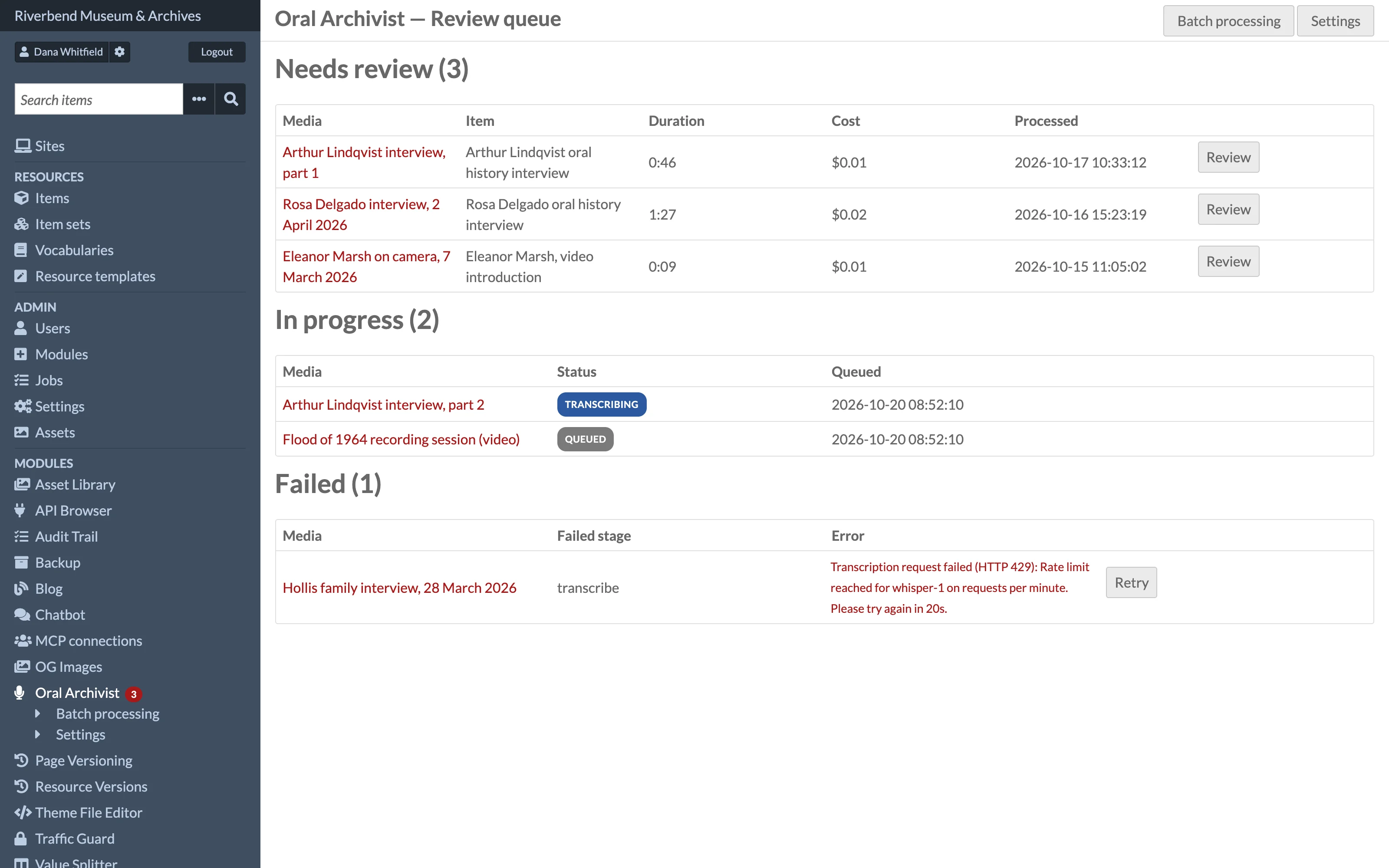
A failed stage is retried automatically with backoff up to Max attempts per job. If a job still fails, the review queue shows the error and a Retry action. A retry resumes at the failed stage, so completed stages are never re-run or re-billed.
Retry is also available when a job appears stuck in a running status because the background process died.
What happens next
Interviews in needs review appear in Oral Archivist in the admin sidebar, with the count shown as a badge. See Reviewing Transcripts.