When to copy a theme
Copying a theme gives you a complete duplicate to experiment with, or a starting point for a child of a theme you do not want to modify directly. The copy is a full directory copy, so it includes assets, configuration and every other file, not only the .phtml templates.
The copy is standalone: it has no symbolic links, so every template in it is the copy's own file and can be edited. This matters for themes whose templates link to a copy shared with other themes, such as several themes developed against one engine (Linked templates): the copy gets real copies of those templates and of the shared engine, and later changes to the shared copy no longer reach it.
Copying
- Open the editor and select the theme to duplicate in Theme:.
- Click Copy Theme… in the toolbar.
- In the Copy Theme dialog, Source theme shows the selected theme. Type a New theme name using only letters, numbers,
_and-(up to 128 characters). This becomes the directory name underthemes/. - Click Copy.
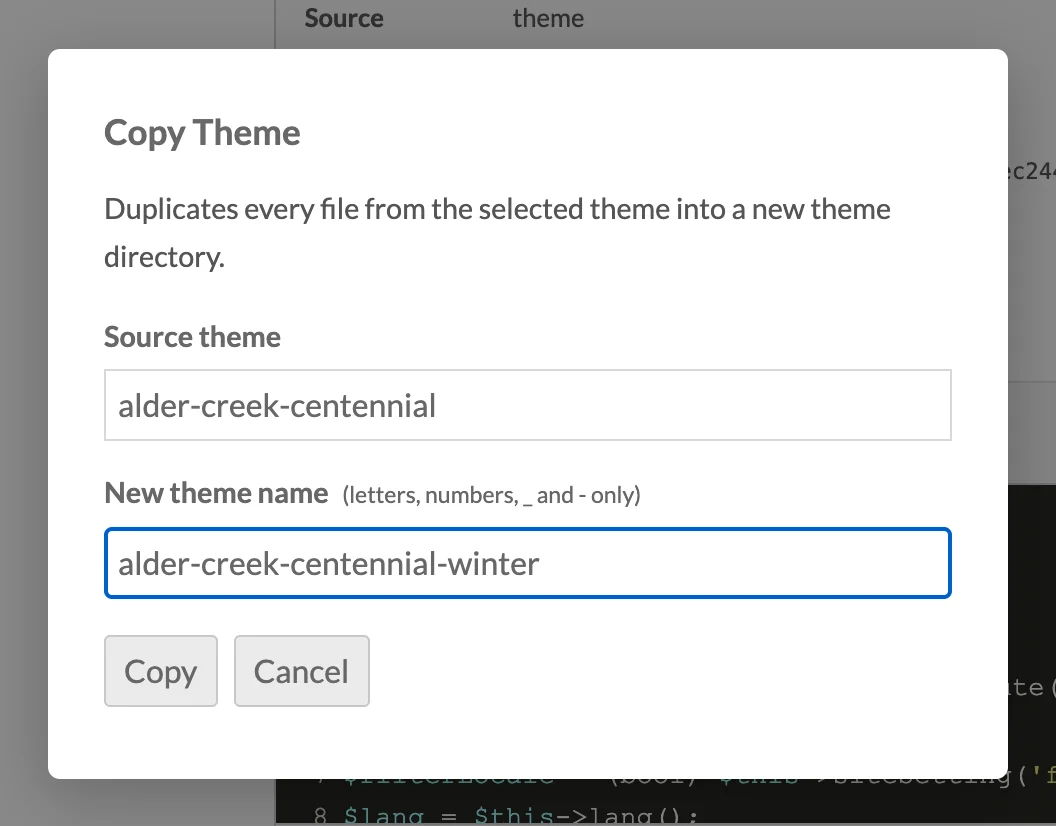
The module then:
- copies every file and directory from the source into a temporary hidden folder in
themes/(named.<new-name>.copying-<random>), and renames it tothemes/<new-name>/once every file is written; - replaces each symbolic link with a copy of the file or directory it points to, when that lies inside the source theme or the Omeka installation (the same rule as for reading linked templates). Links pointing anywhere else, broken links, and links to a directory that contains them (a loop) are left out;
- updates the
nameentry in the new theme'sconfig/theme.ini(ortheme.iniin the theme root) to a title-case version of the directory name, somy-theme-copybecomes My Theme Copy; - records an initial revision for every
.phtmlfile under the new theme'sview/directory, with the summaryCopied from theme: <source>; - reloads the editor with the new theme selected, under a message such as Theme "vitrine" copied to "vitrine-winter" (267 files). When links were left out, a second message lists each one with its target and the reason, for example view/common/loop → .. (points to a folder that contains it).
The new theme is available for selection on each site's Theme page like any other installed theme.
Requirements and limits
- The
themes/directory must be writable by the web server user, otherwise the copy fails with Failed to create directory. - The target name must not already exist in
themes/. - A copy may hold at most 20,000 files and 256 MB, counting the files that links point to. The whole theme is measured before anything is written, so a copy over a limit fails with The copy would hold more than 20000 files or The copy would be larger than 256 MB and creates nothing.
- A copy is all or nothing. If a file cannot be read or written part-way (a file the web server may not read, a full disk), the copy fails with a message ending Nothing was copied., the temporary folder is removed, and no
themes/<new-name>/is created. An existing folder is never written to or removed. - Large themes can take a moment; the dialog shows Copying… this may take a moment. until it finishes.
- The module never deletes a theme. Remove an unwanted copy on the server.