Opening the editor
There are three ways to reach the editor:
- Theme File Editor > File Editor in the admin sidebar, or
/admin/theme-file-editor. The first installed theme (alphabetically) is selected. - Theme Files in a site's admin sidebar, or
/admin/theme-file-editor/site/<site-slug>. This redirects to the editor with that site's current theme selected. - The Edit Theme Files button at the top of a site's Theme page.
You can also link directly to a file with query parameters: /admin/theme-file-editor?theme=default&source=theme&path=common/layout.phtml.
Browsing files
The toolbar has two selectors:
- Theme: lists every directory in
themes/. - Browse source: Theme files (the selected theme's
view/directory), Application views (application/view/), or any module that has aview/directory, listed as ModuleName (module).
The tree shows the contents of the chosen view/ directory. Directories load their contents the first time you expand them. Only .phtml files can be opened; files with any other extension are shown dimmed and cannot be clicked. Hidden files (names starting with a dot) are not listed. Symbolic links are listed when they point inside the theme's (or module's) own directory or the Omeka installation, and skipped otherwise; see Linked templates. Click Refresh to reload the tree after changing files on the server.
When browsing application or module views, files that already exist at the same path in the selected theme are marked as overridden. See Overriding Module and Application Views.
The file view
Clicking a file reloads the page with the file open, and Browse source: stays on the source the file came from. The header shows the file path with its buttons, and below it the file's Source, Size, Modified time, whether it is Writable by the web server, and its SHA-256 checksum (shortened to fit; hover over it to see all of it). For an application or module file, which is never edited in place, Theme override takes the place of Writable: it says whether Copy to Theme can write the override; see Overriding Module and Application Views.
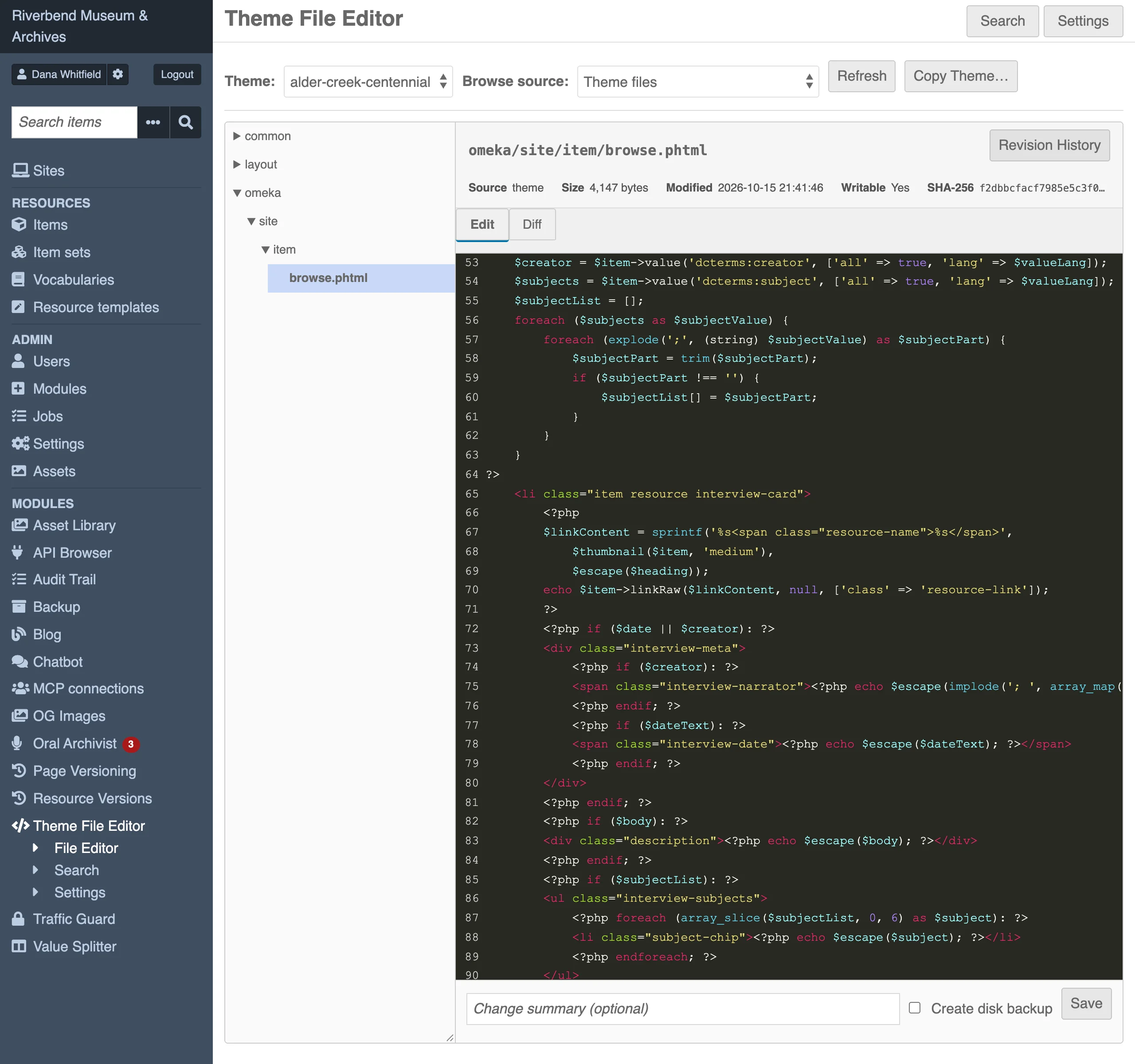
Two tabs are available for theme files: Edit and Diff. Application and module files only have the Edit tab and are read-only; use Copy to Theme to get an editable copy.
If a theme file has at least one saved revision, a Revision History button appears. See Revision History and Rollback.
Linked templates
A theme's templates can be symbolic links to a copy shared with other themes instead of files of its own, for example in a development setup where several themes built on one engine link to it (view/layout/layout.phtml pointing at the engine's view/layout/layout.phtml). Such a file opens read-only, with a banner naming the file it links to, because saving it would change every theme that shares it. Its Writable detail shows No, and saves and rollbacks through the link are refused.
To customize a linked template for one theme, replace the link with a copy of the file on the server; the copy is then the theme's own file and can be edited here. To customize many of them, copy the theme: every template in the copy is its own file.
The editor
The Edit tab uses CodeMirror with mixed PHP and HTML highlighting, line numbers, bracket matching and automatic closing of brackets.
| Key | Action |
|---|---|
| Tab | Insert four spaces, or indent the selection |
| Shift+Tab | Outdent the selection |
| Ctrl+S or Cmd+S | Save |
If the file is not writable by the web server, a warning banner shows the exact chmod command to run and the Save button is disabled. Files larger than Maximum editable file size (KB) cannot be opened; the error message tells you the size and the limit.
Saving
- Make your changes in the editor.
- Optionally type a Change summary (optional), up to 255 characters. It is stored with the revision and shown in the history.
- Optionally tick Create disk backup to keep a copy of the current file on disk before it is overwritten. The checkbox starts ticked when Create disk backup before overwriting is enabled in the module settings.
- Click Save or press Ctrl+S / Cmd+S.
The status line shows Saving… while the request runs, then Saved (revision #N) on success. A save does the following, in order:
- Checks the per-user save rate limit.
- Validates that the path is an existing
.phtmlfile inside the theme'sview/directory. - Rejects content larger than the configured maximum file size.
- Runs the PHP syntax check if it is enabled.
- Writes the
.bakcopy if requested. - Writes the file with an exclusive lock.
- Stores a new revision and prunes old ones beyond Revisions to keep per file.
- Fires the
theme_file_editor.file_saveevent.
Syntax errors
When the syntax check is enabled and php -l reports an error, the save is blocked and a Syntax error: banner shows the message from PHP. Fix the error and save again, or tick Save anyway (override syntax check) and save to write the file regardless.
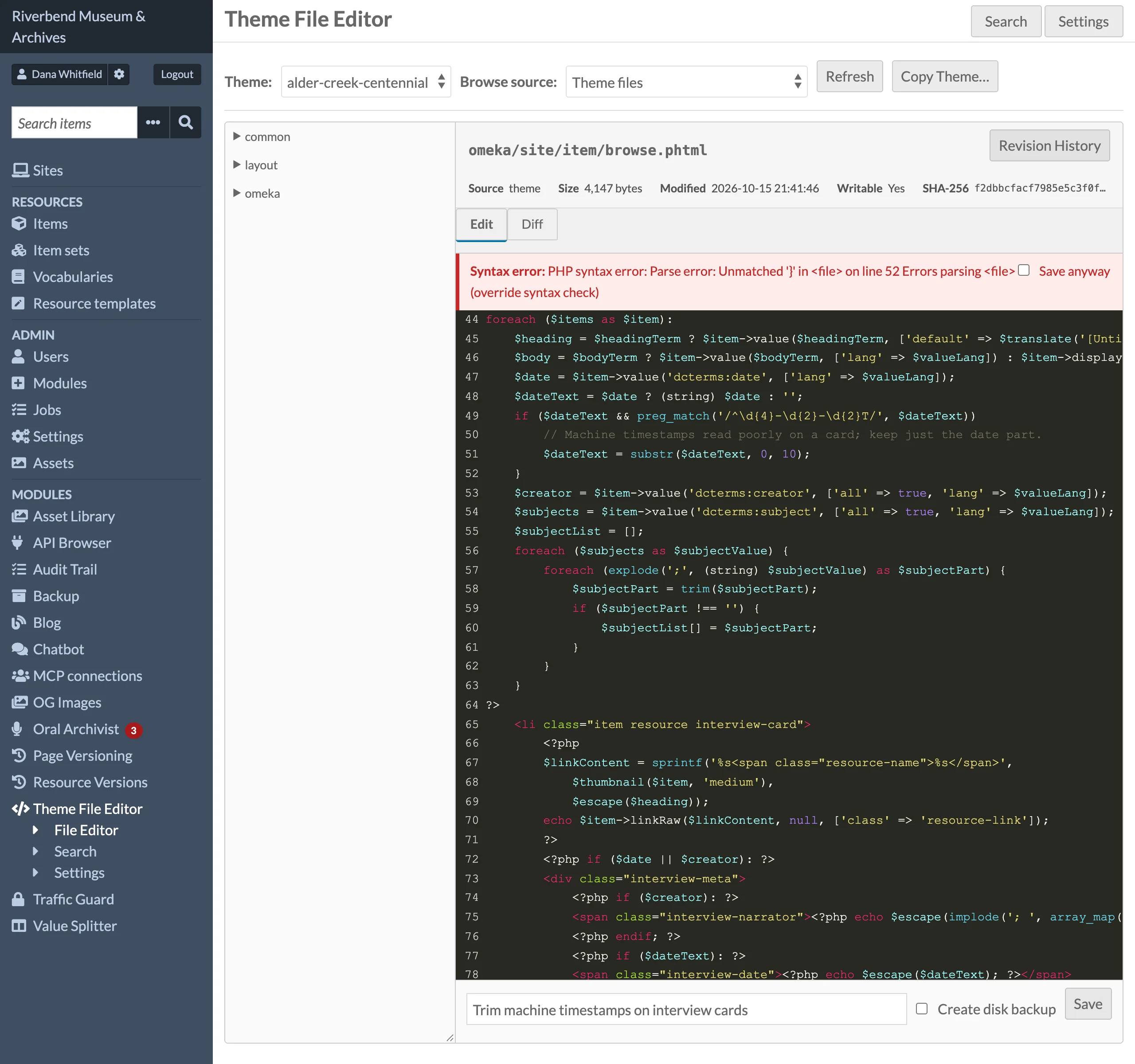
When exec() is disabled on the server, the check falls back to counting PHP open and close tags and curly braces. This can produce false positives, for example when braces appear inside strings. Use Save anyway in that case.
Disk backups
When Create disk backup is ticked, the current file is copied to <filename>.phtml.<YYYYMMDDHHMMSS>.bak in the same directory before the new content is written. Backup files are never deleted by the module. They appear dimmed in the file tree because they are not .phtml files. The revision history in the database is usually the better way to recover an old version; see Revision History and Rollback.