How overrides work in Omeka S
When a public site renders a template, Omeka S looks in the site's theme first (themes/<theme>/view/), then in each module's view/ directory, then in application/view/. Placing a file at the same relative path in the theme replaces the module or core template for that theme.
Theme File Editor lets you do this without a shell: browse the original, copy it into the theme, and edit the copy.
Finding the original
- Open the editor and select the theme you want to change in Theme:.
- In Browse source: choose Application views for core templates (for example
omeka/site/item/show.phtml), or a module entry such as Blog (module) for a module's templates. Only modules that have aview/directory are listed. - Expand the tree to the file. Files that already exist at the same path in the selected theme are marked as overridden with a pencil mark (hover to see overridden in theme).
You can also find a file with the search page and open it from the results.
Copying a file into the theme
-
Click the file. It opens read-only, with Source showing
appormodule/<Name>, and Theme override showing what Copy to Theme would do (hover over it to see the target path):Theme override Meaning Can be created The theme has no file at that path yet, and the web server can create it. Exists, writable The theme already overrides this file; copying replaces the theme's version. Linked, read-only The theme's file at that path, or a folder on the way to it, is a link to a copy shared with other themes (Linked templates). Copy to Theme refuses it, so the shared copy is never changed. Not writable, Exists, not writable The web server cannot write there; fix the permissions of the theme's view/directory or file. -
Click Copy to Theme in the file header.
-
Confirm the dialog.
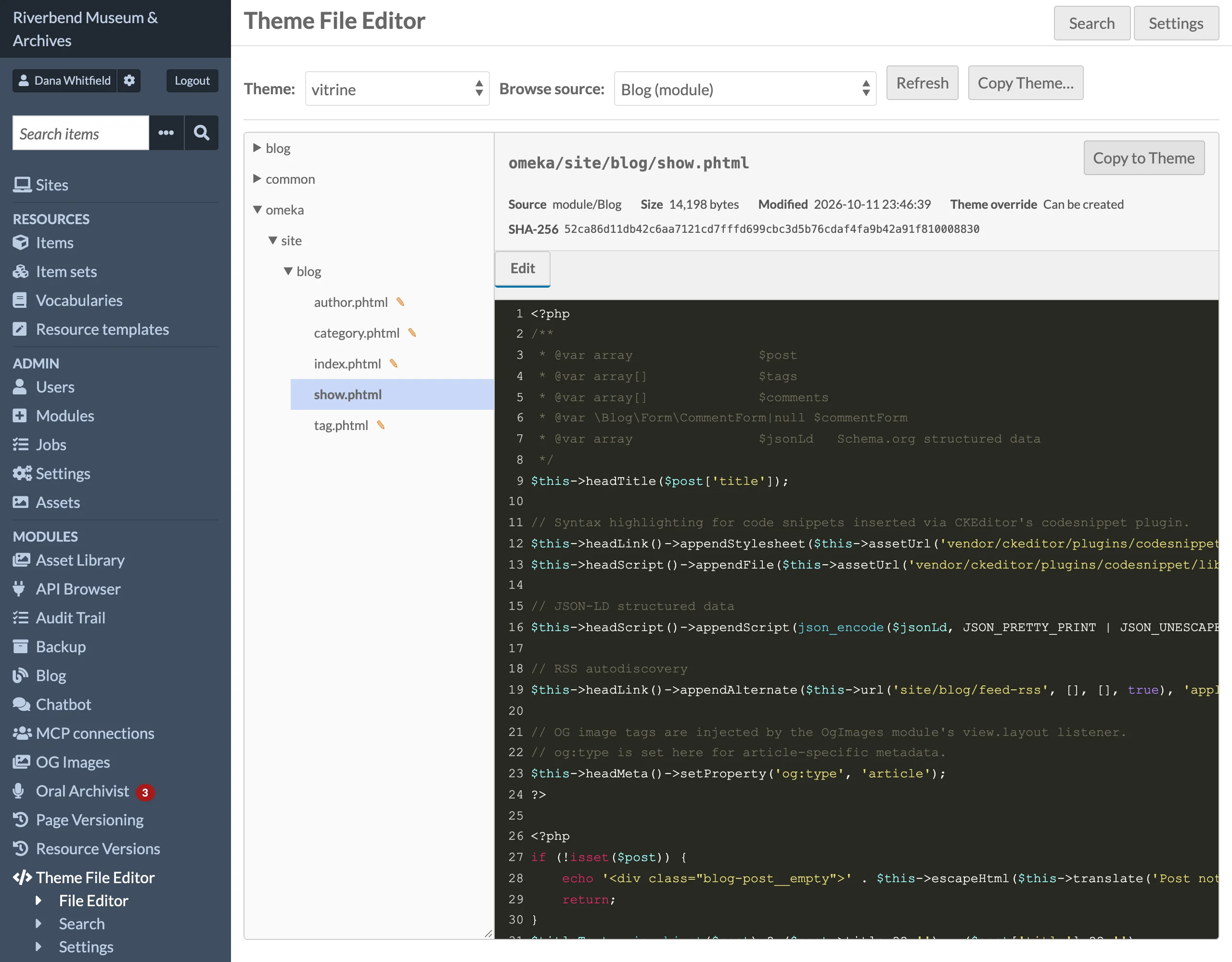
The module copies the file to themes/<theme>/view/<same relative path>, creating any missing directories, and records a first revision for the new file with the summary Copied from app or Copied from module/<Name>.
If a file already exists at that path in the theme, it is overwritten by the copy. Check the tree marker before copying, and use Revision History if you need to recover the previous theme version. A file there that is a link out of the theme (an engine theme's shared template, for example) is never overwritten: the copy fails with The theme already has … as a link to a file outside the theme, which other themes may share, so it cannot be replaced.
After the page reloads, switch Browse source: back to Theme files and open the copied file to edit it.
Removing an override
The module does not delete files. To stop overriding a template, delete the file from themes/<theme>/view/ on the server. Its revision history stays in the database until the module is uninstalled.