Opening search
Go to Theme File Editor > Search in the admin sidebar, click Search at the top of the editor page, or open /admin/theme-file-editor/search.
Running a search
- Type at least two characters in the Search filename or content… box.
- Choose a theme, or leave All themes selected to search every installed theme.
- Click Search.
Matching is case-insensitive. A file matches when its filename contains the text, or, failing that, when its content contains the text.
Results
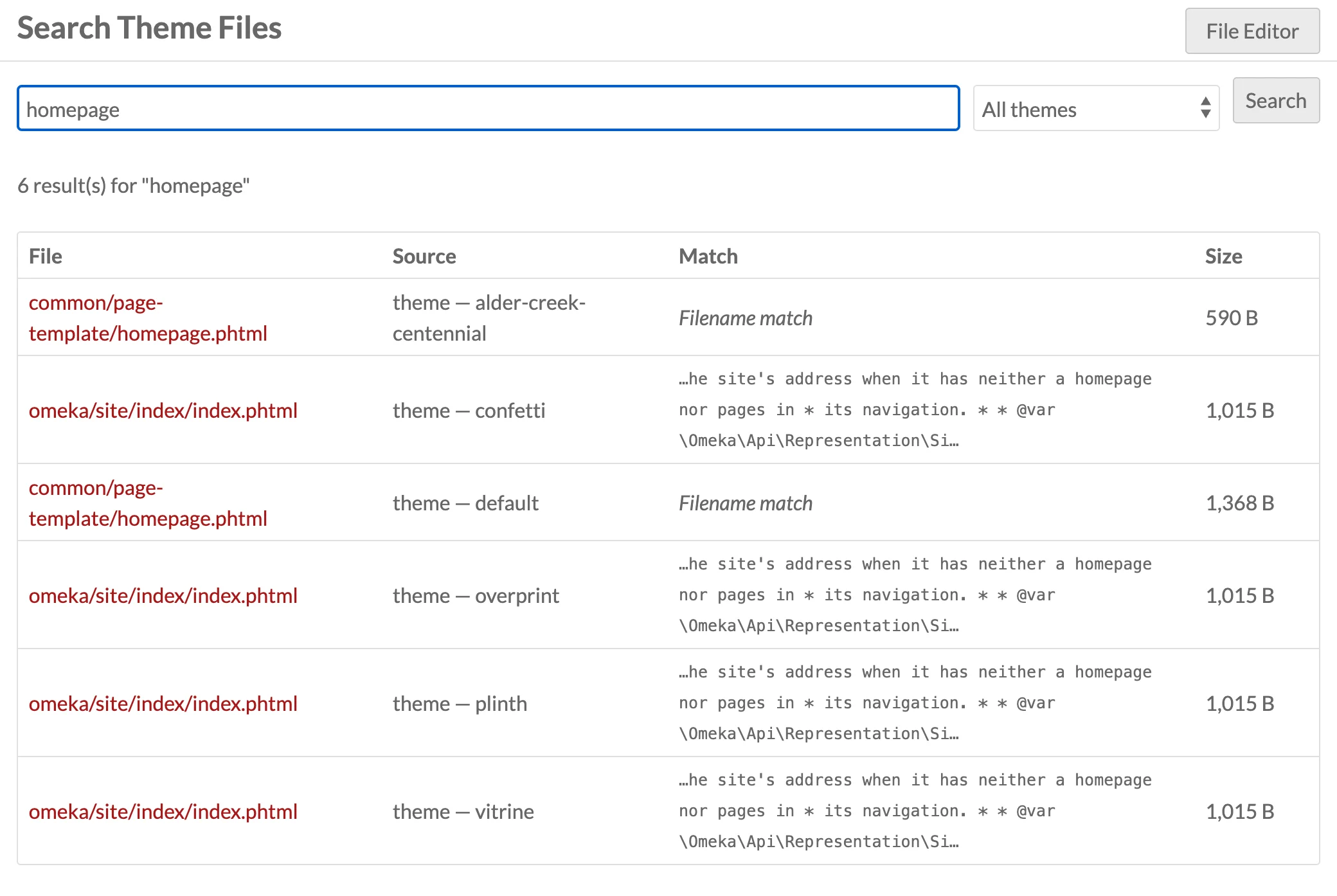
The results table shows the File path, its Source (source type and theme name), the Match (either Filename match or a short snippet of the surrounding content), and the file Size. Click a file path to open it in the editor.
Limits
- Only
.phtmlfiles under each theme'sview/directory are searched. - Content is searched only in files of 512 KB or less; larger files can still match by filename.
- At most 100 results are returned.
- Directories deeper than ten levels are not searched.
- Hidden files are skipped.
- Symbolic links are followed when they point inside the theme's own directory or the Omeka installation, for example templates linked to a copy shared by several themes; other links are skipped. A directory reached twice through links is searched once.
Module and application view directories are not searched from this page. The /api/search endpoint accepts a module parameter for that; see JSON API.