Changing settings
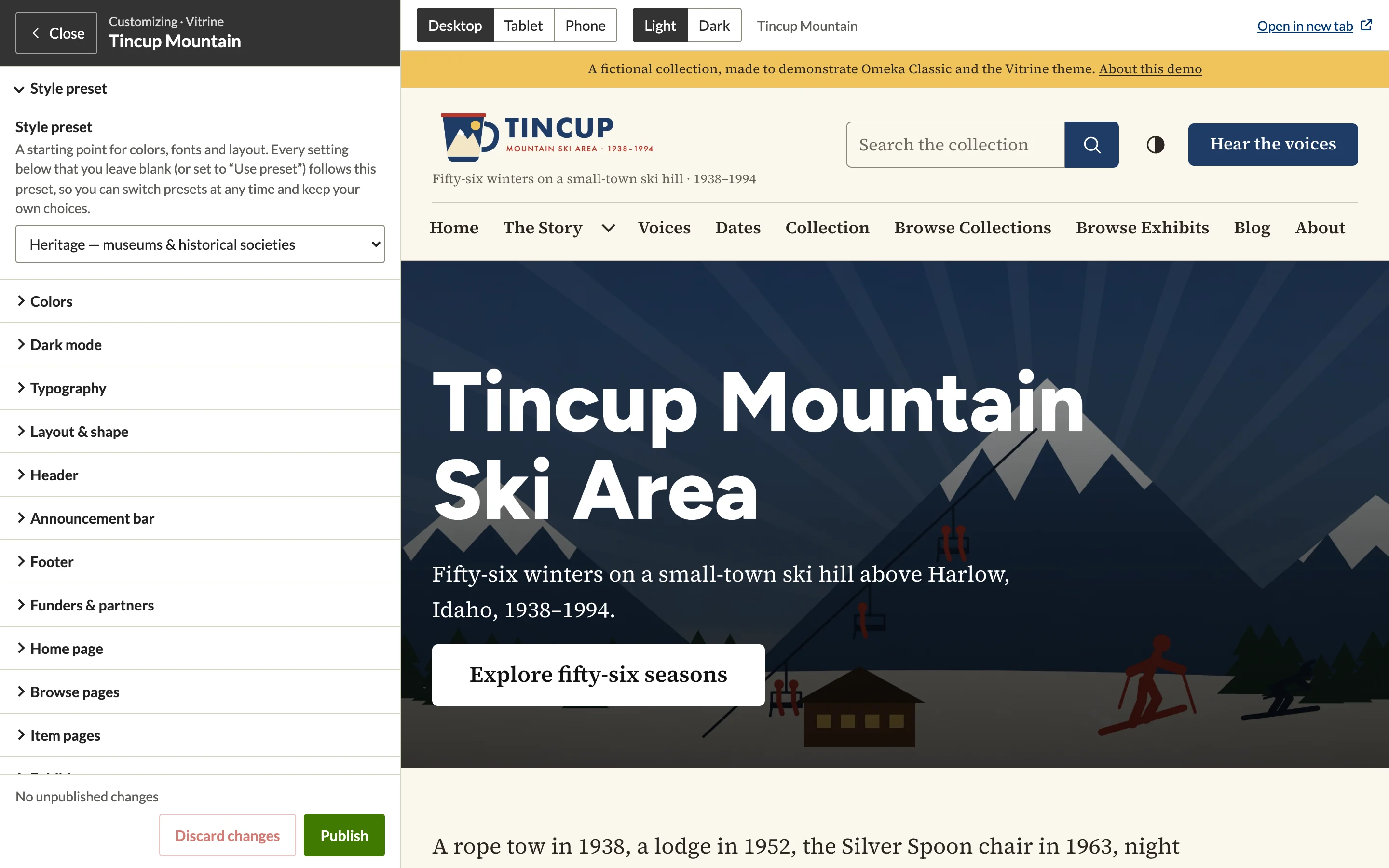
Open a section (Colors, Typography, Header…) and change a setting. The preview follows:
- Instantly for colors, fonts and type, spacing, page width, corners and buttons, shadows, header layout and color, announcement bar and footer colors, card styles, logo size and custom CSS. Text fields update once you pause typing.
- By reloading the page for everything that changes what a page contains: logos, site title and tagline, the announcement, footer columns and links, partner logos, the home page banner and sections, browse and item page layouts, dark mode, and sticky header. The preview comes back at the same scroll position.
Instant and reload settings lists every setting.
Settings left blank, or set to Use preset, follow the style preset. A color field left blank shows the preset's color in its swatch and as a hint (for example Preset: #2d5f8b).
Picking colors
Type a hex color (#2d5f8b) in a color field, or click the swatch next to it to use your browser's color picker. With Guarantee readable contrast on (the default), the theme adjusts colors where needed so text stays readable; the preview shows the adjusted result.
Images
Settings that take an image (logo, logo for dark mode, home page banner, partner logos, site icon, default sharing image) show the current image, a file field and Remove image.
- Choose a file to upload it at once: the preview shows it as soon as it is stored. Images must be PNG, JPG or GIF, up to 1 MB, as on Configure Theme.
- Remove image takes the image out of your draft.
Until you publish, a new image is part of your draft only. Images you replace or remove before publishing, and those of a discarded draft, are deleted.
Rich text
Settings that take HTML, such as the announcement, the footer columns and the home page texts, have the same editor as on Configure Theme. Their HTML is filtered by Omeka's HTML filter (Settings › Security), as when you save Configure Theme.
Values that are not accepted
A value the theme does not accept, such as #12345 in a color field, is marked in red with the reason under the field, and the status line says so. The preview keeps the last accepted value until you correct it. An image that is not accepted (another file type, or larger than 1 MB) is refused the same way.
Browsing the preview
Links in the preview work: open an item, a browse page, an exhibit or a search, and the draft follows you. Links to other websites open in a new tab. Open in new tab shows the current page full size, still with your draft; a label at the bottom of the page reminds you it is a preview.
An exhibit with a theme of its own (set in Exhibit Builder) shows that theme and its settings, not your draft; a note above the preview says so.
Widths and color schemes
- Desktop, Tablet (768 px) and Phone (390 px) set the preview's width.
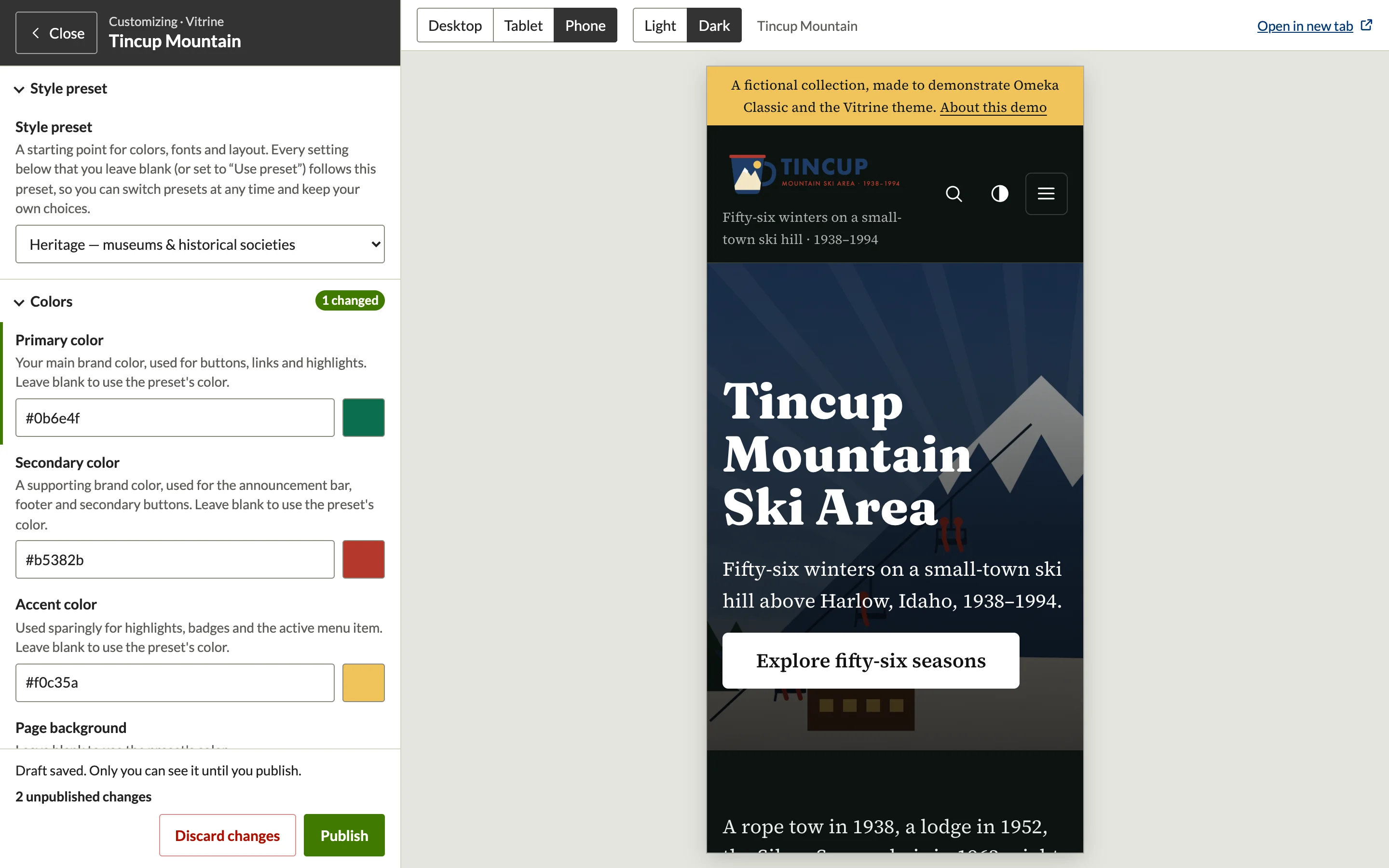
- Light and Dark switch the preview's color scheme without changing your settings. When the theme's Dark mode setting is Off, only Light is available; when it is Always dark, only Dark.
Seeing what you changed
Changed settings are marked with a green bar in the panel, and each section shows how many of its settings changed. The bottom of the panel shows the total, for example 3 unpublished changes.