Who can use it
Anyone allowed to configure themes: in Omeka Classic, Super Users (users with the Admin role cannot change themes unless a plugin changes Omeka's permissions). Others get a "forbidden" page, and the preview parameter does nothing for them.
Opening it
While the public theme is one the customizer supports, any of these opens it:
- Customize in the admin menu;
- Customize with live preview on Appearance › Themes, under Configure Theme;
- Customize with live preview at the top of the Save panel on the Configure Theme page;
- the Customize this site button (a palette) at the bottom left of the public pages, shown only to people who may configure themes, which opens the preview on the page you were viewing;
- the address
/admin/design-studio.
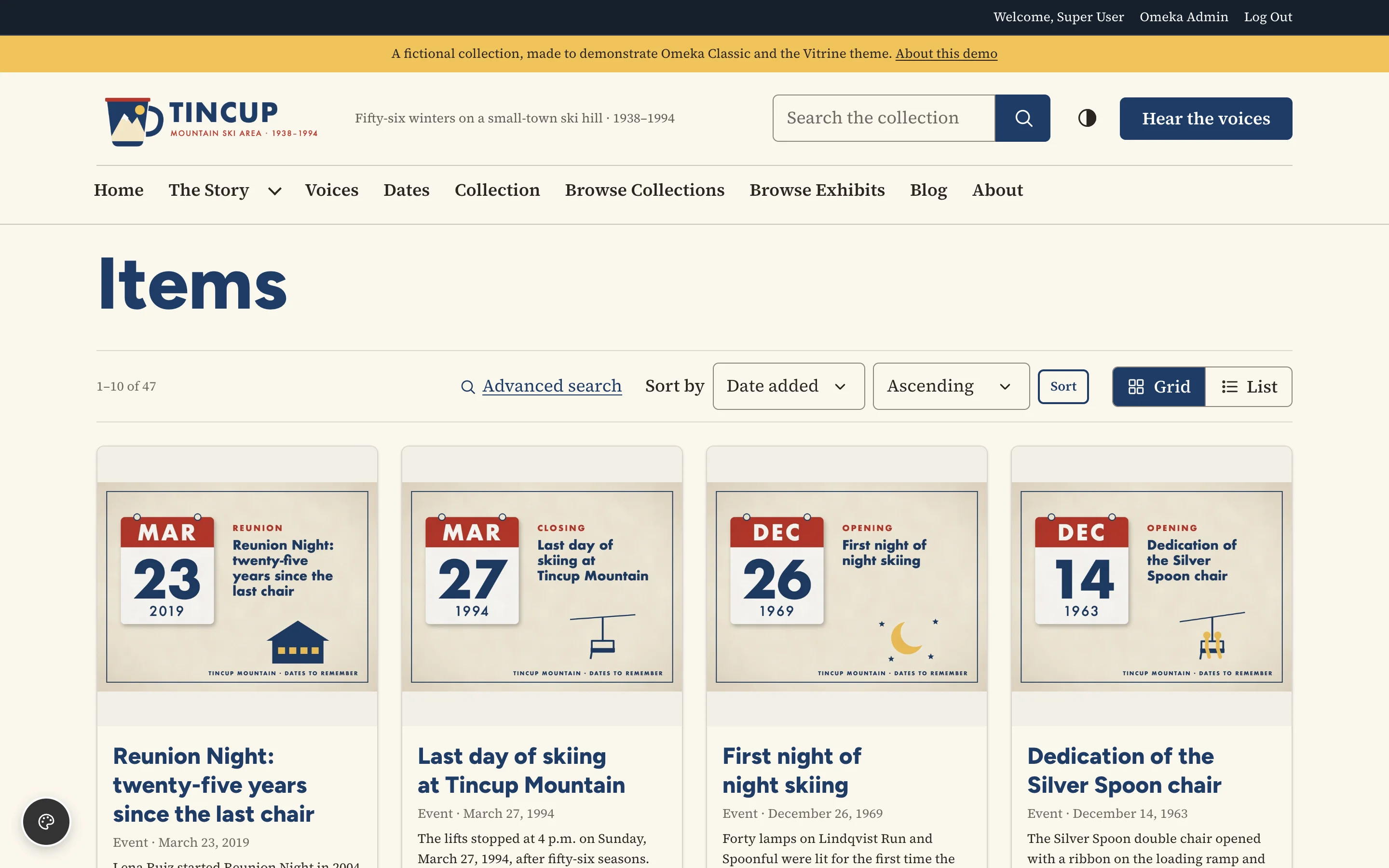
To start the preview on a particular page, add it to the address: /admin/design-studio?url=/items/show/42. Only pages of the public site are accepted. Close then goes back to that page.
If the public theme is not built on the Theme Engine, the customizer says so and links to Appearance › Themes.
The screen
| Area | What it holds |
|---|---|
| Left panel | Close (back to the page you opened the customizer from, or else to Appearance › Themes), then the theme's settings in collapsible sections, as on Configure Theme. At the bottom: the number of unpublished changes, Discard changes and Publish. |
| Toolbar | Preview width (Desktop, Tablet, Phone), color scheme (Light, Dark), the title of the page shown, and Open in new tab. |
| Preview | Your site, with your draft applied. |
On narrow windows the panel sits above the preview.
Keyboard
Everything works from the keyboard. Tab moves from Close through the sections (open one with Enter or Space) and their settings, to Discard changes and Publish, then to the preview's toolbar and the preview itself. The status line under the settings is announced by screen readers as your draft is saved.