Batch rollback returns many records at once to their newest version from before a moment. Use it to undo a batch edit or an import that went wrong, or every edit one person made in a time window. Admins and super users can use it, and it runs as an Omeka background job.
Starting the wizard
Open Resource Versions and the Batch Rollback tab (/admin/resource-versioning/rollback), or:
- click Roll back next to a batch on the Bulk Operations tab, or
- click Roll back this batch on a batch's page.
The last two fill in the batch and show its preview at once.
Step 1: what to roll back
| Field | Meaning |
|---|---|
| Batch | The key of one bulk operation. When it is set, the other fields only narrow it down. |
| From | Needed without a batch. Records return to their state just before this moment. |
| To | Optional. Only changes made up to this moment pick the records. |
| By | Only changes made by this person. Anyone by default. |
| Record type | Only items, collections or files. All by default. |
| Deleted records | Recreate the items and collections deleted in the window, as new records. Unchecked, deleted records are skipped. |
Give either a batch or a From time. Times are in the installation's time zone, to the second.
Click Preview. Nothing changes yet.
Step 2: check the records
The cutoff is the moment the batch started, when a batch is given, or the From time. The preview lists every record with a version matching the criteria, with:
- Returns to: the newest version of the record from before the cutoff, with its date. A record whose history starts inside the window returns to its baseline, the state it had before its first recorded edit.
- Action: restore, with a link to what changes (the target version against the record now); recreate; or why the record is skipped:
- No version before the rollback window (created in it): the record was created in the window, so there is nothing to go back to. A rollback never deletes records.
- Already deleted before the rollback window.
- No longer exists: the record was deleted, and Deleted records is unchecked.
- Deleted; a file cannot be recreated.
- Already recreated as #N: a rollback or a restore has already brought it back.
A summary line counts the records found, restored, recreated and skipped.
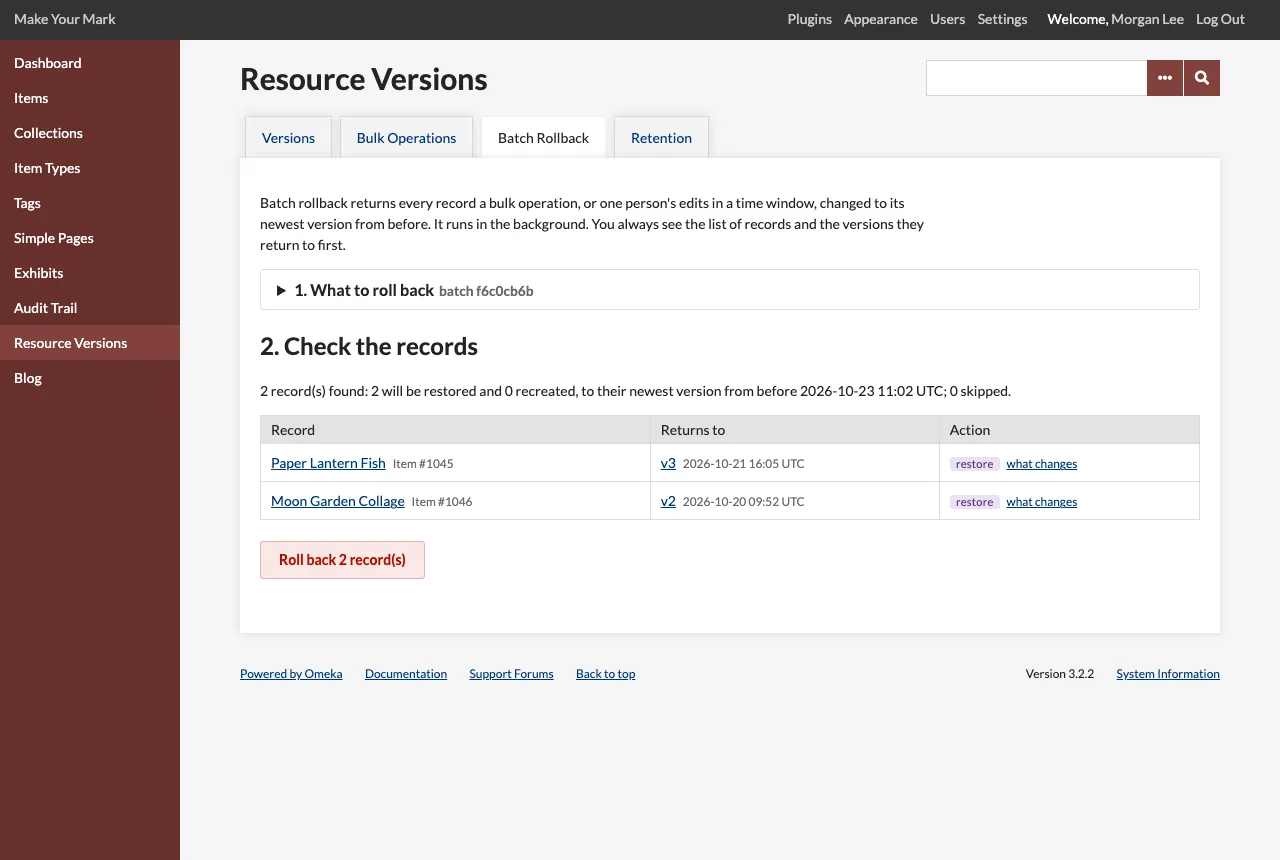
Running it
Click Roll back N record(s) and confirm. The rollback runs in the background and the Bulk Operations tab opens, where Rollbacks shows it: waiting, running (with how many records are done), then done, with the number of records restored, recreated, unchanged, skipped and failed, and the errors, up to 100. Versions written opens the batch of versions the rollback wrote.
Each record is restored exactly as a single restore would be, with the same rules for the owner and for dropped references. A record that already matches its target is counted as unchanged. The rollback's restores share one batch key, so the rollback appears under Bulk Operations itself and can be rolled back in turn.
The rollback runs as the person who started it, and skips (as failed) any record they may not edit.
Notes
- A record edited several times in the window returns once, to its newest version from before the cutoff.
- The target is chosen by time, not by batch. If a record was changed by the batch and again later, the later change is undone too, since the record returns to its state before the batch. Check the preview.
- Changes made while recording was off (or, for bulk operations, while Record bulk operations was off) have no versions, and a rollback undoes them along with the rest.
- The job reads the history when it runs: versions pruned between the preview and the run are no longer targets.