Versions are recorded by themselves. Every create, update and delete of an item, collection or file writes a version, whatever made the change: the admin forms, batch edit, the REST API, CSV Import and other importers, background jobs, scripts. There is nothing to start.
What a version holds
Each version stores a snapshot of the record (see Snapshot Format):
- its element texts, grouped by element set and element, in their order, with their HTML flags;
- for an item: its tags, item type, collection, public and featured flags, owner, and its files in order;
- for a collection: its public and featured flags and owner;
- for a file: its item, original filename and alt text.
With it are kept:
- the version number, counted per record from 1;
- the change:
created,updated,deleted,restoredorbaseline; - who made it (their name), or System when nobody was signed in;
- the record's title at the time, used in lists;
- a batch key, shared by every save of the same request or background job.
A save that leaves the record as its newest version has it records nothing, so clicking Save Changes without changing anything writes no version. Deletions are always recorded.
Baselines
Records that existed before the plugin was installed have no history until they are next edited. At that moment, just before the edit is written, the plugin keeps their current state as a baseline version, then records the edit. Restoring the baseline undoes that first edit.
Deleted records
When a record is deleted, its last state is stored as a deleted version and its history is kept. A deleted record's history is reached from Resource Versions, and its history page says the record no longer exists. A deleted item or collection can be recreated from any of its versions; see Restoring a Version.
An item's tags are part of its deletion snapshot, but Omeka removes them before plugins hear of the delete. The plugin reads them first when an item is deleted from its admin page, by batch edit or through the REST API; otherwise (Batch Edit All, scripts) it takes them from the item's newest version.
The Version History panel
The sidebar of every admin item, collection and file page has a Version History panel with the five newest versions: number, change, date and who made it. Each has:
- Diff: the version compared with the one before it. See Comparing Versions.
- Restore: the restore page, for those who may edit the record (not on the newest version, nor on a deletion). See Restoring a Version.
Click a version number (for example v3) to see its stored snapshot. Full history opens the record's history page, at /admin/resource-versioning/record/item/123 (with collection or file in place of item), with every version, 50 to a page.
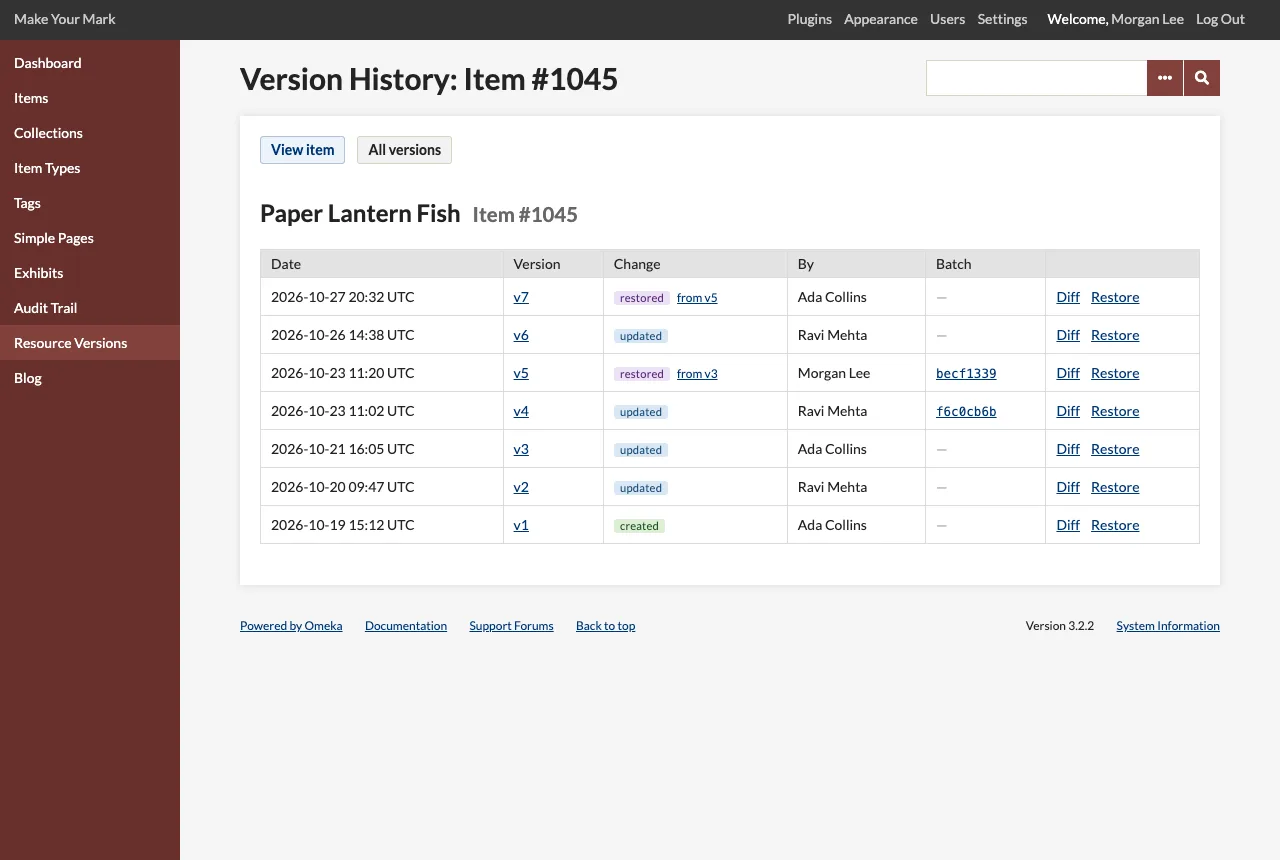
Browsing every version
Click Resource Versions in the admin menu, or go to /admin/resource-versioning. The Versions tab lists every version, newest first, 50 to a page: the date, the record (linked to its history, with "(deleted)" when it is gone), the version, the change, who made it and, for bulk operations, the batch. Diff and Restore work as in the panel.
Narrow the list by Record type, By (who made the change), Change, and a From / To date range (whole days, in the installation's time zone), then click Filter.
Times are shown in the installation's time zone. They are stored in UTC.
Bulk operations
The Bulk Operations tab lists the batches: saves made together in one batch edit, or in one background job (CSV Import, Batch Edit All, a rollback, a script). Each row gives when it started, who ran it, how many records it touched, what kind of changes it made, and its batch key. Details opens the batch's page, /admin/resource-versioning/batch/<key>, with every version it wrote (up to 500). Admins and super users also see Roll back, which opens the Batch Rollback wizard for that batch.
Above the batches, Rollbacks lists the rollbacks run in the background, with their status and result.
A single save made in the admin, or one REST API request, also has a batch key (it is shown on the version's page as "a single request"), but it is not a bulk operation.