A restore sets a record back to one of its versions. Contributors can restore the records they may edit (their own); admins and super users any record.
Restoring
- Open the record's Version History panel or history page, a version's page, a comparison, or the Versions tab.
- Click Restore next to the version to go back to (or Restore this version, Restore version N).
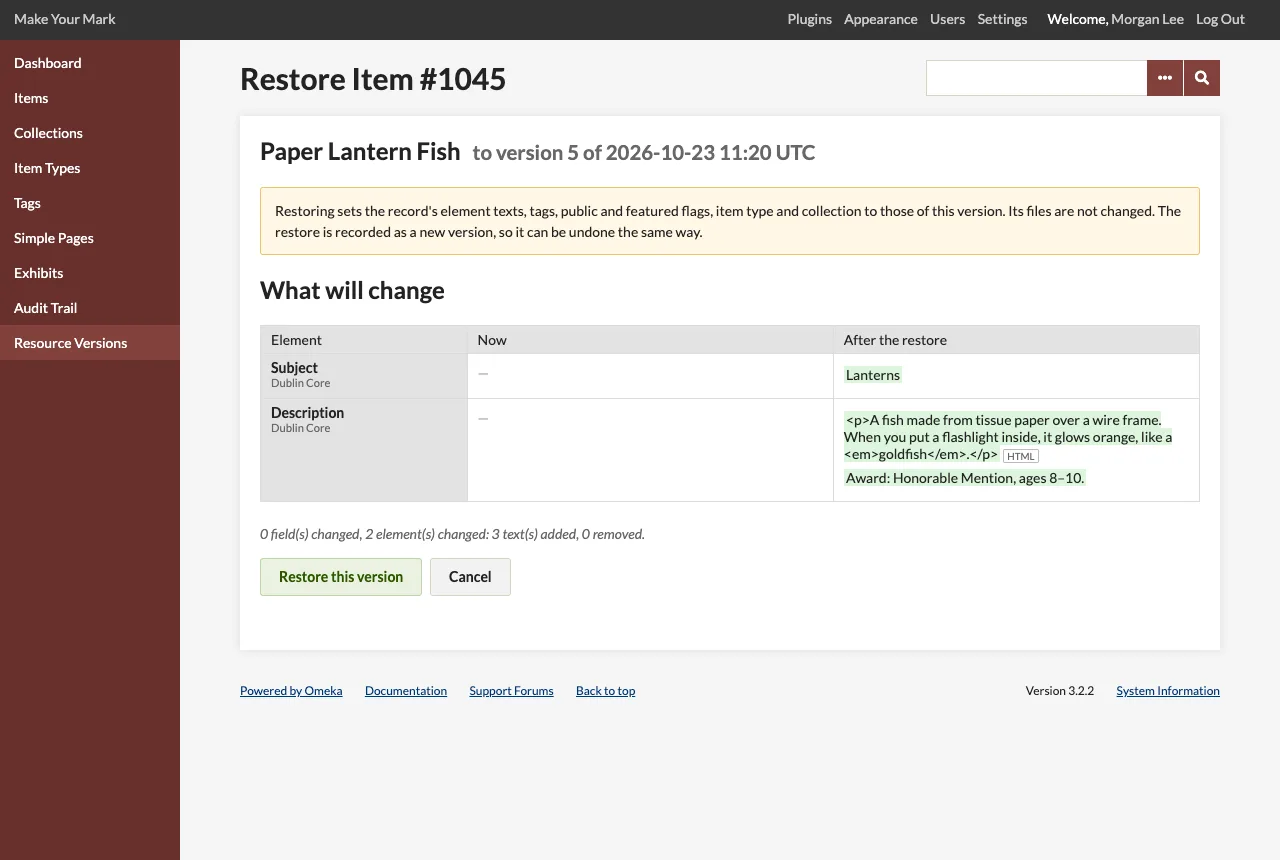
- Check the confirmation page,
/admin/resource-versioning/restore/<id>. Its What will change table compares the record now with the record after the restore, and any reference that will be dropped is listed above it. - Click Restore this version, or Cancel to go back to the record's history.
The record's history page then opens with a message. Dropped references are repeated as warnings. When the record already matches the version, nothing is written and the page says so.
Which version to pick
Version N is the record's state after save N. To undo save N, restore version N-1. The Diff link of version N shows what save N changed, and Restore version N-1 on that page undoes it.
What a restore changes
A restore sets exactly the version's:
- element texts: every element's texts, in the version's order and with its HTML flags, and no others (texts of elements the version did not have are removed);
- tags (items);
- public and featured flags (items and collections);
- item type and collection (items);
- alt text (files);
- owner, only when Restore the owner is on in the Configuration.
It goes through Omeka's own way of replacing a record's element texts and saving it, so the search index is updated and other plugins' save hooks run (Audit Trail logs the save, for example).
It does not change:
- an item's files: none are added, removed or reordered;
- a file's item or stored file;
- the record's number, or its date added.
References to what no longer exists are dropped, each with a warning: texts of an element that has been deleted, an item type or collection that has been deleted, an owner whose account has been deleted.
Restores are versions too
The restore is recorded as a new version, restored, which names the version it came from. Undo a restore by restoring the version before it.
Recreating a deleted record
A deleted item or collection can be brought back from any of its versions, usually its last one, the deleted version, which holds its state when it was deleted. On its history page, click Recreate next to a version, check the page, and click Recreate.
The record comes back as a new record with a new number: Omeka does not reuse the number of a deleted record. It gets the version's element texts, tags, flags, item type and collection, and its old owner when that user still exists (otherwise you). Its history starts with a restored version that names the version it came from, and the deleted record's history page links to it. A record can be recreated only once; after that, restore the new record instead.
- Items come back without their files: Omeka deleted the files, and their stored files, with the item.
- Collections take back their items that are in no collection now. (Omeka takes every item out of a collection when the collection is deleted; the snapshot remembers which they were.)
- Files cannot be recreated: Omeka deletes the stored file with the record.
Limits
- The texts are saved as Omeka saves texts from code (as an importer does), so the admin form's input filters do not run on them: they come back exactly as stored. A plugin that refuses the save makes the restore fail with its message, and nothing is changed.
- A text saved empty is not restored: Omeka never stores empty texts.
- Restoring a file does not bring back a different stored file; the version holds the file's metadata, not its content.