The compare page shows what changed between two versions of the same record, or between a version and the record as it is now.
Opening a comparison
- In the Version History panel, a record's history, the Versions tab or a batch's page, click Diff next to a version. This compares it with the version before it.
- On a version's page, click Compare with the previous version or Compare with the record now.
- On the compare page, pick any two versions, or the record now, in the Compare … with … picker and click Compare.
The address is /admin/resource-versioning/compare/<a>/<b>, where a and b are version numbers from the table (the ids in the links), and b may be current for the record now. Without b, a is compared with the version before it.
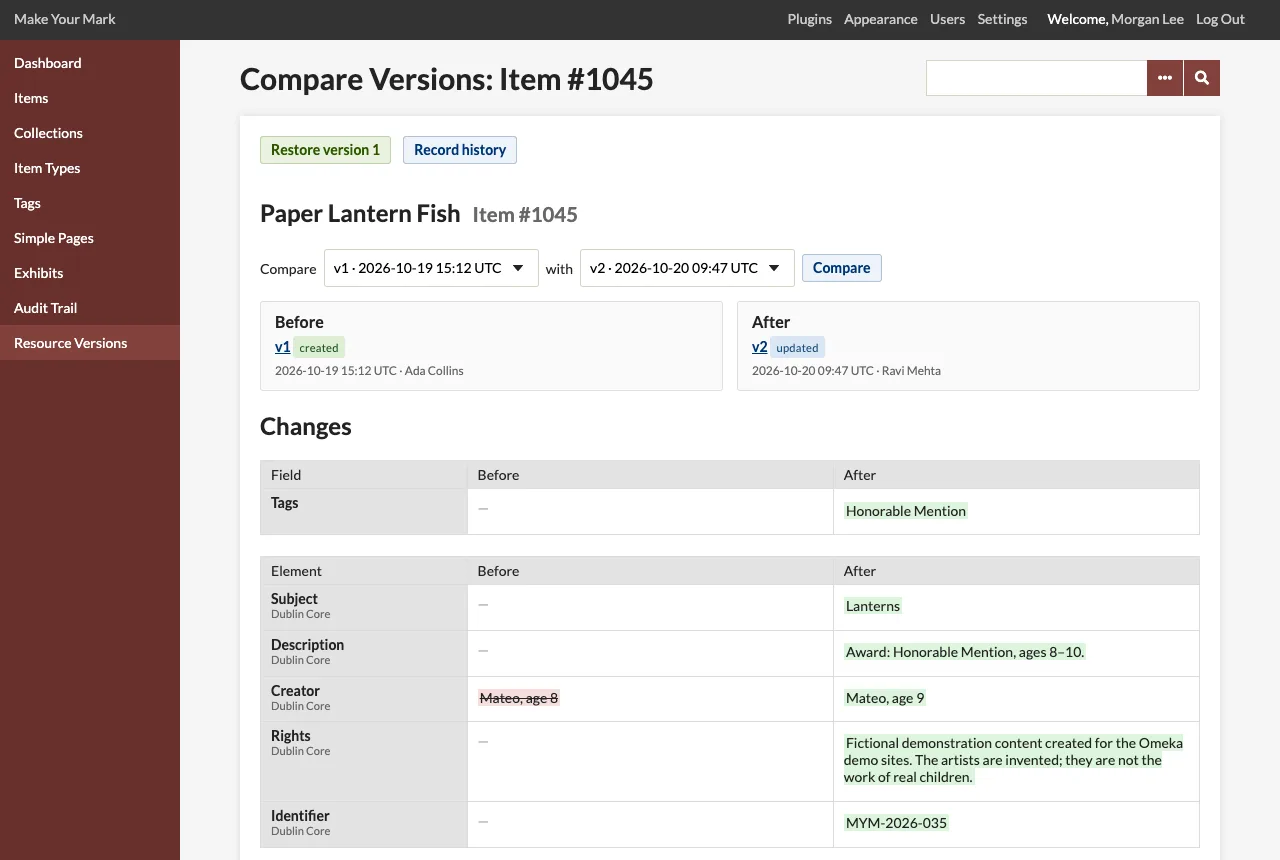
The older side is always shown as Before and the newer as After, whichever order they were asked for in. Comparing the very first version shows "Nothing before" and lists everything as added.
Reading the diff
The Changes section has up to two tables.
The first lists the record's fields that changed, with Before and After:
| Field | What is compared |
|---|---|
| Public, Featured | The flags, as Yes or No |
| Item type | The item type's name |
| Collection | The collection's title |
| Owner | The owner's name |
| Item | A file's item |
| Original filename | A file's original name |
| Alt text | A file's alt text (Omeka 3.2 and later) |
| Tags | The tags removed and added |
| Files | An item's files removed and added, or their new order |
Item types, collections, users, items and files are named as they are now, with their number, such as Still Image (#6). When one has since been deleted, the name the snapshot kept is shown instead, or the bare number.
The second table lists the elements whose texts changed, such as Title (Dublin Core): the texts removed, struck through, and the texts added. Texts are matched by their content and HTML flag, so a text whose HTML flag changed shows as removed and added, and texts that only moved are reported as Same texts, new order, with the new order. Texts saved as HTML are marked HTML and shown as their source.
A summary line counts the fields and elements that changed and the texts added and removed. When nothing differs, the page says No differences. Texts longer than 500 characters are cut short in this view.
Line by line
Under the tables, Line by line: the two snapshots opens a line-by-line comparison of the two stored snapshots, with their cached labels left out and their keys sorted, so only real differences show. Use it to see exactly what was stored.
Restoring from the compare page
Those who may restore the record see Restore version N at the top, which restores the Before version (or Recreate from version N when the record has been deleted). It is not shown when the Before side is the record now. See Restoring a Version.