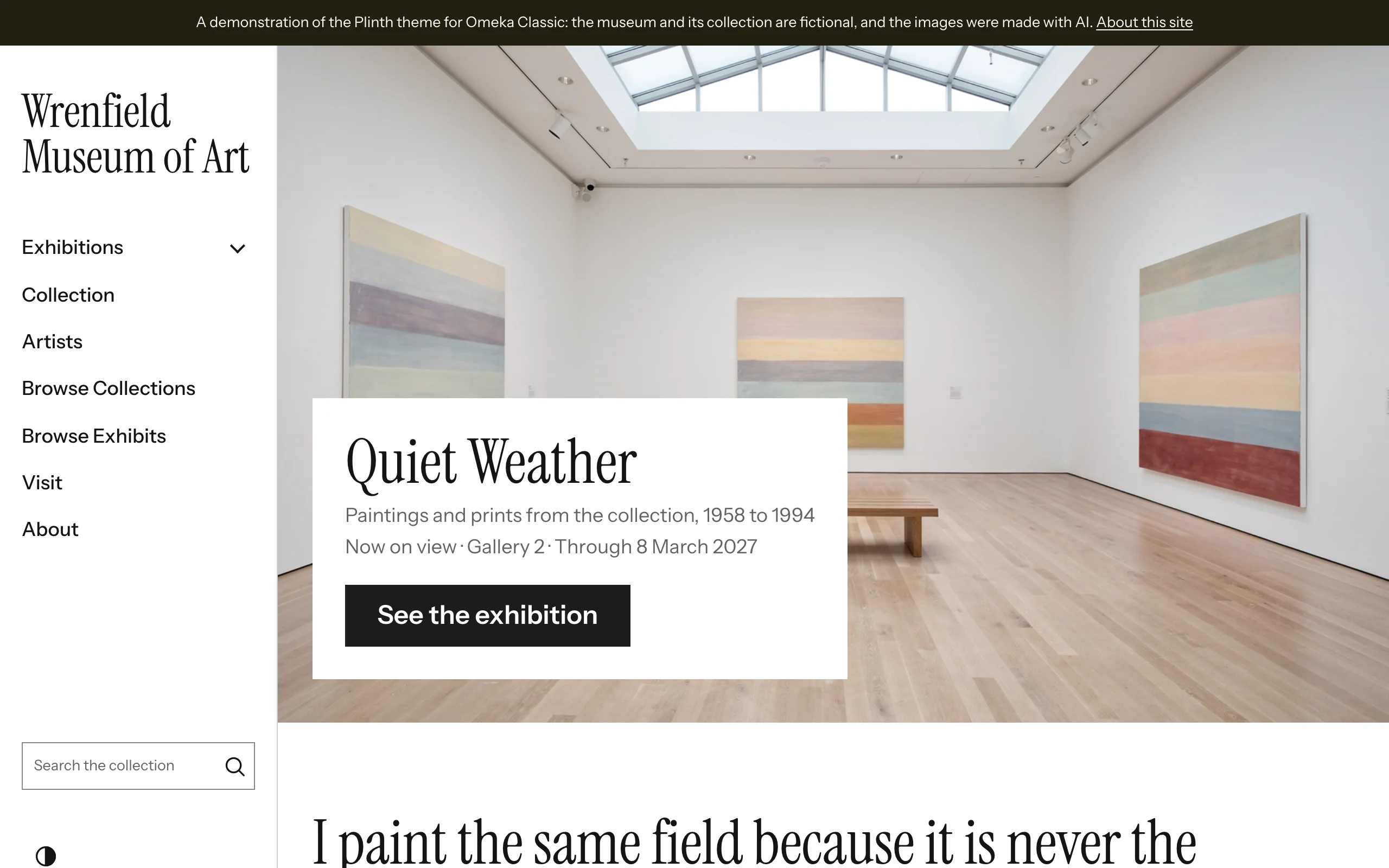
The screenshots in these pages show Plinth on the Wrenfield Museum of Art, a small art museum with paintings, prints, photographs, sculpture and ceramics, running on Omeka Classic.
Requirements
- Omeka Classic 3.1 or later
- PHP 8.1 or later
Plinth has no other requirements. Its fonts, icons and scripts are included and served from your own site. Exhibit pages need the Exhibit Builder plugin, and Simple Pages the Simple Pages plugin, as with any theme. For complete wall labels, install the Dublin Core Extended plugin: it adds the Medium, Extent (dimensions), Provenance (credit line) and Abstract elements.
Installing
- Unzip the theme and copy the
plinthfolder into thethemes/folder of your Omeka Classic installation. - In the admin, go to Appearance › Themes.
- Click Use this theme under Plinth.
- Click Configure Theme and choose a preset. See First steps.
Plinth is now your site's theme. Its settings are kept with the theme: if you switch to another theme and back, they are still there.
Optional companions
- Design Studio adds a live-preview customizer: change settings beside your site, with a color picker for the colors, and publish when you are ready. Super Users can use it.
- BlockSuite adds sixteen exhibit layouts (hero, call to action, statistics, timeline, item cards, slider, tabs, accordion…) and shortcodes.
Upgrading
Replace the themes/plinth folder with the new version. Settings are stored in Omeka's database and uploaded images in files/theme_uploads, so both are kept. Read the changelog for anything new to set up.
Switching from another RefBytes theme
The content classes in your Simple Pages and exhibits have the same names in every RefBytes theme, so pages written for Vitrine or Confetti keep their look in Plinth, drawn in Plinth's style. Theme settings are stored per theme: after switching, choose Plinth's preset, logo, home page and footer once. Plinth turns the wall label on for item pages; see Item pages and wall labels.