Visitors can comment on published posts without an account. Every comment waits for a moderator: it appears on the site only once it is approved.
How visitors comment
Under each published post, Leave a comment asks for a Name, an Email (not published) and the Comment. The name can have up to 100 characters and the comment 2 to 5,000; the email must be a valid address. After Post comment, the page comes back to the comments with "Thank you. Your comment will appear here once a moderator has approved it." A comment with a mistake comes back with the fields filled in and the problems marked.
Comments are plain text: HTML is shown as typed, and line breaks are kept. The email address is shown only to moderators.
Turn comments off with Visitors may comment under Blog > Settings. Approved comments stay visible.
Keeping spam out
Every comment, from the form or the API, is checked before it is saved:
- A hidden field. The form has a field people never see; robots fill it in. Such comments are dropped.
- A signed form. The form carries a token with the time it was shown, signed with a secret of your site. A form sent less than 3 seconds after it was shown (a robot) is dropped; one older than 2 days, or with a token that does not match, is refused and the visitor asked to send it again. The form needs no session, so it works with page caches.
- A limit per visitor. After Comments per visitor per hour (5 by default) comments from one address in an hour, more are refused for the rest of the hour.
- No repeats. The same text sent again on the same post from the same address within a day is dropped.
- Links. A comment with more links than Links allowed in a comment (2 by default) is saved straight to Spam, where a moderator can still approve it.
Dropped comments get the same thanks as the others, so robots learn nothing. Visitors' IP addresses are never stored: only a keyed hash of each, for the limit.
Moderating
Go to Blog > Comments (Admins and Super Users). The tab shows how many comments are waiting. The list opens on Pending; the links above it switch to Approved, Spam or All, and the search box finds words in comments, names and email addresses.
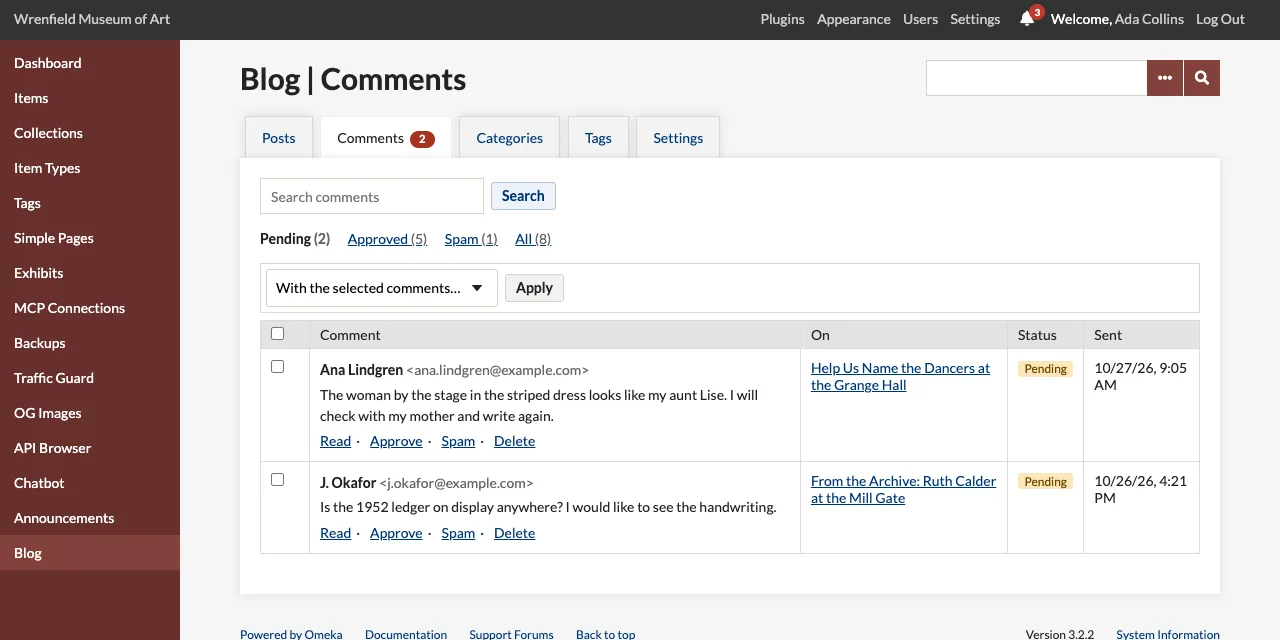
Each comment shows its author, email, text, post and date, with:
| Action | Effect |
|---|---|
| Read | The whole comment, with its details and buttons. |
| Approve | Shows it under the post. |
| Spam | Keeps it, never shown. |
| Pending | Back to the queue (from Approved or Spam). |
| Delete | Removes it, after a confirmation. |
To act on several, tick them (the box in the heading ticks the page), choose an action in With the selected comments… and click Apply.
Click a post's title in the list to see only its comments. A post's Details page in Posts lists its comments too, and deleting a post deletes its comments.
Emails
The moderators chosen under Blog > Settings get an email for each comment waiting for moderation, with the name and email of its author, the comment and a link to it. Comments that went to Spam send no email. See Configuration.