Posts are managed at Blog > Posts (/admin/blog). The list shows 20 posts a page with their status, author, category, number of comments and date. Above it, the status links (All, Published, Scheduled, Pending review, Drafts) show how many posts each has and filter the list; the search box finds words in titles, excerpts and texts, and the menu beside it keeps to one category. Click Title, Status or Date to sort.
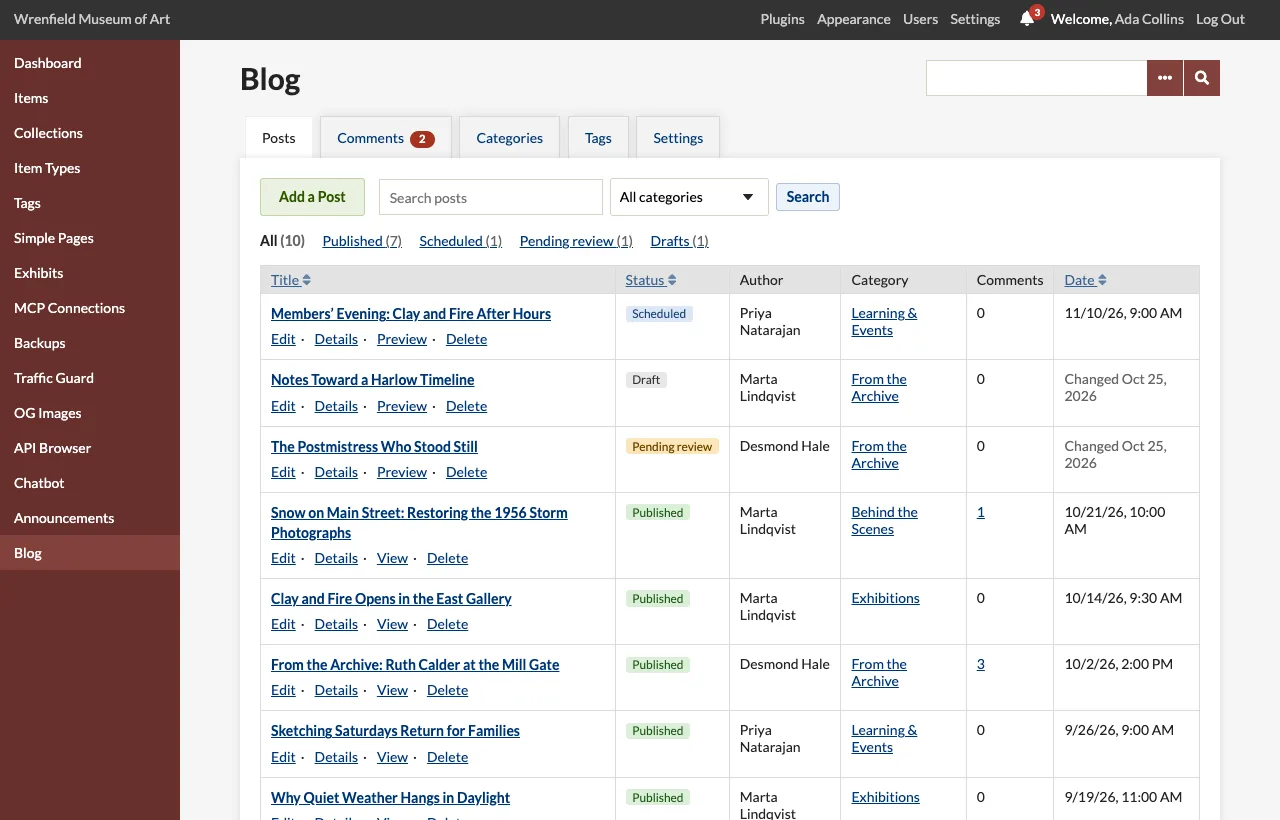
Each row has Edit, Details (the post's page in the admin, with its comments), View for published posts or Preview for the others (both open in a new tab), and Delete.
Contributors see only their own posts here.
Writing a post
- Click Add a Post.
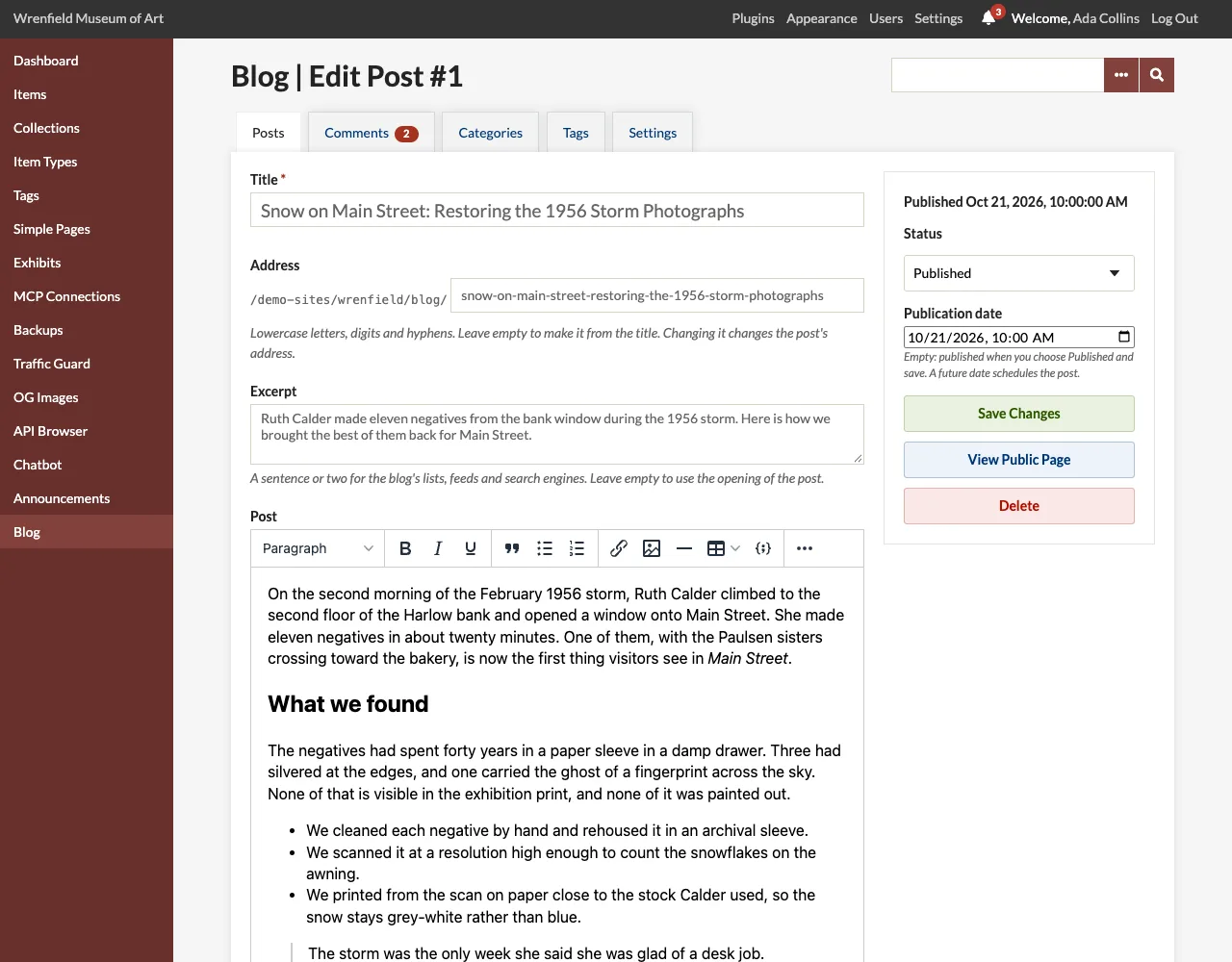
- Write the Title and the Post, choose a Category and fill in what else you need.
- Choose a Status on the right and click Save Post. You stay on the post's form, with a message saying what happened.
| Field | Required | Notes |
|---|---|---|
| Title | yes | Up to 255 characters. |
| Address | no | The end of the post's address, /blog/<address>. Lowercase letters, digits and single hyphens. Empty, it is made from the title (Snow on Main Street, 1956 becomes snow-on-main-street-1956; accents are dropped, and -2, -3… are added if it is taken). A few words are kept for the blog's own pages: category, tag, author, feed, rss, atom, sitemap, page, preview, posts, comments. |
| Excerpt | no | A sentence or two for the blog's lists, the feeds and search engines. Plain text. Empty, lists use the opening of the post. |
| Post | no | The text, in Omeka's editor: paragraph styles and headings, bold, italics, quotations, lists, links, images, horizontal rules, tables and code samples. Insert image offers the images of your newest public items, or takes any address. The HTML is filtered when you save (see Configuration). |
| Category | yes | One per post. Contributors cannot add categories; Admins add them under Blog > Categories. |
| Tags | no | Separated by commas. Existing tags are suggested as you type; new ones are made when you save. |
| Featured image | no | Type words from an item's title (or its number) under Choose an image from the collection, and click one of the items found. The post uses its first image file, at the top of the post and beside it in lists. Remove takes it off. An image from a private item shows only to signed-in users. |
| Or an image address | no | Any image address (https://… or /…), used when no image from the collection is chosen. |
| Status | yes | Draft, Pending review or Published. Contributors have Draft and Send for review. See Editorial Workflow. |
| Publication date | no | A date and time in the site's time zone. See below. |
The form warns you if you leave it with changes not saved.
Publishing and scheduling
- Published with an empty Publication date publishes the post now, and fills in the date.
- Published with a date in the future schedules the post: it stays out of the blog's pages, the archives, the feeds, the sitemap, the shortcode and block, the API and Omeka's site search until that time, and its address answers 404 to visitors. It goes live by itself: no cron job is needed. The list marks it Scheduled.
- Published with a past date backdates the post. Lists are ordered by publication date, newest first.
- A date entered on a draft or a post waiting for review is kept, so you can plan before the post is approved.
- A published post keeps its date when you save it again.
Times are in PHP's time zone on the server (date.timezone), as Omeka's own dates are.
Previewing
Unpublished and scheduled posts can be seen in the site's layout at /blog/<address>/preview, from Preview in the list, on the form and on the post's details page. A yellow banner says the post is not published and links back to its form. Only signed-in users who may see the post can open it; visitors get an error page, and search engines are told not to index it. A signed-in user who opens the address of an unpublished post is taken to its preview.
Deleting a post
Admins and Super Users click Delete in the list, on the form or on the details page, and confirm. The post, its comments and its tag links are deleted; its category and tags stay. Contributors cannot delete posts, not even their own drafts: ask an Admin.
Author
The author of a post is the user who wrote it. The post shows the user's name (their Name under Users) and their blog profile (see Configuration). When a user is deleted, their posts stay, under the name they had.