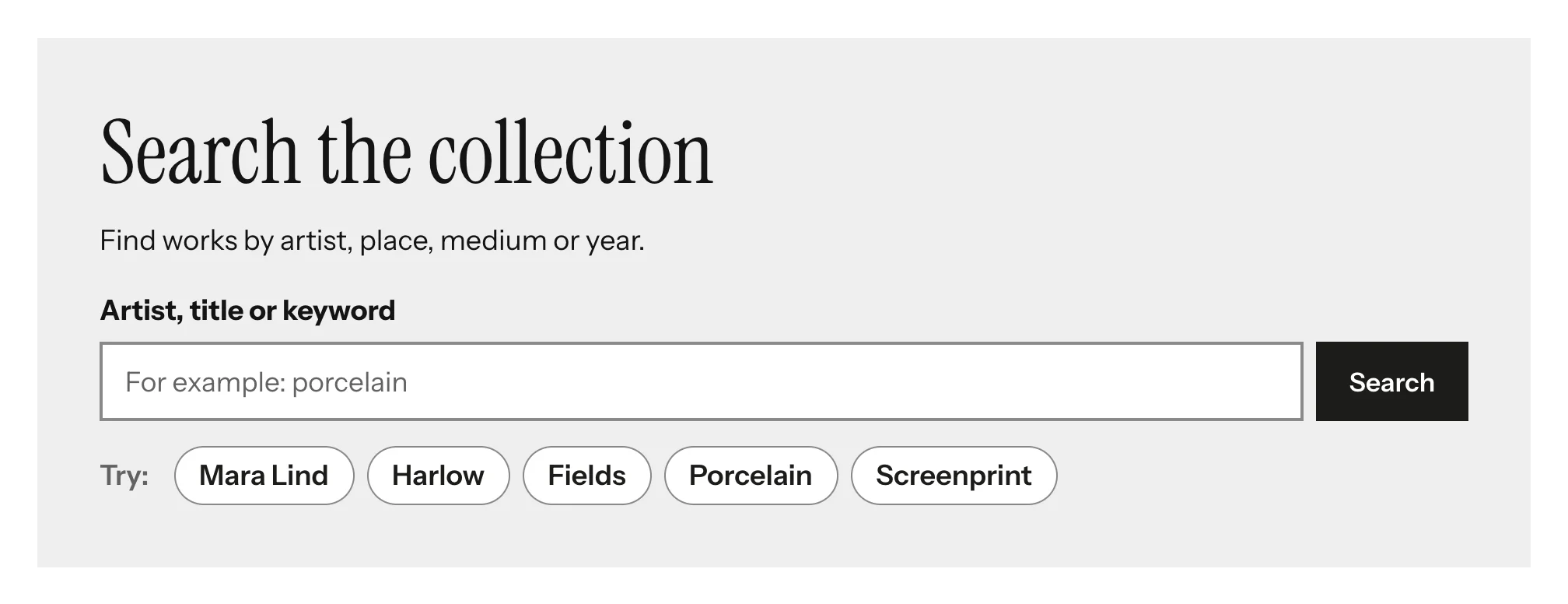
The Search Box block puts a prominent search form on a page, with optional suggested searches below it.
Adding the block
- Edit the page under Admin > Sites > (site) > Pages > (page).
- In the Add new block sidebar, click BlockSuite: Search Box.
- Fill in the fields and click Save.
Fields
| Field | Description |
|---|---|
| Heading | Optional <h2>. When set, it also names the search form for screen readers. |
| Text | Optional plain text above the form. |
| Search | Everything on this site searches the site's search page (pages, items and item sets, as configured under the site's search settings); Items only searches the site's item browse page. |
| Field label | Shown above the field. When empty, the field still has the label Search for screen readers. |
| Placeholder | Example text inside the empty field. Do not rely on it for instructions: it disappears as soon as the visitor types. |
| Button label | Defaults to Search. |
| Suggested searches | One term per line, up to twelve. Each becomes a link that runs that search. |
On the public site
The form is a role="search" landmark with a labeled type="search" field, submitted as a normal GET request with the fulltext_search parameter, so it works without JavaScript and results pages can be bookmarked.