The Timeline block lists dated events in order: a short history, the stages of a project, the milestones of an exhibit.
Adding the block
- Edit the page under Admin > Sites > (site) > Pages > (page).
- In the Add new block sidebar, click BlockSuite: Timeline.
- Click Add event for each event and fill it in.
- Click Save.
Fields
| Field | Description |
|---|---|
| Heading | Optional <h2>. |
| Introduction | Optional plain text under the heading. |
| Events | Up to fifty, shown in the order of the list (use the arrows to reorder). Events with neither a date nor a title are dropped on save. |
Each event has:
| Field | Description |
|---|---|
| Date | Any text: 1898, Spring 1923, 1920s. Dates typed in ISO form are shown as people read them (1958-06 as "June 1958", 1987-04-12 as "April 12, 1987", in the site's language), and they and plain years (1923) keep a machine-readable <time datetime> value. |
| Title | Rendered as a heading: <h3> under a block heading, <h2> otherwise. |
| Text | Plain text. Leave a blank line between paragraphs. |
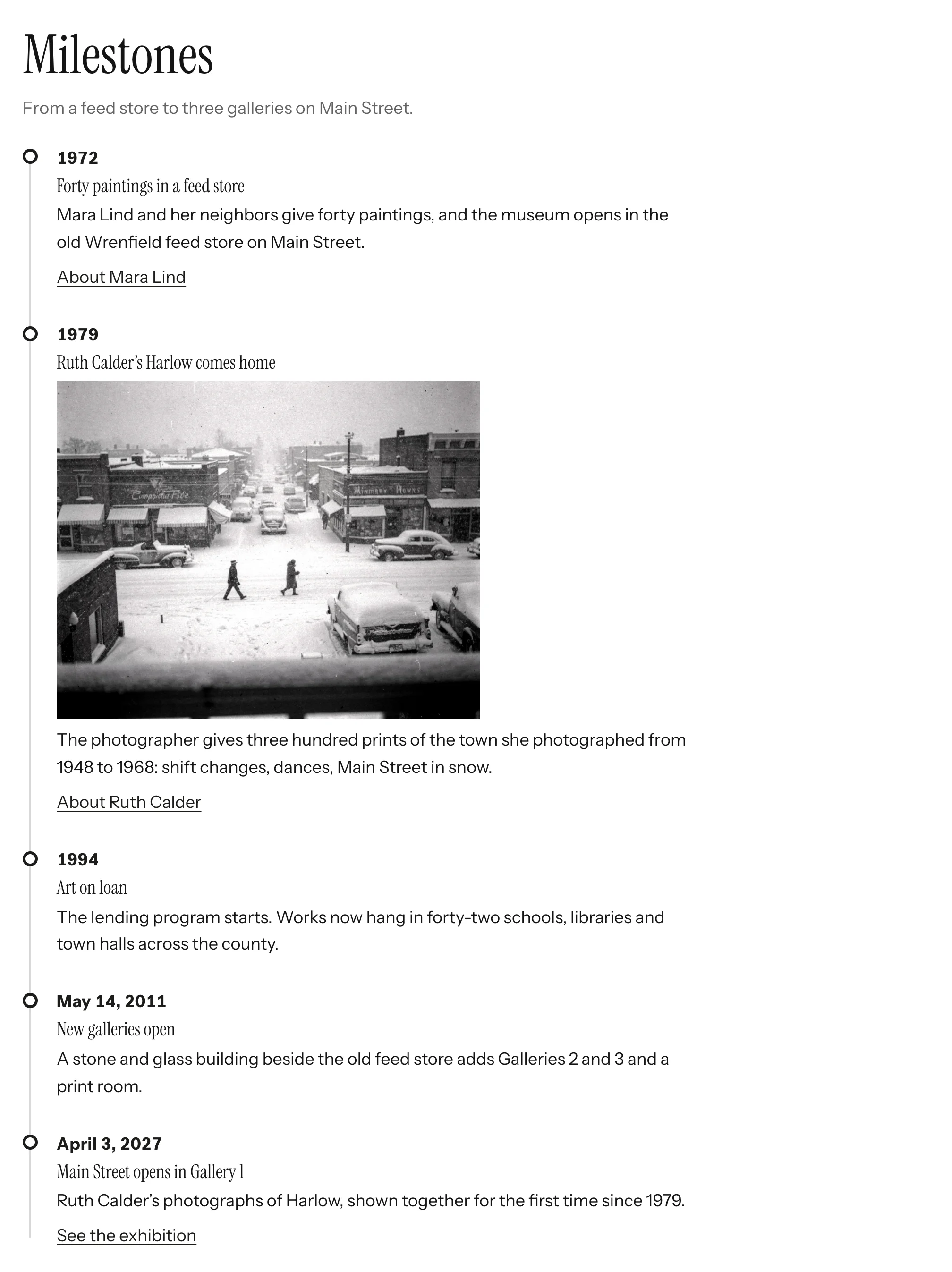
| Image | Optional asset; its alt text comes from the asset. |
| Link and Link label | Optional link shown under the text. The label defaults to Read more, followed for screen reader users by the event's title. |
On the public site
The events form an ordered list (<ol>) with a vertical line and a marker per event. The marker and line use the theme's colors and switch to system colors in Windows high contrast mode.