Setting up an account takes just a couple of minutes. Here is how it works from start to finish.
Sign up
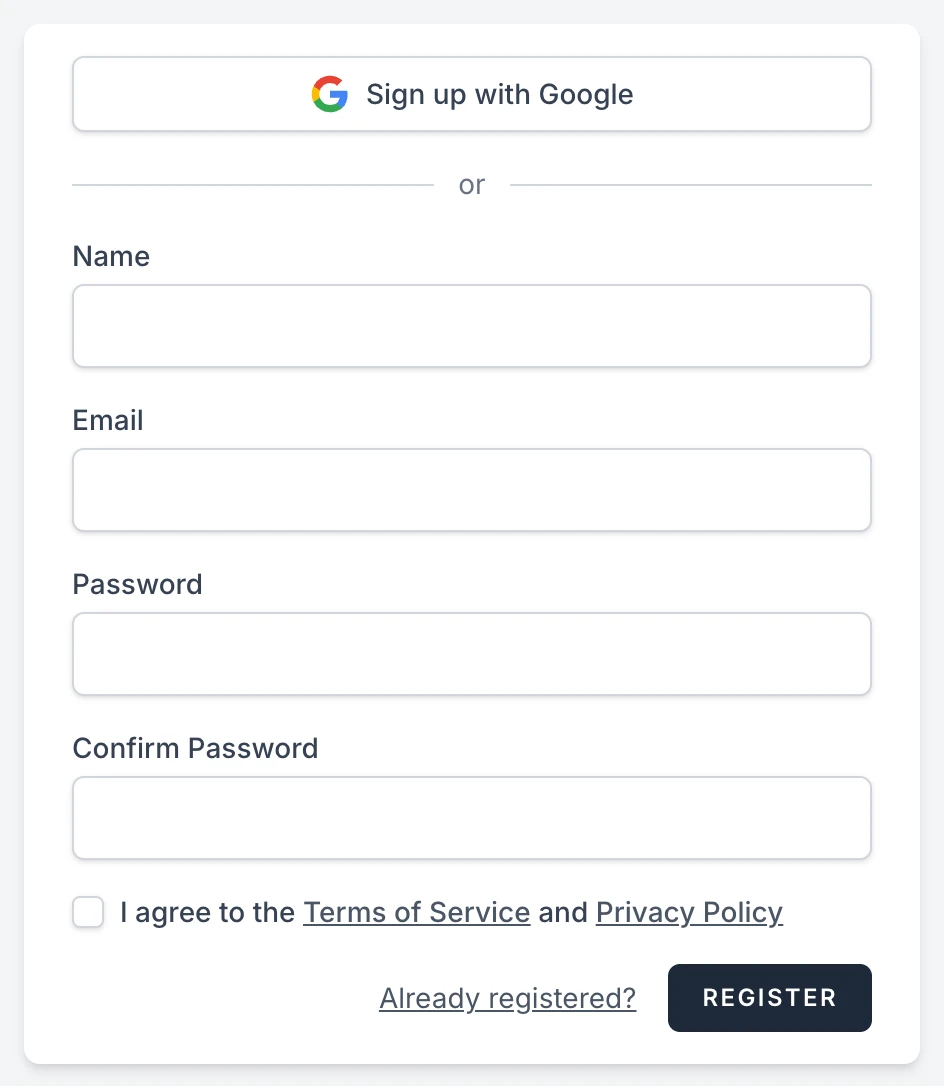
Head to the registration page and enter your name, the name of your organization or institution, your email address, and a password (twice, to make sure it is right). Tick the box to agree to the Terms of Service and Privacy Policy, then click Register.
If you prefer, skip the form and click Sign up with Google at the top instead. Your Google account becomes your login, and there is no separate password to remember.
If you used the form, we send you an email to confirm your address. Click the link inside, and you are in. (Did not get it? The page you land on has a Resend Verification Email button, and it is worth a look in your spam folder.) If you signed up with Google, there is nothing to confirm, and you land in your new dashboard right away.
Your team
When you sign up, we automatically create a team for you, named after the organization you entered. (If you signed up with Google, it is named after you instead, for example "Dana's Team".) Your team is the home for everything in your account: sites, backups, custom modules and themes, and billing. You are its owner.
You do not have to work alone, either. Team owners can invite colleagues from the Team Members page, and each person gets their own login. Our guide on inviting team members walks through it.
Choose a plan
Before you can create your first site, you will need a plan. Until you have one, your dashboard shows a Get started card with a Choose a plan button. You can also compare plans any time on our pricing page, which lets you switch between monthly and annual prices.
Pick a plan and click Subscribe. Payment happens on a secure checkout page run by Stripe, and you come straight back to your dashboard when it is done.
Not sure which plan fits? Start small. You can switch to a different plan later from the pricing page, and the change takes effect right away. Plans and billing has the details.
Managing your billing
Click your team's name at the top of the menu and choose Manage Subscription. That opens a secure billing portal where you can:
- download invoices and receipts
- update your card details
- cancel your subscription
Payments are handled by Stripe, a payment provider trusted by millions of businesses. We never see or store your card number.
Next step
With your account ready and a plan in place, you are all set for the fun part: creating your first site.