Your settings page is where you manage the basics of your own login: your name, your email, your password, and a few security features that are well worth a minute of your time.
To get there, click your initials (or photo) in the top corner of the dashboard and choose Edit My Settings.
Updating your details
The Profile Information section lets you add a photo and change your name and the email address you use to sign in. Click Save when you are done.
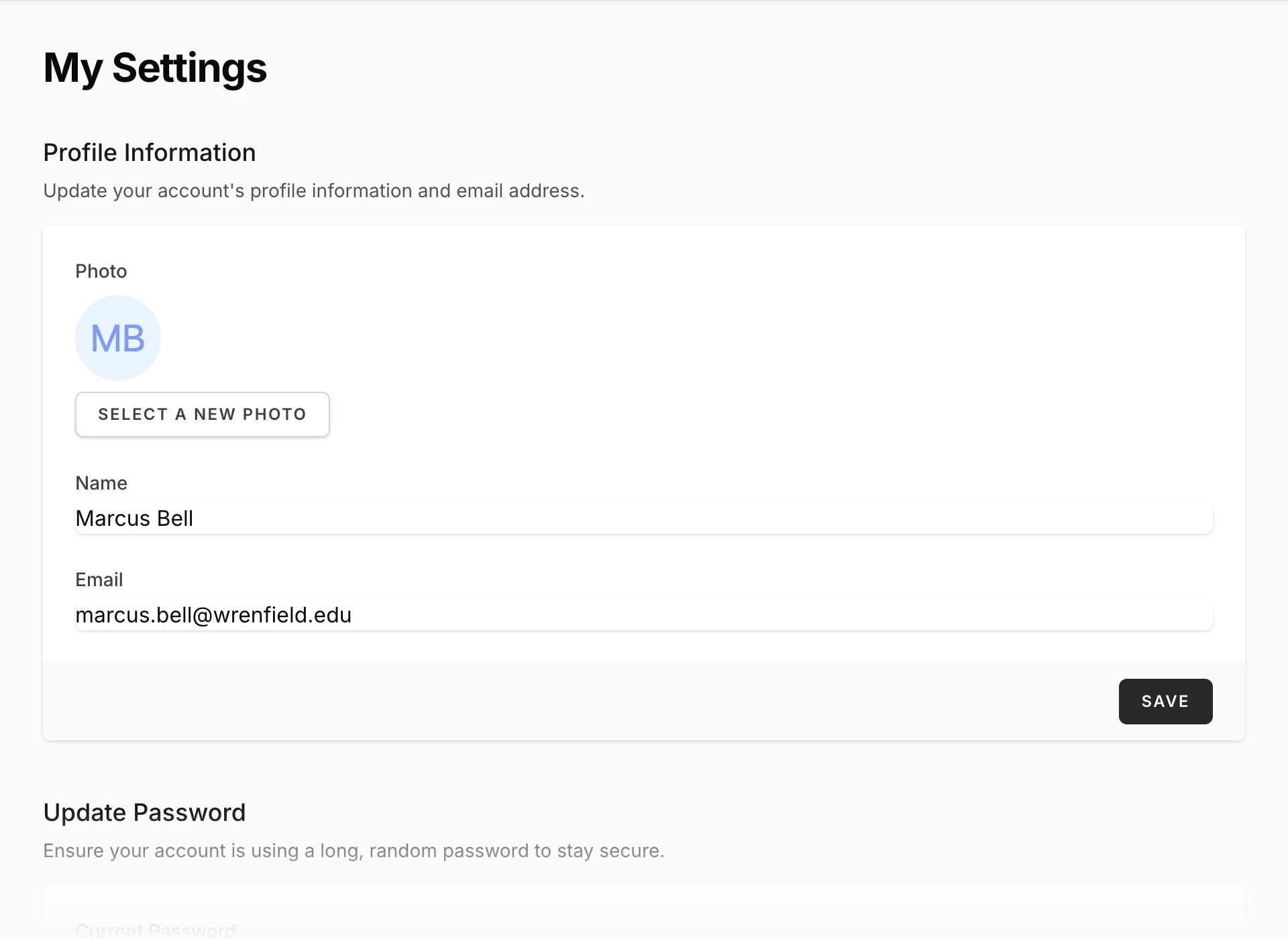
Below it, Update Password lets you change your password. You will need your current one.
If you signed up with Google, you sign in with Google and do not have a RefBytes password. A few features on this page ask you to confirm your password, so if you would like to use them, ask us to help you set one.
Turning on two-factor authentication
We recommend everyone on your team turn this on. Two-factor authentication adds a second step when you sign in: along with your password, you enter a short code from an authenticator app on your phone. Even if someone learned your password, they could not get into your account without your phone too.
To set it up, click Enable in the Two Factor Authentication section and confirm your password. A QR code appears; scan it with any authenticator app, type the code the app shows into the Code field, and click Confirm.
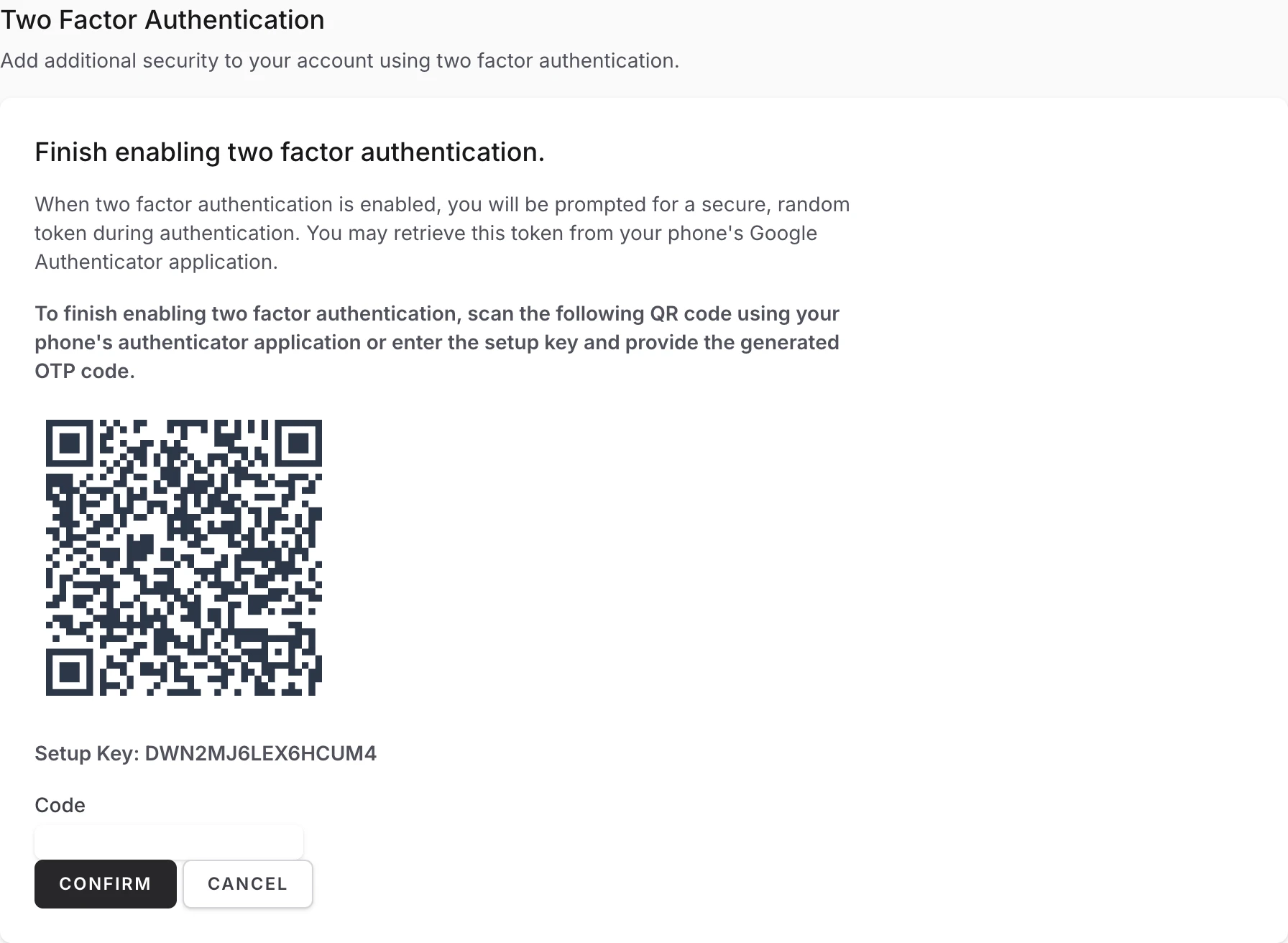
You will also get a set of recovery codes. Store them somewhere safe, like a password manager. They let you back into your account if you ever lose your phone.
Team owners need two-factor authentication turned on to upload custom modules and themes.
Reviewing your browser sessions
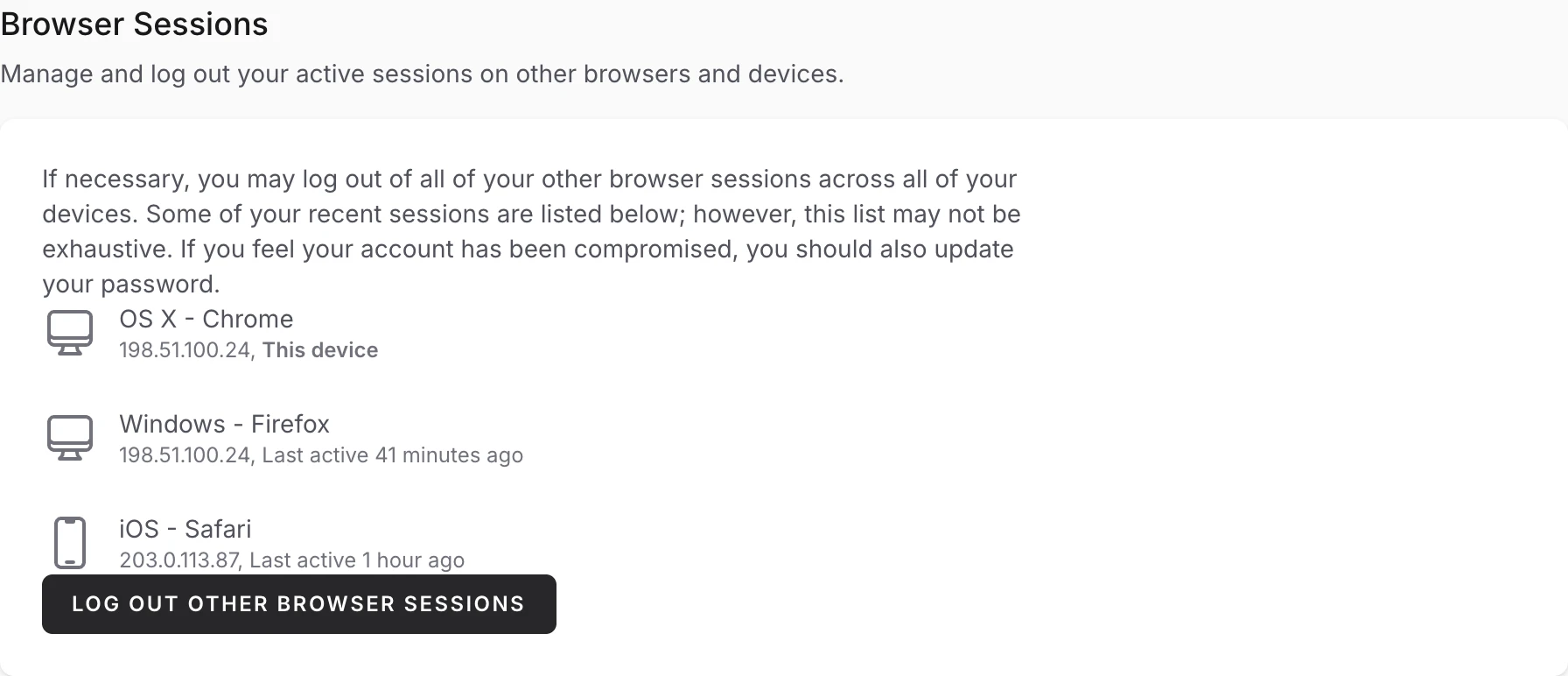
The Browser Sessions section lists the browsers and devices that are currently signed in to your account, with where and when each was last active. If you see something you do not recognize, or you forgot to sign out on a shared computer, click Log Out Other Browser Sessions and confirm your password.
Choosing what we send you
Now and then we send announcements, like planned maintenance or new features. They arrive in the bell at the top of your dashboard and by email. The Email Preferences section has a switch for each, plus one for occasional tips and product news. Untick any you would rather not get and click Save.
The unsubscribe link at the bottom of an announcement email turns off announcement emails only. You still see announcements in the bell, and account email such as invitations, password resets, and site setup notices always arrives.
Closing your account
There is no delete button for your account, and that is on purpose. Closing an account affects your whole team's sites and data, so we handle it personally to make sure nothing is lost by accident. If you want to close your account, just reach out and we will take care of it. See getting support for how to contact us.
A note for teams
Each person on your team has their own login, settings, and security. If you have not brought your colleagues in yet, our guide on inviting team members shows how.