An SSL certificate is what puts the padlock next to your site's address in the browser. It encrypts the connection between your visitors and your site, and these days browsers warn people away from sites that do not have one. The good news: with RefBytes, certificates are free and installing one is a single click.
We use Let's Encrypt, a nonprofit service that issues free certificates trusted by every major browser. There is nothing to buy and nothing to renew by hand.
New sites get SSL automatically
When you create a site, we request and install a certificate for its temporary address as part of setup. Most of the time you never have to think about it.
Occasionally that automatic step does not succeed. If that happens, the Activity list on your site's dashboard says so, and Needs attention at the top of the dashboard offers an Install SSL button: "SSL certificate installation failed — continuing without SSL." There is no harm done. Your site still works without the padlock, and you can install the certificate yourself once things are ready.
Installing and removing a certificate
The SSL button lives on your site's Settings page, as a padlock at the left end of the Domain field:
- An open padlock means Install SSL: the site does not have a certificate.
- A closed padlock means Uninstall SSL: the site has one.
Hover over the padlock to see which it is.
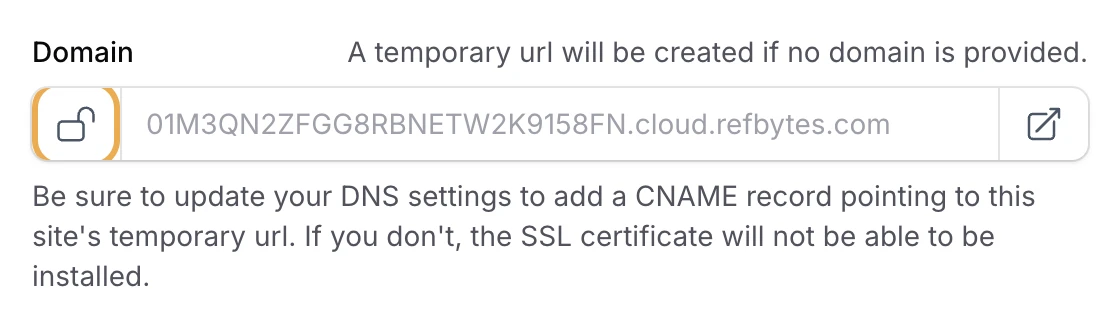
Installing normally takes under a minute, though it can take a few while we wait on Let's Encrypt. When it finishes, the padlock closes and the site's Activity list notes that the certificate was installed. Your site is now served over a secure connection.
Installing SSL on your own domain
If you have added a custom domain, there are two things to know:
- Your domain's CNAME record needs to be in place and pointing at your site before a certificate can be issued. Our guide on using your own domain walks through that setup.
- Saving a new domain opens the padlock, since the certificate from setup only covers the temporary address. Click Install SSL once your DNS is ready, and the new certificate covers your domain.
If something goes wrong
If an installation fails, you will see a red "Error installing SSL certificate" notification. By far the most common cause is DNS: your domain is not pointing at your site yet, or the change you made has not finished spreading across the internet. That can take a few hours, so waiting and clicking Install SSL again often does the trick.
If it still will not install, our troubleshooting guide SSL won't install covers the usual culprits, and you can always reach out to support.