Sometimes you want a second version of a site you already have. Maybe you want a safe place to test a redesign, a starting point for a similar collection, or a sandbox for training new staff. Copy Site does exactly that: it builds a brand new site and fills it with the content of an existing one.
Copying a site is a job for team owners.
How to copy a site
Open the site you want to copy from the Sites page, then click Copy Site at the top of its dashboard.

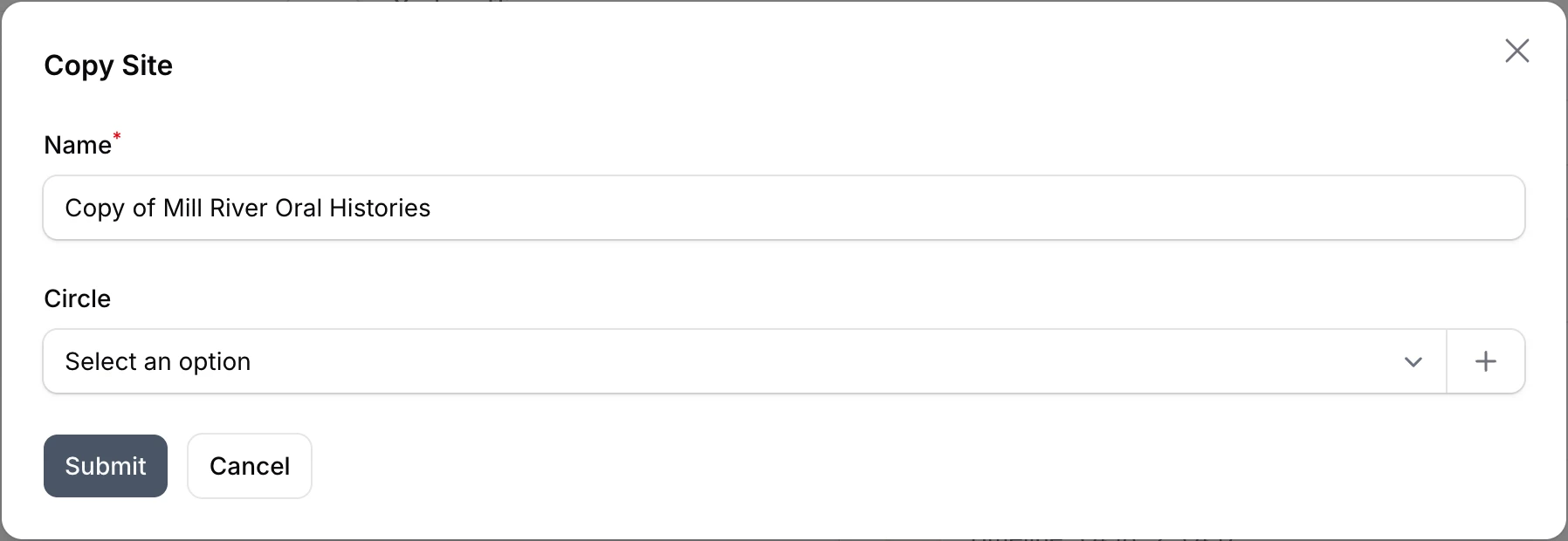
A small window asks for two things:
- Name, which starts out as "Copy of" plus the original's name. Change it to something you will recognize.
- Circle, if you want the copy grouped with other sites. See organizing sites with circles.
Click Submit.
The copy appears in your Sites list right away and is built in the background, just like a brand new site. It usually takes a few minutes, and you can watch the progress in the Activity list on the copy's dashboard if you like.
What gets copied
The copy starts as a faithful duplicate of the original:
- The content. We take a fresh backup of the original the moment you click Submit and restore it into the copy, so the copy includes everything up to that moment. (That backup also shows up in the original site's Backups list.)
- The uploaded files. Your images, documents, and other media are copied over after the site is set up, so they may arrive a few minutes after the site itself is ready.
- The platform and version, plus the same modules and themes, at the same versions.
- The login. Because the copy has the original's content, it also has the original's Omeka users. Sign in to the copy with the same email and password you use for the original.
What does not get copied
A copy is a new, independent site, so a few things start fresh on purpose:
- A new temporary web address. The copy gets its own address, and the original keeps its domain. See using your own domain if you want to point a domain at the copy later.
- A new database. The two sites do not share anything, so changes to one never affect the other.
- Its own backups and history. The copy's Backups and Activity lists start empty.
After the copy finishes
When setup completes, the copy gets its own Public Site and Admin Site buttons, like any other site. From there it is a completely separate site: back it up, update it, or delete it without ever touching the original.