Every site has a Settings page where the essentials live: your web address, your SSL certificate, your site's name and circle, and your admin login details. You'll find it last in the list of the site's pages, below Backups. (Opening a site takes you to its dashboard first.)
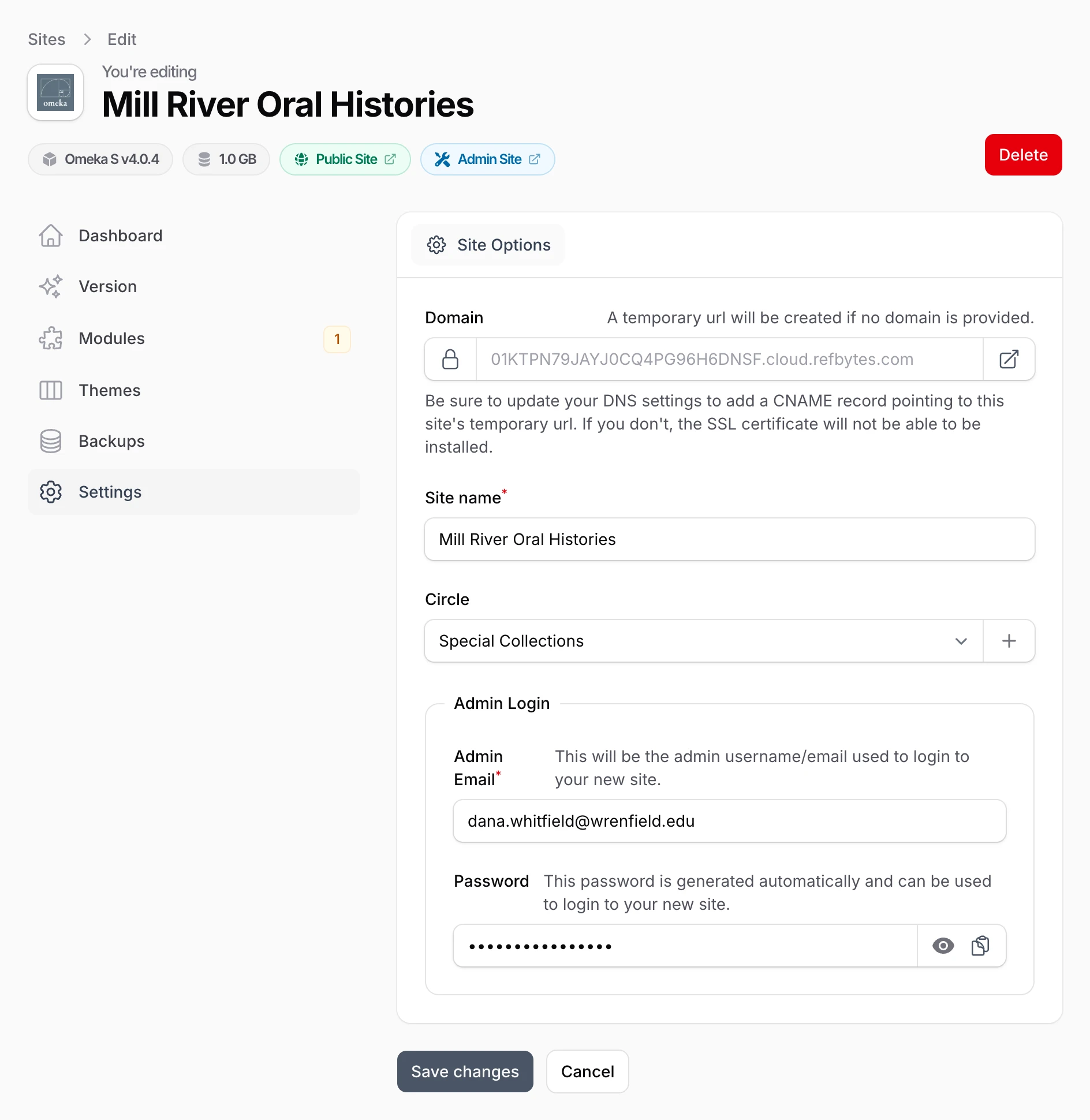
The top of the page
Every page for a site shares the same header:
- the site's platform and version (for example, Omeka S v4.1.1)
- how much storage the site's files use
- the Public Site and Admin Site buttons
The Settings page adds the red Delete button in the top corner, which removes the site entirely. This one is permanent, so please read deleting a site before you use it. Only team owners see it.
Down the left side are the site's other pages: Dashboard, Version, Modules, Themes, and Backups.
The settings themselves appear once your site has finished installing. If you just created the site, its dashboard shows the setup progress; wait a few minutes for setup to complete.
The Domain field
At the top of the form is your site's web address. Every new site starts on a temporary address that we create for you, shown in grey inside the empty field, and it works right away. When you are ready to use your own domain name, you type it here. Our guide on using your own domain covers the whole process step by step.
The field has two small buttons built into it:
- On the left, a padlock. An open padlock means Install SSL; a closed one means the site has a certificate, and clicking it will Uninstall SSL. Hover over it to see which. More on that in SSL certificates.
- On the right, View Site opens the site in a new tab, handy for checking your work.
Site name and circle
Site name is how the site appears in your dashboard. Changing it here does not change the title visitors see, which you edit in Omeka's own settings.
Circle lets you group the site with related ones. See organizing sites with circles.
Your admin login
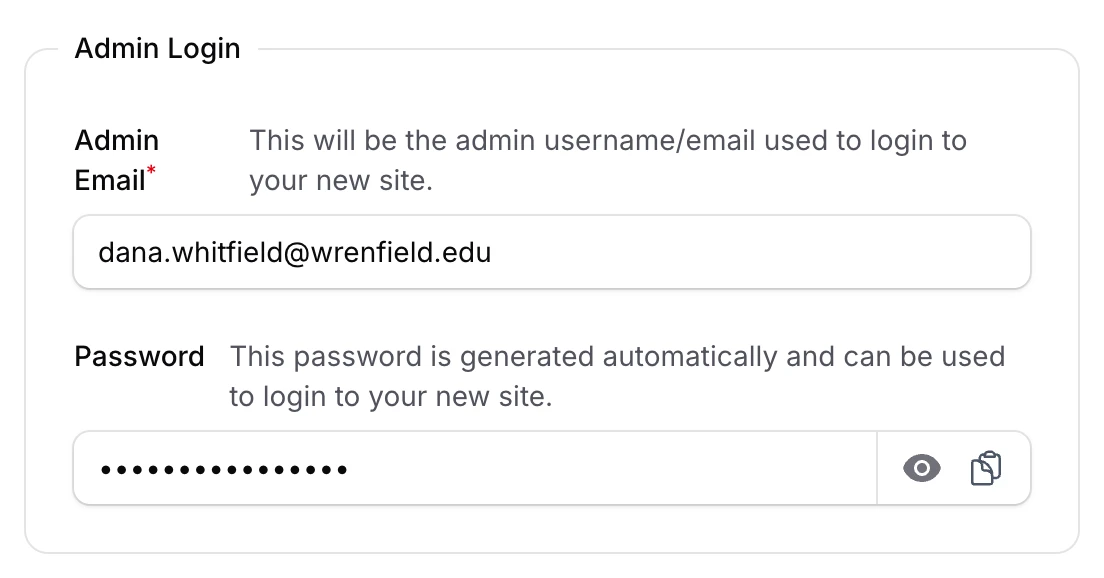
The Admin Login section shows the Admin Email you sign in to Omeka with. It is there for reference only, so you cannot edit it.
Below it is the Password we generated when the site was created. It is hidden by default. Click the eye icon to see it, or use the copy icon to grab it without displaying it on screen. This is the easiest way to recover your login if you ever forget it.
When you change the domain, name, or circle, click Save changes at the bottom of the form.
The list of everything that has happened to the site, from setup steps to SSL changes and restores, is the Activity list on the site's dashboard.