When you open a site from the Sites page, you land on its Dashboard. It answers the questions you usually have about a site, like whether its backups are current and whether anything needs updating, and gives you a button for each thing that needs doing.
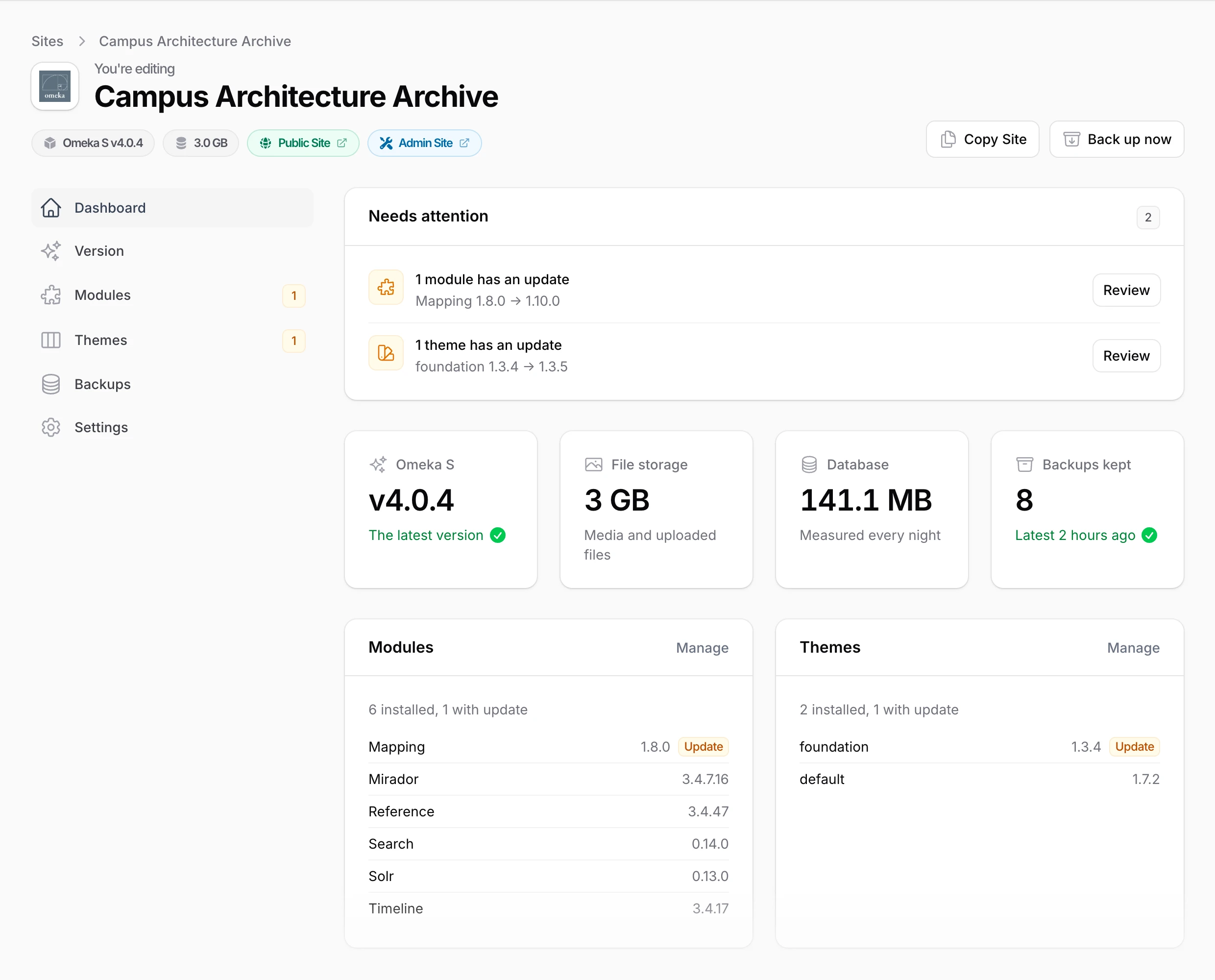
The site's other pages are listed down the left side: Version, Modules, Themes, Backups, and, last, Settings, where the domain, name, circle, and admin login live (see site settings).
Needs attention
The first box lists anything about the site worth acting on, most urgent first. Each line explains what's going on, and the button beside it either does the job or opens the page where it's done. You might see:
- A newer version of Omeka. Update opens the Version page, where you can back up and upgrade in one go. See upgrading your platform. While an upgrade is running, the box says so instead.
- Modules or themes with updates, each named with the version you have and the latest one. Review opens the Modules or Themes page. (On Omeka Classic, modules are called plugins.)
- An old backup. Backups run every night, so if the latest one is more than two days old, or a site that's been around a while has none, Back up now makes one on the spot.
- No HTTPS. If the site's address doesn't have a certificate yet, Install SSL requests one. For your own domain, point its DNS at the site first; see SSL certificates.
- A support request about the site, with the ones waiting on your reply first. Reply or View opens the request.
- Your team is over its storage limit, on plans that have one. New sites are paused until there's room.
When there's nothing to do, the box says Everything's up to date.
The Version, Modules, and Themes pages in the list on the left also show a small amber badge while they have updates waiting, so you can spot them from any of the site's pages.
The site at a glance
Below that, four tiles sum up the site:
- the Omeka version it runs, and whether it's the latest
- its file storage, the media and files uploaded to Omeka, and once there's a few weeks of history, a line showing how it has grown
- the size of its database
- how many backups we're keeping, and when the latest one was made
Storage is measured every night, so these figures can lag a little behind. Click the version or backups tile to open that page.
Next come the site's modules and themes, with the version of each and an Update badge on any that have a newer release. Manage opens the full list.
Activity
At the bottom, the Activity list records what has happened to the site, newest first: each step of its setup, installs and updates, SSL certificates, and restores. If something didn't go the way you expected, this is the first place to look.
The nightly backups are left out so they don't crowd everything else. Click Show backups to include them, or see them all on the Backups page.
While a new site is being built, the dashboard shows only its progress, and the Activity list adds each step as it finishes. The rest of the dashboard fills in once the site is ready.