Modules add new features to your site, and themes change how it looks. RefBytes comes with a built-in catalog of both, kept in sync with the official omeka.org directory, so you can browse and install them without downloading a single file.
One quick note on names: Omeka Classic calls these add-ons "plugins" and Omeka S calls them "modules". To keep things simple, the dashboard uses Modules for both. Themes are called themes everywhere.
Where to find them
Open one of your sites and click Modules or Themes on the left. Each page has two tabs, with a count on each:
- Installed shows everything currently on your site.
- Available shows everything you could add. This list only includes items that match your site's platform, so an Omeka S site will never see Classic-only plugins. It includes our premium modules and themes and anything your team has uploaded, too.
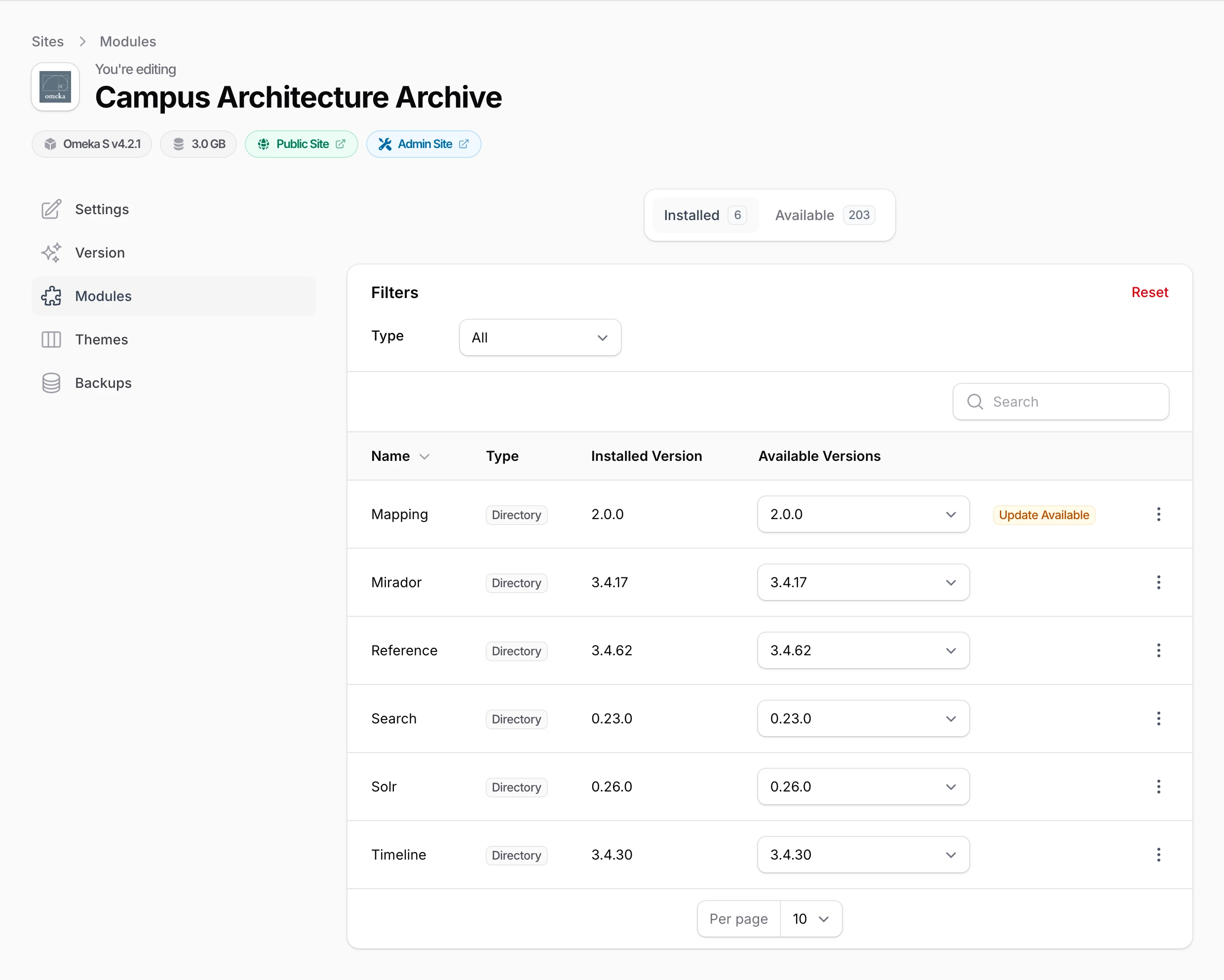
The Type column tells you where each item comes from: Directory (the omeka.org catalog), Github, Premium, or Local (your team's own uploads). Use the Type filter or the search box to narrow a long list.
Installing a module or theme
Click the Available tab and find the item you want. Each row has a Version list that is already set to the newest version, which is usually what you want. Click Install and that is it.
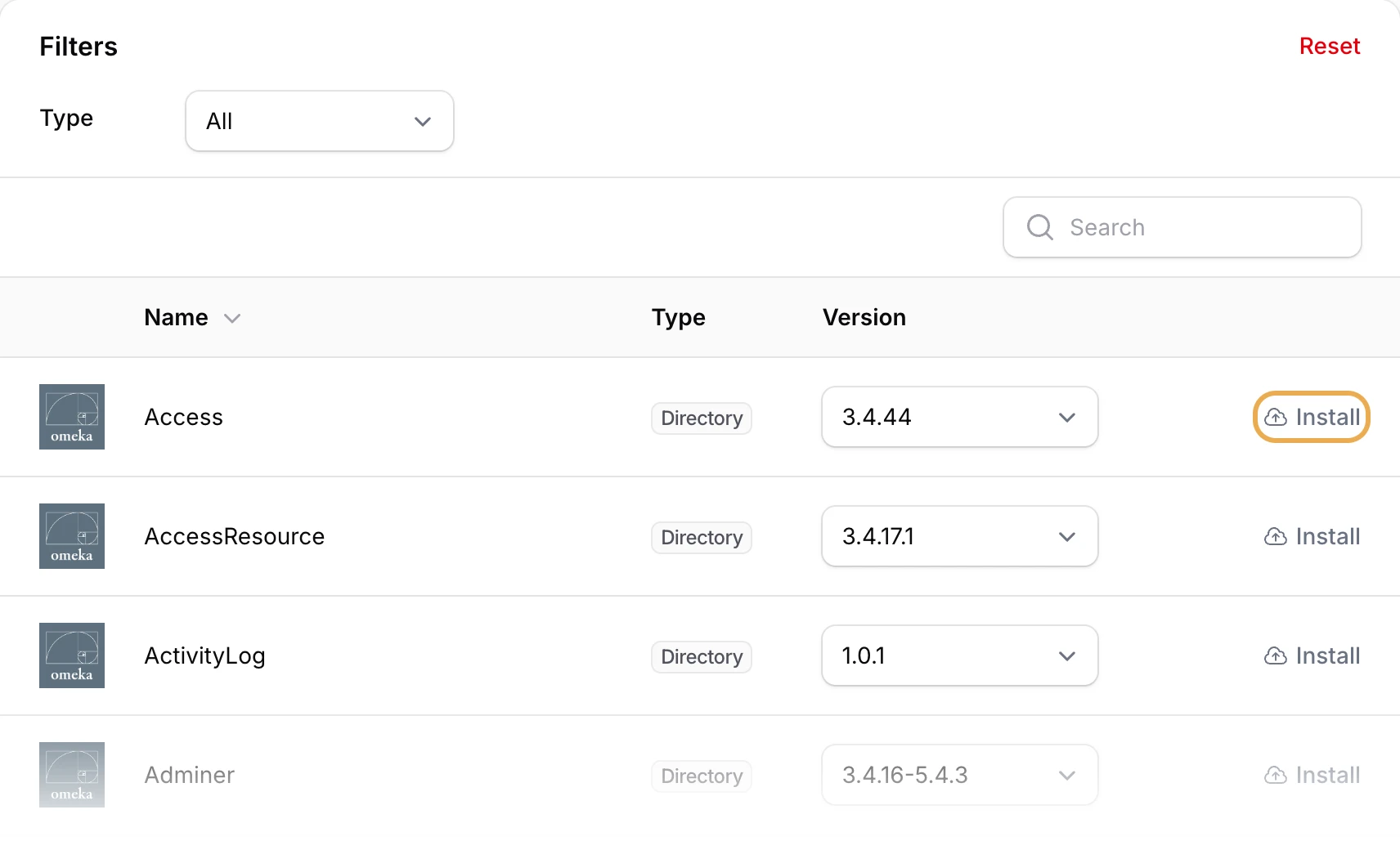
The installation runs on the server in the background, and a notification pops up confirming it has started. After a short wait, the item moves over to your Installed list. (Refresh the page if it has not shown up yet.)
Turn it on in Omeka
Installing from the dashboard puts the files on your site. To start using a module or theme, switch it on in Omeka itself:
- Omeka S: in the admin area, go to Modules and click Install next to the module. For a theme, open your site's Theme settings and select it.
- Omeka Classic: in the admin area, go to Plugins and click Install next to the plugin. For a theme, go to Appearance and choose it.
Some modules have settings of their own to fill in once they are installed. Their documentation will walk you through it.
A word about themes
Themes work exactly the same way, from the Themes page. New sites come with the platform's default themes already installed, so you have something to work with from day one. Anything else you would like to try is one click away in the Available list.
Uninstalling
Changed your mind? Switch the module off in Omeka first (uninstalling it there removes its data). Then, on the Installed tab in the dashboard, open the row's ⋮ menu and choose Delete. You will be asked to confirm, and then the module or theme's files are removed from the site.
What about versions?
Every installed item shows which version it is running, and a version list lets you switch to a different one at any time. If a newer version exists, you will see an Update Available badge as a nudge. There is more on how all of this works in managing versions.
And if the catalog does not have what you need, you can upload your own modules and themes.