Welcome! RefBytes is a hosting service built just for Omeka, the free publishing platform used by libraries, museums, archives, and researchers to share collections and exhibits online.
If you have ever tried to set up Omeka on your own, you know there is a lot to it. You need a server, a database, security certificates, backups, and someone to keep it all updated. RefBytes takes care of all of that so you can spend your time on the part that matters: your collection.
What we handle for you
- Hosting. Your site runs on fast, managed servers. There is nothing for you to install or maintain.
- Security. Every site gets a free SSL certificate, so visitors see the padlock in their browser.
- Backups. We back up your site's database automatically every night, and you can create a backup yourself any time.
- Updates. When a new version of Omeka comes out, upgrading takes a couple of clicks in your dashboard.
- Modules and themes. Browse the official Omeka catalog, plus our own premium modules, and install them without touching any code.
A quick look around
When you sign in, you land on your dashboard. It greets you with a snapshot of your team: how many sites you have, how much storage they use, when the last backup ran, your most recently active sites, and a few quick actions.
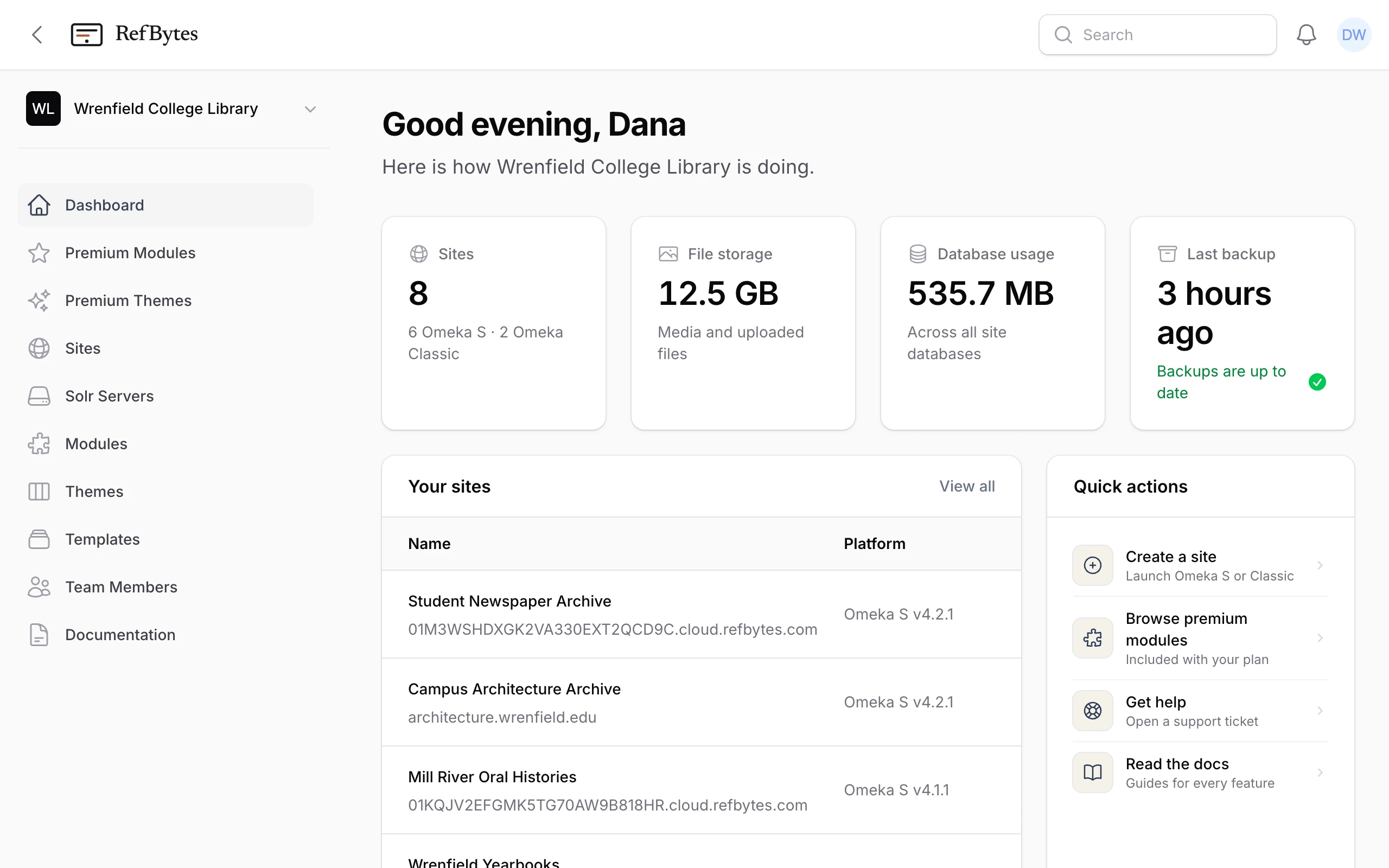
The menu on the left takes you everywhere else:
- Sites is where you create and manage your Omeka sites. Most of your work starts here.
- Premium Modules and Premium Themes are our catalog of extras built for hosted sites. See premium modules and themes.
- Solr Servers is where you add fast, dedicated search. See what Solr adds to your site.
- Modules and Themes hold the custom modules and themes your team uploads.
- Templates let you build a reusable site setup and create many sites from it at once.
- Team Members is where team owners invite colleagues to share the account.
- Documentation opens these docs in a new tab.
A few more things live outside the menu:
- Your team's name, at the top of the menu, opens a small menu with Manage Subscription, where the person who set up the account handles billing.
- Your initials, in the top corner, open your own settings: name, email, password, and two-factor authentication.
- The bell next to them collects notifications, like a finished backup.
- The chat bubble in the bottom corner of every page opens a support ticket.
Ready to start?
If you are brand new, these two guides will get you up and running:
And if you are not sure which flavor of Omeka is right for your project, we wrote a short guide to help: Omeka Classic vs Omeka S.
If you get stuck at any point, we are happy to help. Click the chat bubble in the bottom corner of any page to open a support ticket, and we will get back to you.