Getting Solr running takes two steps: subscribe to the add-on, then add your server. Both happen on the Solr Servers page, and your part only takes a minute.
If you are still deciding whether Solr is right for your collection, start with what Solr adds to your site.
Before you start
Solr is an add-on to your regular plan, so you need an active paid subscription first. Each Solr server is $20 per month, added onto what you already pay. If you have not picked a plan yet, see plans and billing.
Because Solr changes your bill, subscribing, adding slots, and cancelling are done by the person who created your team's account, like the rest of billing. Anyone else on the team sees a note pointing them to that person.
Subscribe to the add-on
Click Solr Servers in the menu, then Subscribe to Solr at the top of the page. A confirmation window asks for the Number of Solr Servers you want. Most people start with one, and you can always add more later.
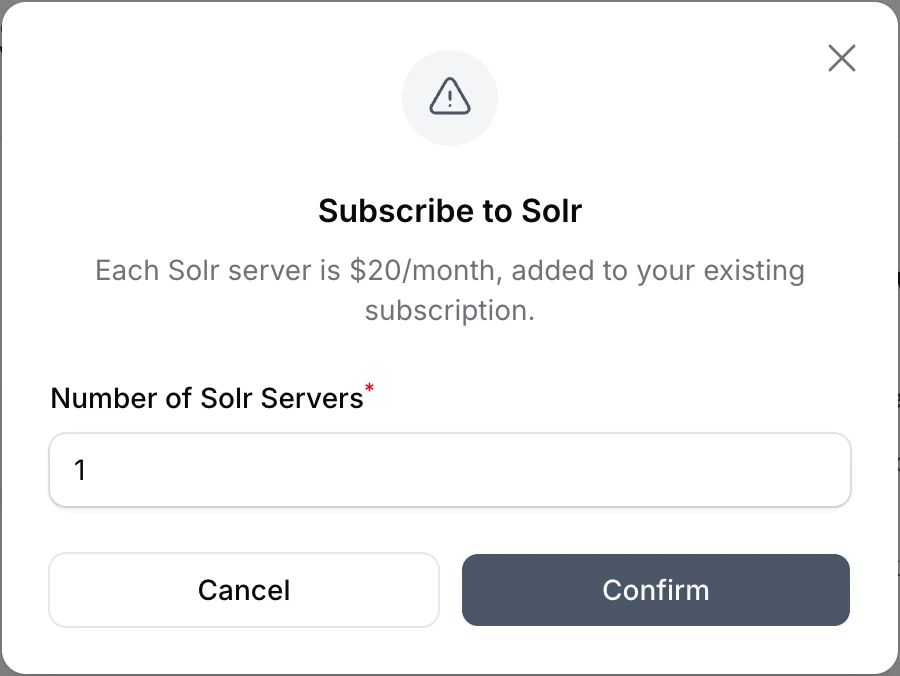
Click Confirm. Each server you subscribe for gives you one slot, and each slot lets you run one Solr server. The charge is added to your existing subscription.
Add your server
Once you are subscribed, the Solr Servers page shows how many of your slots are in use, and team owners see an Add Solr Server button.
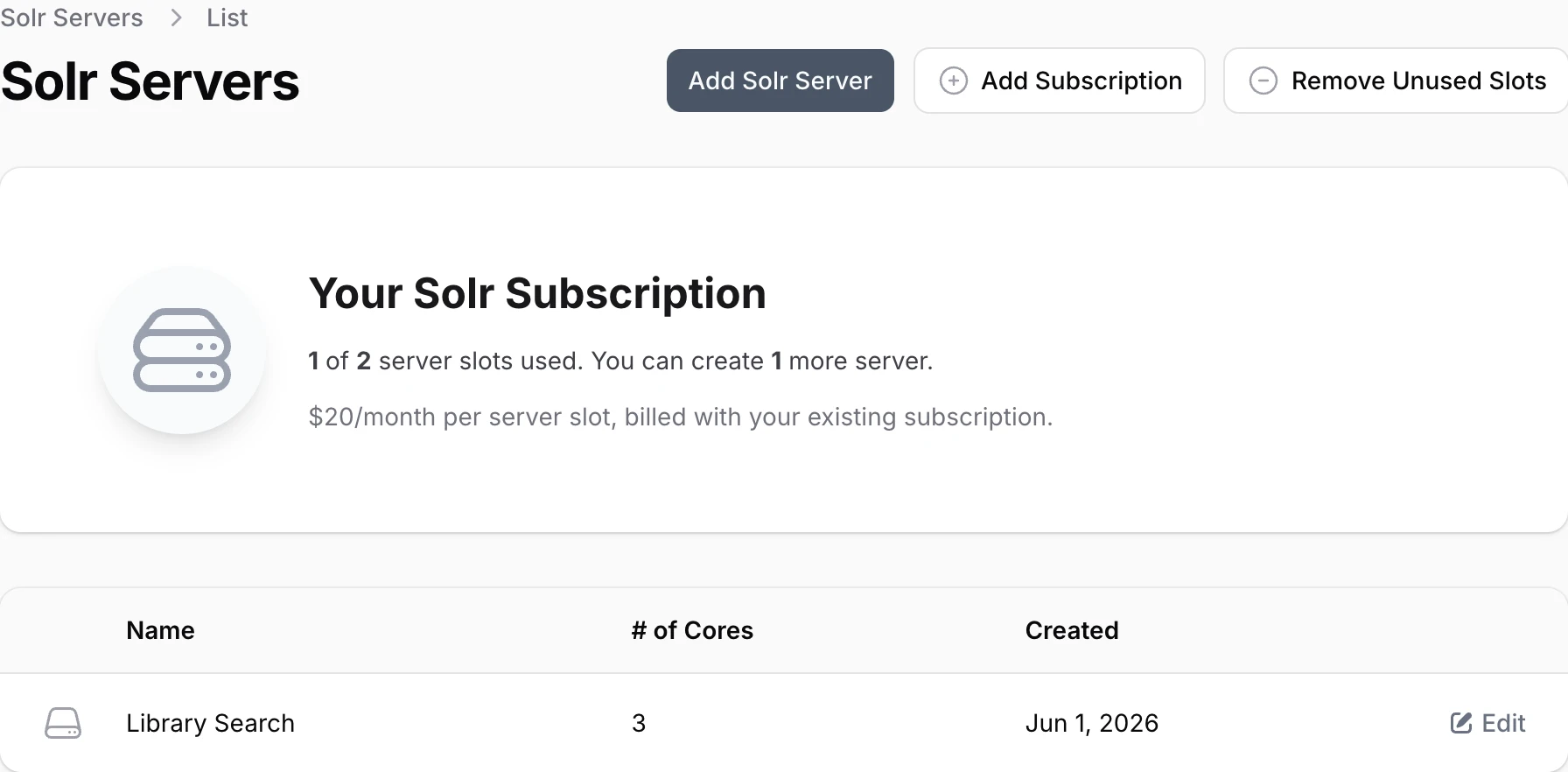
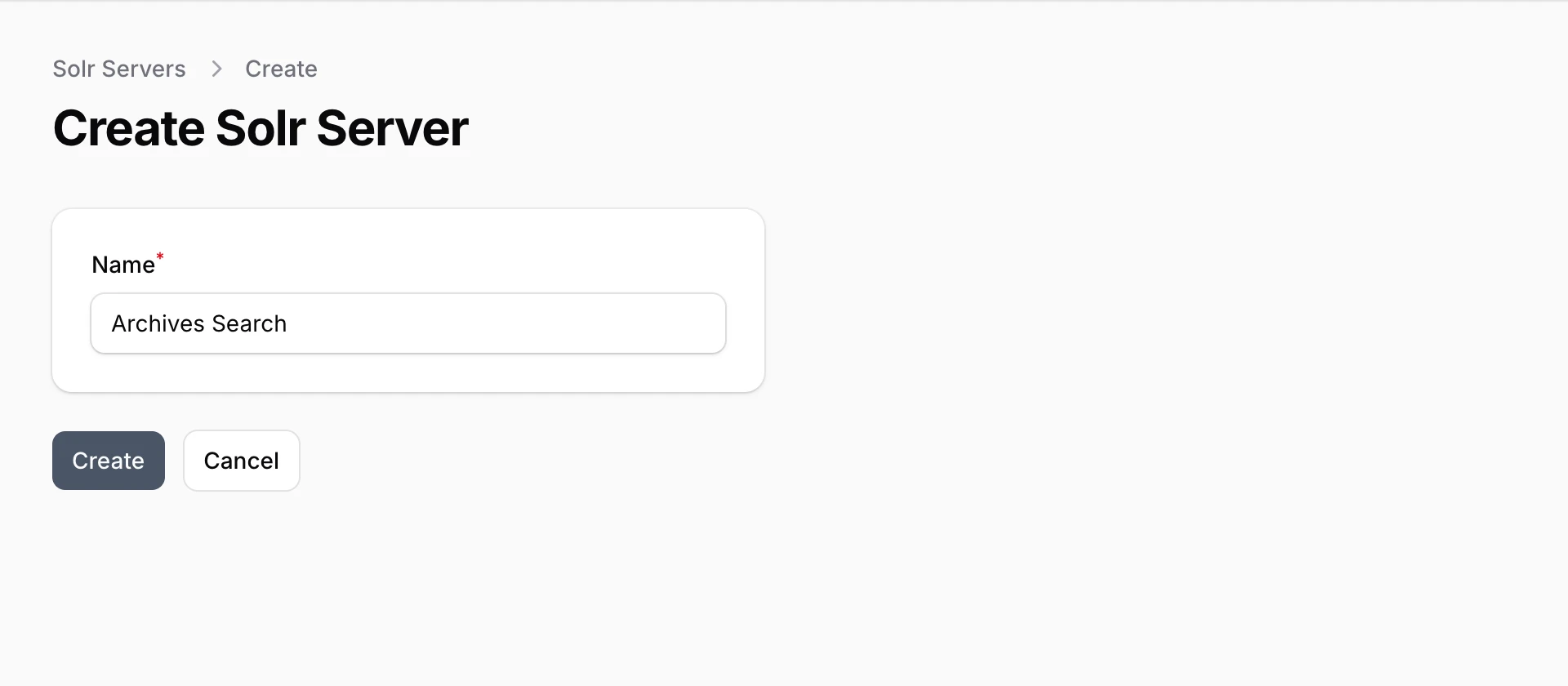
Click Add Solr Server, give your server a Name, and click Create. The name is just for you and your team, so pick something you will recognize.
We take it from there. Setting up usually takes 15 to 20 minutes, because this is a whole dedicated server being prepared just for your search. You land on the server's page, where a checklist at the top shows each setup step as it runs and the Actions list keeps a record of them. There is no need to sit and watch: we email you when the server is ready, and its cores appear on the page on their own.
If setup stops
Now and then a step runs into a problem, such as the hosting provider taking longer than usual. Setup then stops, and the server's page says which step it was on and why. We hear about it at the same time.
Click Retry setup at the top of the server's page to try again. Setup picks up from the step that stopped, and steps that already finished are not repeated. If it stops again, get in touch and we will sort it out.
Need more than one?
One server can hold several search indexes, so a single server usually covers a whole team of sites. But if you do want another, click Add Subscription on the Solr Servers page and choose how many Additional Servers you want. Each additional slot is $20 per month. Once the slot is added, use Add Solr Server again to create the new server.
If you later have more slots than servers, Remove Unused Slots lowers your slot count to match, with a prorated credit for the rest of the billing period.
What's next
When your server is ready, the last step is creating a core and pointing your site at it. We cover that in creating cores and connecting Omeka.