Once your team hosts more than a handful of sites, the Sites list can start to feel crowded. Circles are our answer to that: a light way to group related sites together, a bit like folders or labels. You might create a circle for each department, each client, each course, or each project, whatever grouping makes sense for how you work.
A site can belong to one circle, and then you can filter your Sites list to see just that group.
If you do not see Circles in your menu, your plan does not include them. Get in touch and we can tell you about plans that do.
Adding a site to a circle
There are a few ways to do it, depending on where you are.
On the site form
When you create a site, or on an existing site's Settings page, you will find a Circle field. Pick an existing circle from the list, or click the + button next to it to create a new one right there without leaving the page. On an existing site, click Save changes afterward.

You can also choose a circle when you copy a site or create sites from a template, which is a handy way to keep a whole class together.
Several sites at once
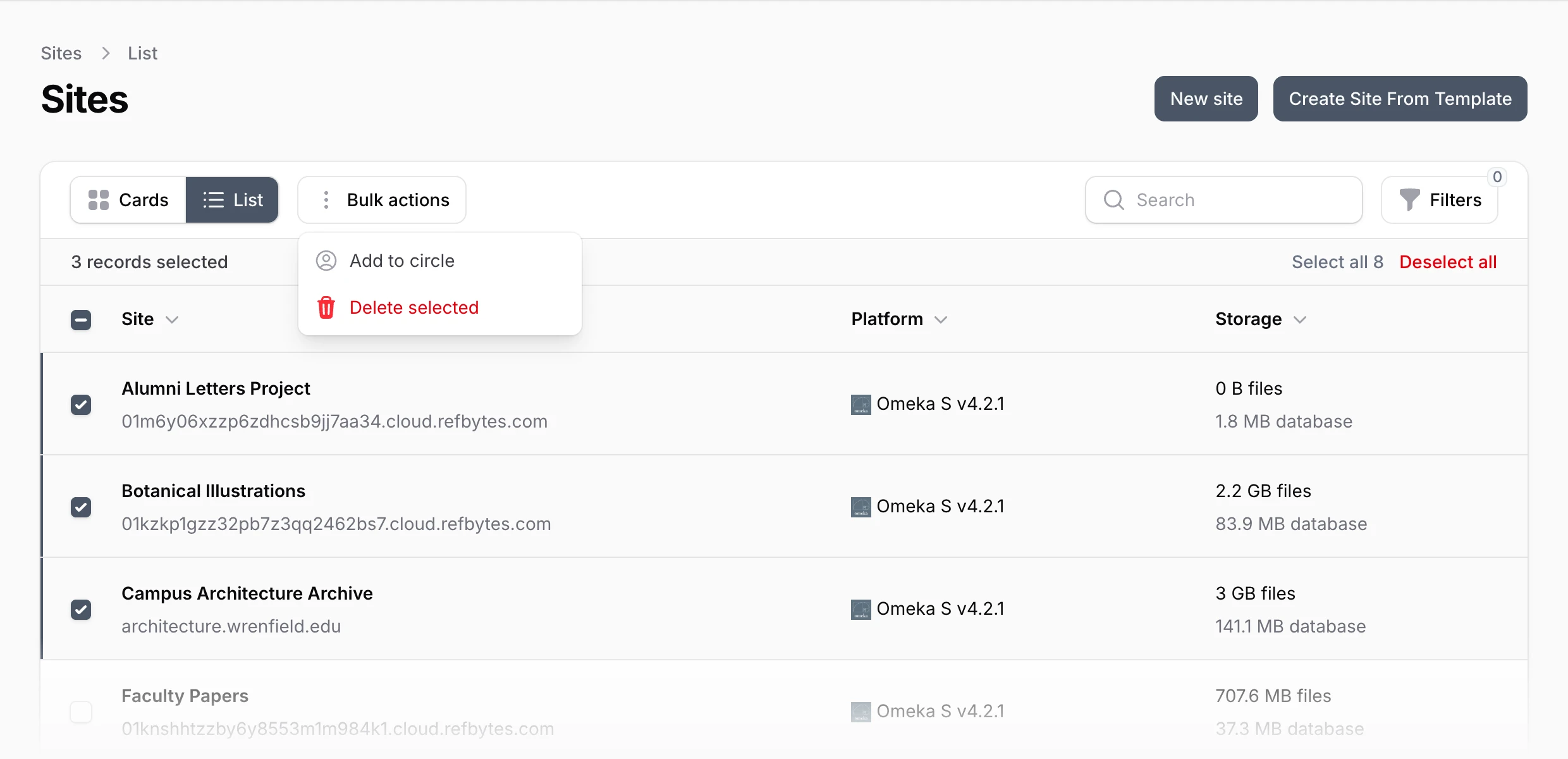
If you want to organize a batch of existing sites, there is a faster way. On the Sites page, click List to see your sites as rows, tick the checkboxes next to the sites you want to group, then click Bulk actions and choose Add to circle. Pick the circle and click Submit, and they all move together.
Filtering by circle
This is where circles pay off. On the Sites page, click Filters, choose a circle, and click Apply filters. The list narrows to just that circle's sites, which makes it much easier to focus on one project at a time. You can combine the circle filter with the platform filter too.
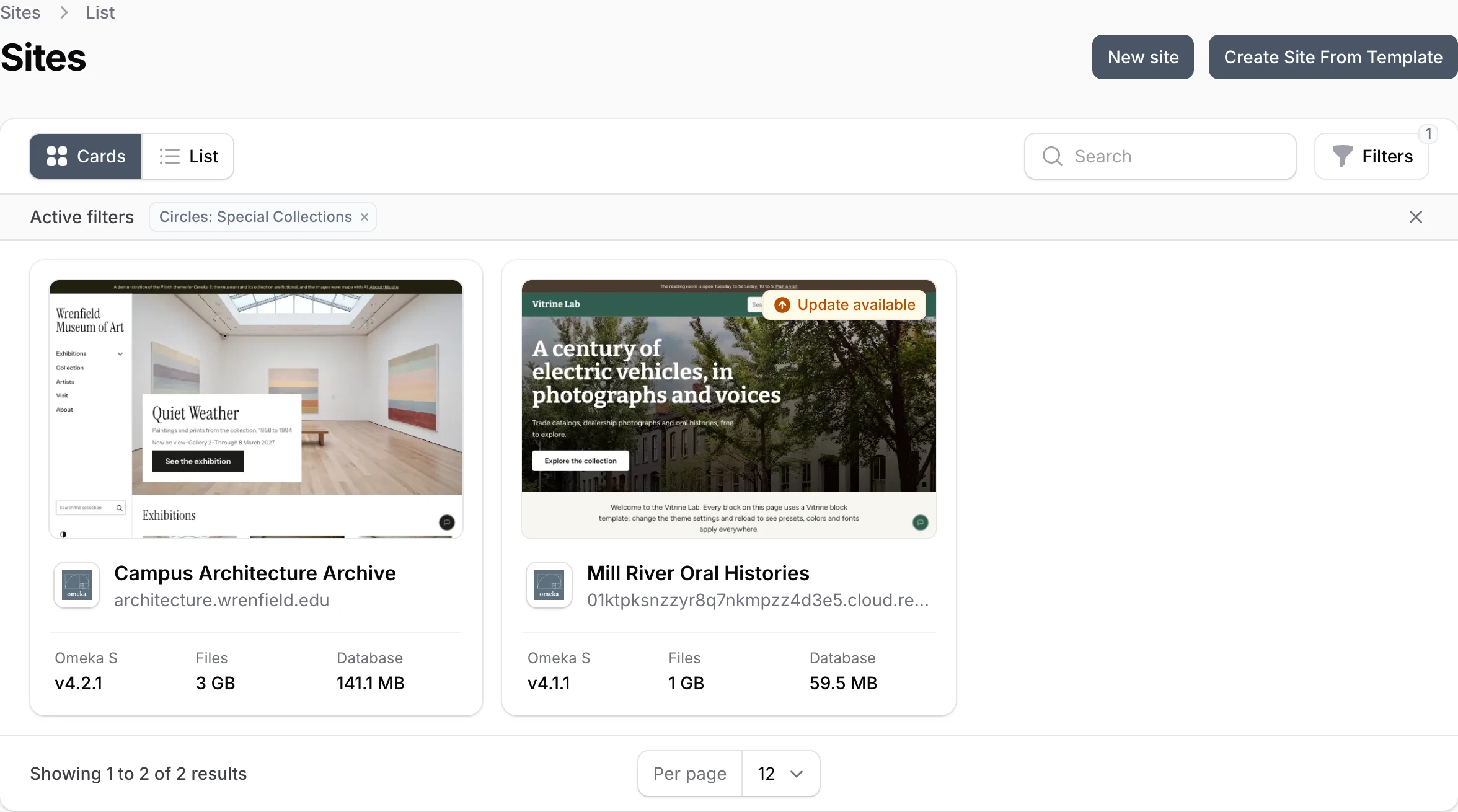
To see everything again, click the × at the end of the Active filters bar above the list.
A few things to know
- Circles are just for organizing. Putting a site in a circle does not change the site itself in any way.
- A circle is a label, not a wall. Sites in different circles still belong to the same team, and everyone on the team can see them all.
- To take a site out of its circle, clear the Circle field on the site's Settings page and save.
- Circles come with an active plan or trial. If you do not see the Circle field or filter, check on your team's plan.
That is really all there is to them. Simple on purpose, and surprisingly helpful once your list grows.